Explained
Webcams for Work, Explained
After reading this you will know which webcam specs genuinely affect how you look on a call and which are marketing noise you can safely ignore.
In this guide
A work webcam has one job: make you look clear and well-lit on video calls without any fuss. The trap is that boxes shout about 4K and megapixels, while meeting apps like Zoom, Teams and Meet compress your video so hard that most of those pixels never reach anyone. This guide explains what actually shapes your on-screen image so you buy for the call, not for the spec sheet.
The 30-second version
- Lighting beats resolution. How a camera handles a backlit window or weak overhead light matters far more on calls than its megapixel count, because meeting apps throw the extra pixels away.
- 1080p is plenty for meetings. Zoom, Teams and Meet compress your feed, so 4K is wasted on calls; step up to 2K only if you record locally on a large monitor.
- Check for a built-in microphone. Some cameras aimed at streamers ship with no mic at all, which forces you to add a headset if you want an all-in-one call device.
- A privacy shutter is a small feature worth having. A physical cover over the lens is peace of mind that software cannot match, and budget-friendly cameras include it too.
- Match focus type to how you sit. Fixed focus stays sharp at a steady desk distance, while autofocus suits people who lean in and move but can hunt and drift.
The products this guide is about
Our verdict on each, with the full reasoning on the companion review.
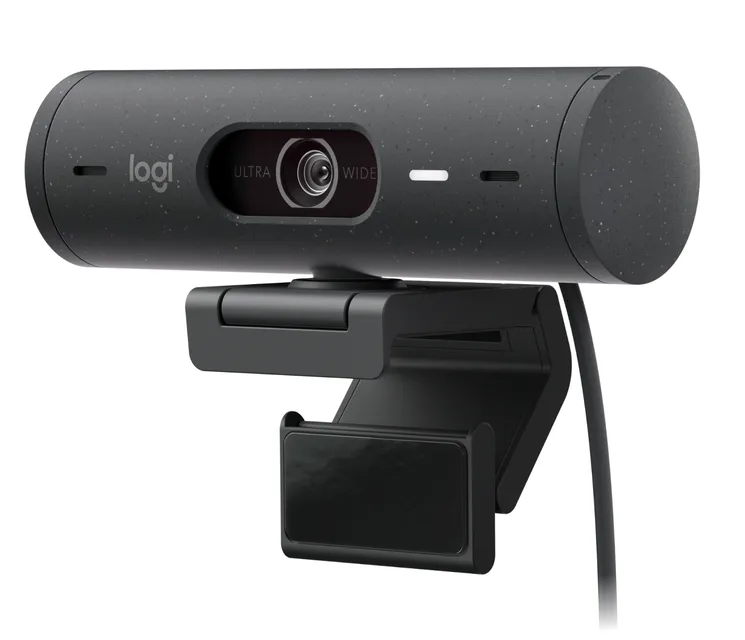
- Buy Logitech Brio 500 The no-drama pick for meetings - it fixes bad home lighting on its own and just works. Amazon
- Buy Anker PowerConf C200 The value champ - 2K sharpness, adjustable framing and solid mics for budget money. Amazon
- It depends Elgato Facecam MK.2 The best-looking image here - if you already have a mic and want real camera controls. Amazon
- Skip Logitech StreamCam A sharp streaming camera sold at a WFH price - but missing the things WFH actually needs. Amazon
What actually matters
- Low-light and backlight handling - the single biggest driver of how good you look, because most home offices are lit imperfectly and a window behind you turns your face into a silhouette without exposure correction.
- Resolution and frame rate - 1080p at 30fps covers virtually all meetings; 2K adds visible detail only on a large monitor or when you record locally, and higher frame rates matter mainly for smooth motion in streaming.
- Built-in microphone - decides whether the webcam is a one-device solution or needs a separate headset; dual noise-reducing mics can be clear enough to leave the headset in the drawer.
- Focus type - fixed focus versus autofocus is a genuine trade-off, not a quality tier: fixed stays reliably sharp within a range, autofocus adapts to movement but can wander.
- Field of view - a wider angle fits more of your room and more people, a narrower angle keeps the frame on you; some cameras let you switch between settings.
- Privacy shutter - a physical cover that guarantees the lens is blocked when you are not on a call.
- Mounting, ports and software - whether the mount tilts for a tall monitor, whether it is USB-C only (which older laptops need an adapter for), and whether the companion app helps with framing or just runs in the background.
The specs, in plain English
Green flags vs red flags
Green flags
- Explicit light correction or HDR named in the specs, not just a megapixel headline
- A built-in microphone listed (ideally dual and noise-reducing) if you want one device for calls
- A physical privacy shutter or lens cover
- A clearly stated focus range for fixed-focus models, so you know it fits your desk distance
- A mount that tilts and a tripod thread if you use a tall monitor or want flexible placement
Red flags
- Marketing that leads with 4K and megapixels but says nothing about lighting or exposure
- No built-in microphone on a camera sold for general video calls
- No privacy shutter
- Reports of autofocus hunting or drifting even in good light
- USB-C only with no mention of an adapter when your machine has older ports
- A mount that cannot tilt, which limits framing on a tall screen
Who's who: the brands
- Logitech - The default name in webcams, with a wide range from meeting-focused cameras with strong auto light correction to streaming models.
- Anker - Known for value: capable cameras with features like adjustable field of view and privacy covers at budget-friendly prices.
- Elgato - A creator and streaming brand whose cameras chase top image quality with premium sensors and manual controls, often without a built-in mic.
- Razer - A gaming and streaming brand offering webcams with strong low-light performance aimed at content creators.
- Microsoft - Makes webcams tuned for its own meeting and sign-in ecosystem, with a focus on straightforward business use.
How to read a listing without getting fooled
Read a webcam listing from the lighting down, not from the resolution up. The largest number on the box is usually the resolution, and it is the spec that matters least for calls, because meeting apps compress your video anyway. Look instead for words like HDR, auto light correction or a named exposure system, since those describe how you will look in a real, imperfectly lit room. Confirm whether a microphone is included and how many; a camera marketed to streamers may quietly have none. Check the focus line: fixed focus lists a distance range you must sit within, while autofocus adapts but can hunt. Note the field of view in degrees, whether there is a physical privacy shutter, and the connector type so you are not surprised by a USB-C-only cable. Treat AI labels and headline pixel counts as the least reliable part of the sheet.
How much should you spend?
Spending more on a webcam mostly buys better low-light performance, a higher-quality sensor and manual controls, not a dramatically better meeting experience. The value sweet spot sits in the middle: a mid-range camera with reliable auto light correction, a decent built-in mic and a privacy shutter covers almost everyone who takes daily calls, and paying up rarely improves how you look once the meeting app compresses the feed. Budget models can be a genuine bargain, sometimes delivering sharper 2K images and adjustable framing for far less, with the trade-off usually being fixed focus and weaker handling of harsh backlight. Stretching to a premium camera makes sense only if you care about the best possible image, already own a separate microphone, and sit at a fixed distance, since some top-tier models drop the built-in mic entirely. Match the spend to whether you are equipping a call station or a content-creation setup.
Questions, answered
Do I really need 4K, or is 1080p enough for work calls?
For meetings on Zoom, Teams or Meet, 1080p is plenty, because those platforms compress your video and discard the extra detail anyway. Good lighting and exposure matter far more than resolution. Consider 2K only if you also record locally or sit in front of a large monitor where the extra sharpness shows.
Will a webcam work without a separate microphone?
Most webcams aimed at general video calls include a built-in microphone that is adequate for meetings, so no headset is required. The exception is some streaming-focused cameras, which ship with no microphone at all and expect you to pair them with a separate mic or headset. Check the spec sheet before assuming a camera can handle your audio.
Is fixed focus a downside compared to autofocus?
Not necessarily. Fixed focus keeps you sharp without the hunting or drifting that some autofocus cameras show, as long as you sit within the stated distance range. If you stay at a stable desk distance it is an advantage; if you move around or lean in and out often, autofocus will suit you better.
What is the single most important thing to look for in a work webcam?
How the camera handles your lighting. Most home offices have a window or lamp that leaves you backlit or dim, and no amount of resolution fixes a face lost in shadow. Prioritize auto light correction or HDR, then worry about resolution, microphone and other features.
Why do some cameras include a physical privacy shutter and does it matter?
A physical shutter or lens cover blocks the camera mechanically, which is more reassuring than trusting a software toggle or a small indicator light. For anyone who keeps a webcam permanently mounted on a work machine, it is a small, worthwhile feature and is common even on budget models.
Or jump to the head-to-head: Logitech Brio 500 vs Anker PowerConf C200.