Explained
Wireless Presenters, Explained
After reading this you'll know exactly which presenter features matter for your rooms and audience, and which specs are just noise.
In this guide
A wireless presenter, sometimes called a clicker or presentation remote, is a small handheld remote that lets you advance and reverse slides while you walk around, without touching your laptop. The category looks simple, but two decisions trip people up: how the remote talks to your computer, and how it points at things. Get those two right and everything else falls into place.
The 30-second version
- Match the pointer to your rooms. A physical laser only appears on the wall or screen in the room, while an on-screen digital pointer is drawn onto the display itself, so it shows up on TVs, screen shares, and video calls where a laser dot is invisible.
- Dual connectivity is the safe default. A remote that offers both a plug-and-play USB receiver and Bluetooth works on almost any laptop, tablet, or phone you might present from.
- Buy enough range with headroom. Meeting rooms are covered by even modest range, but large halls and stages are where longer-reaching remotes earn their keep, and real-world range usually runs lower than the number on the box.
- Pick the battery style that suits your nerves. A long-life AAA lets you swap in a fresh cell seconds before you walk on stage, while USB-C rechargeable saves you from ever buying batteries.
- Controls you can work by feel beat button count. The best remotes let you find forward, back, and blank-screen without looking down mid-sentence.
The products this guide is about
Our verdict on each, with the full reasoning on the companion review.
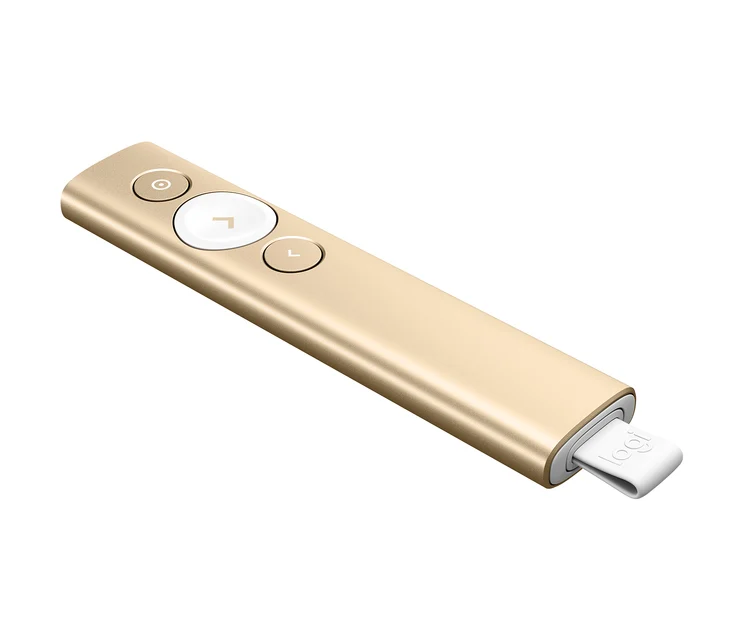
- Buy Logitech Spotlight Presentation Remote The only one here whose on-screen highlight works on a TV, a projector, or a video call where a laser dot would be invisible. Amazon
- Buy Logitech R500s Laser Presentation Remote The default sensible pick, with dual connectivity, a full year on one AAA, and controls you can find without looking. Amazon
- It depends Kensington Presenter Expert Wireless with Green Laser A big-room specialist: the green laser is far easier to see across a hall, but you give up Bluetooth and any on-screen pointer. Amazon
- Skip Kensington Wireless Presenter with Red Laser & Nano Receiver Nothing broken here; it's just so basic that a small step up to the R500s gets you Bluetooth, longer battery, and better ergonomics. Amazon
What actually matters
- Pointer type decides whether your emphasis reaches everyone. A laser is fine for a room full of in-person viewers; a digital on-screen pointer is the one that also reaches remote and hybrid audiences.
- Connectivity is about compatibility and convenience. A USB receiver is instant and needs no pairing but occupies a port; Bluetooth frees the port and works with devices that have no USB-A slot.
- Range determines how far you can roam from the laptop before the signal stutters. Match it to your biggest room, not your average one.
- Battery type and life affect how much you have to think about the remote. Year-long AAA cells and quick-charging rechargeables both remove the classic dead-clicker-mid-talk fear in different ways.
- Button layout and ergonomics decide whether you can operate the remote by feel. Distinct, well-spaced buttons matter more than a long feature list.
- Platform and app support covers whether it works with your computer and slide software, and whether the fancy features need installed software that a locked-down or borrowed laptop might block.
- Receiver connector (USB-A vs USB-C) matters because a receiver that fits your laptop's ports directly saves you carrying a dongle adapter.
The specs, in plain English
Green flags vs red flags
Green flags
- Offers both a USB receiver and Bluetooth, so it connects to nearly any device
- States clear platform support for Windows, macOS, and mobile with common slide apps
- Basic slide control works with no software install, even if extras need an app
- Green laser or a digital on-screen pointer if you present in large or hybrid settings
- Long, honest battery life (a year on AAA, or months per charge) rather than vague claims
- A well-spaced button layout you can operate by feel, plus onboard storage for the receiver
Red flags
- USB receiver only with no Bluetooth fallback, if your laptop's ports are often taken
- A red laser marketed for big rooms, where it's likely to wash out on bright screens
- No digital pointer if any of your audience watches remotely or over a screen share
- Advertises features like a timer or magnifier without mentioning the required app
- Vague or missing platform support, especially for macOS or your specific slide app
- Dated ergonomics and disposable-only power at a price where better-equipped rivals exist
Who's who: the brands
- Logitech - The mainstream default; known for dual-connectivity remotes and the digital on-screen pointer that works on video calls and TVs.
- Kensington - Office-accessory maker offering driver-free plug-and-play clickers, including big-room green-laser models and simple budget red-laser ones.
- Canon - Best known for cameras, but also makes straightforward presentation remotes aimed at everyday slide control.
- DinoFire - A value-focused brand common in online marketplaces, typically offering RF 2.4 GHz clickers with rechargeable batteries at lower prices.
How to read a listing without getting fooled
Start by finding two things on any listing: how it connects and how it points. If it says "2.4 GHz USB receiver" it's plug-and-play but uses a port; if it also says "Bluetooth," you get a fallback that fits tablets and port-starved laptops. Then check whether the pointer is a physical laser (look for "red" or "green") or a digital on-screen effect like highlight, spotlight, or magnify, because only the digital kind survives a video call or a TV. Read the range figure as a ceiling, not a promise, and mentally knock it down for walls and crowds. Check the power line for "AAA" versus "rechargeable / USB-C," and confirm the platforms cover your computer and slide app by name. Finally, scan for the word "app" or "software": if the headline features need it installed, remember they'll vanish on a locked-down or borrowed machine, leaving you a basic clicker.
How much should you spend?
The biggest price drivers are the pointer technology and connectivity, not the clicking itself, because nearly every remote advances slides reliably. Budget models get you plug-and-play control and a red laser, which is genuinely fine for occasional use in a small room, but they tend to skip Bluetooth, run on disposable batteries, and feel dated in the hand. The value sweet spot is a mid-range remote with dual connectivity, a comfortable button layout, and long battery life, which covers the vast majority of everyday presenters without paying for extras they'll never use. Stepping up to premium is worth it in two specific cases: you regularly present to hybrid or remote audiences and need a digital on-screen pointer, or you speak in large halls where a green laser's extra visibility genuinely matters. If neither applies, spending more mostly buys capability you won't touch.
Questions, answered
Do I need a laser pointer or a digital on-screen pointer?
It depends on where your audience sits. A physical laser only puts a dot on the wall or screen in the room, so it's perfect for fully in-person talks. A digital on-screen pointer is drawn onto the display itself, which means it also appears on TVs, in recordings, and on video calls where a laser dot would be completely invisible. If any of your audience ever watches remotely or over a shared screen, choose the digital pointer.
Is Bluetooth or a USB receiver more reliable?
Both are reliable, so the real difference is convenience. A USB receiver is instant plug-and-play with no pairing, but it takes up a port and you have to carry the little dongle. Bluetooth frees the port and works with tablets and phones that have no USB-A slot, at the cost of a one-time pairing step. A remote that offers both lets you use whichever the presenting machine supports, which is why it's the safest choice for most people.
How much range do I actually need?
For a normal meeting room or classroom, even modest range is plenty and covers essentially every remote on the market. You only need to prioritize long range for large lecture halls, ballrooms, or stages where you roam far from the laptop. Keep in mind that walls, bodies, and other 2.4 GHz devices shorten real-world range, so it's smart to leave some headroom above your room size rather than buying exactly to spec.
Is a USB-C rechargeable remote better than AAA batteries?
Each has a genuine trade-off. A rechargeable remote saves you from buying batteries and often quick-charges in about a minute for hours of use, but if it goes flat you need to find a cable. An AAA-powered clicker can run close to a year and lets you swap in a fresh cell seconds before you present, which some people prefer as a safety net for high-stakes talks. Neither is universally better; pick the one that matches how you'd rather manage the risk of a dead remote.
Will a wireless presenter work with my Mac, Keynote, and PowerPoint?
Almost always, yes. The core advance-and-reverse function works across Windows and macOS with the major slide apps, including PowerPoint, Keynote, Google Slides, and PDF, and many remotes support mobile devices too. The catch is advanced features: things like a digital pointer, timer, or cursor control often rely on installing the maker's companion software, so double-check platform support by name and remember those extras may not work on a locked-down or borrowed computer.
Or jump to the head-to-head: Logitech Spotlight Presentation Remote vs Logitech R500s Laser Presentation Remote.