Explained
Thunderbolt Docks, Explained
After reading, you'll understand why a dock's port list is not a capability list, and which three numbers on a spec sheet actually predict how it will behave on your desk.
In this guide
First-time buyers usually compare docks by counting ports, which is the one metric that tells you almost nothing. Every port on a dock shares a single cable back to the computer, so the total advertised throughput of the ports is always far larger than the link can carry. Two other things trip people up just as often: the display claims are set by your laptop rather than the dock, and the wattage on the box is usually the power supply's total rather than what your laptop receives. Once you know where to look, spec sheets get much easier to read.
The 30-second version
- Ports share one link, so a longer port list means more contention, not more total bandwidth.
- Display limits come from the host, which is why two identical docks behave differently on two different laptops.
- Host charging and supply wattage are different numbers, and the gap between them is what the dock has left for everything else.
- Thunderbolt certification guarantees a floor, covering minimum speed, PCIe support, DMA protection and cable testing that plain USB4 does not require.
- Published lane counts are a trust signal, because a maker willing to say a slot runs at x2 is telling you what it traded away.
The products this guide is about
Our verdict on each, with the full reasoning on the companion review.
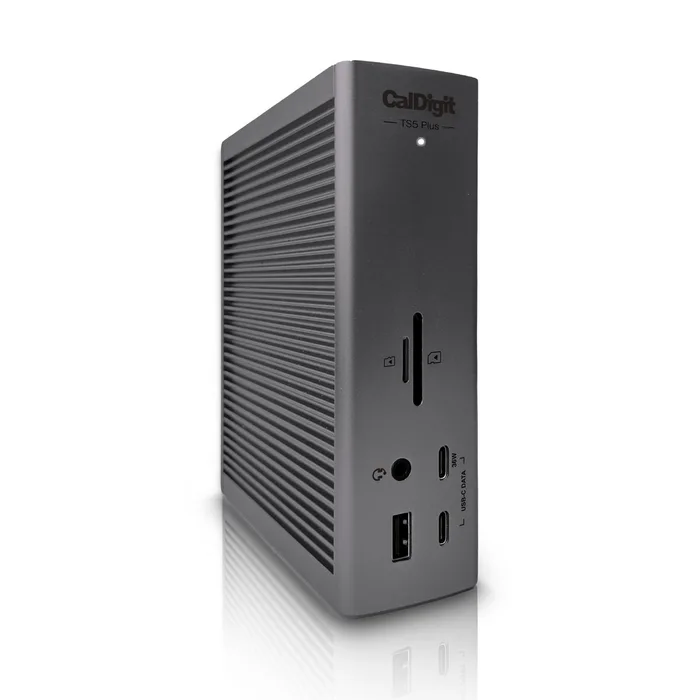
- Buy CalDigit TS5 Plus Thunderbolt 5 Dock Twenty ports with the internal bottlenecks widened rather than papered over. Amazon
- Buy OWC 11-Port Thunderbolt 5 Dock (OWCTB5DOCK11P) The sane amount of dock for most desks, and unusually straight about the fact that your laptop sets the display limit. Amazon
- It depends Sonnet Echo 21 Thunderbolt 5 SuperDock A studio dock that tells you exactly how it divided the bandwidth up, which almost nobody else does. Amazon
- Skip Anker Prime TB5 Docking Station (14-in-1) A genuinely well made dock sold on numbers that belong to the cable and the laptop rather than to the dock. Amazon
What actually matters
- Host link bandwidth - this is the single pipe every port shares, at 40 Gbps for Thunderbolt 4 and 80 Gbps bidirectional for Thunderbolt 5. Nothing a dock does can create more of it.
- PCIe throughput - most of the useful dock functions, including Ethernet and attached drives, ride on tunnelled PCIe. Intel's baseline is 32 Gbps for Thunderbolt 4 and 64 Gbps for Thunderbolt 5.
- USB hub topology - many docks hang every USB port off one 10Gb/s controller, so those ports share 10 Gbps between them. A dock with two controllers gives you two separate pools.
- Host charging wattage - the power the upstream port pushes into your laptop. Thunderbolt 4 requires up to 100W on at least one computer port and Thunderbolt 5 requires up to 140W.
- Total power budget - the bundled supply has to cover host charging, every accessory port and the dock itself, so a small brick behind a big charging claim means the accessory ratings are ceilings.
- Display Stream Compression - a lossy compression scheme that lets a link carry more pixels than it otherwise could. Several headline resolutions are only reachable when the host supports it.
- Certification - Intel requires mandatory certification for computers, accessories and cables carrying the Thunderbolt logo, plus cable quality audits and DMA protection. It is a floor you can check.
The specs, in plain English
Green flags vs red flags
Green flags
- A per-host display chart that names specific processor generations rather than a single headline resolution.
- Published PCIe lane counts for internal slots, or named controller chips for Ethernet.
- A bundled power supply comfortably larger than the host charging figure plus the accessory port ratings.
- UHS-II on both the SD and microSD readers rather than just the full size slot.
- The product appears in Intel's Thunderbolt product listing, which you can search before buying.
Red flags
- A headline transfer figure that appears nowhere in the maker's own specification table.
- Display claims stated as a flat number with no mention of the host or of Display Stream Compression.
- A charging wattage quoted without saying whether it is host charging or the supply total.
- Two video connectors that a footnote says cannot be used at the same time.
- No mention of Ethernet speed, card reader class or USB hub arrangement anywhere on the page.
Who's who: the brands
- CalDigit - Long-running Thunderbolt specialist known for high port counts, generous power supplies and detailed published datasheets.
- Sonnet - Pro AV and studio focused, and unusually willing to publish PCIe lane counts and controller chips in its technical specifications.
- Ugreen - Value-focused accessory brand with high port count Thunderbolt docks.
- OWC - Mac-oriented storage and dock maker that states host display limits explicitly, including Apple's per-port display behaviour.
- Anker - Charging brand whose docks are well built and compact but tend to lead with interface numbers rather than implementation detail.
How to read a listing without getting fooled
Start at the bottom of the spec sheet, not the top. Find the Ethernet speed, the card reader class, and the wattage of each port group, then add the port wattages together and compare that total with the bundled supply. If the sum is well above the supply, the port ratings are maximums that cannot all be drawn at once, which is normal but worth knowing. Next, find the display section and check whether it names host processors or just states a resolution. If it only states a resolution, treat the claim as the dock's connector capability and go and look up your own laptop's display limit separately. Finally, note the Thunderbolt generation and compare it with the port on your computer, because a newer dock on an older host runs at the older host's speed.
How much should you spend?
Budget tier docks in this category are generally USB-C or USB4 hubs rather than certified Thunderbolt docks, and the compromises tend to be Ethernet speed, card reader class and how much power reaches the laptop. Mid-range is where certified Thunderbolt 5 docks start, and at that level you can expect around 140W of host charging, UHS-II card readers and 2.5Gbps Ethernet, which suits most desks. Premium buys you 10 Gigabit Ethernet, separated USB controllers, larger power supplies that let every port hold its rating at once, and in some cases internal storage slots or analogue audio outputs. The jump from mid-range to premium is worth it only if you can name the specific subsystem you need faster, because the host link speed is identical across all of them.
Questions, answered
Will a Thunderbolt 5 dock work with my Thunderbolt 4 laptop?
Yes. Thunderbolt is backward compatible, and the docks reviewed here list Thunderbolt 4 hosts as supported (check each maker for Thunderbolt 3 support, which varies). The link will run at the older host's speed, so you get Thunderbolt 4 performance from a Thunderbolt 5 dock. That can still be worth it if you expect to replace the laptop soon, but if you do not, a Thunderbolt 4 dock will behave identically for less money.
Do I need the cable that came in the box?
Use it if you can. Intel requires mandatory certification and cable quality audits for Thunderbolt cables, and passive cables are rated for specific lengths and speeds. Thunderbolt 5 uses PAM-3 signalling to reach 80 and 120 Gbps over the same passive cable designs that carried 40 Gbps, so a good cable matters. A cheap uncertified cable can cause a dock that keeps dropping.
Why does my dock's Ethernet port not work on some computers?
Because Ethernet on most docks depends on tunnelled PCIe, and PCIe support is not universal. CalDigit's own specifications note that Ethernet on some of its docks needs a PCIe capable host. The USB Implementers Forum states that PCIe tunnelling is optional for USB4 hosts, so a laptop with a plain USB4 port may not light up every function on the dock even though the cable fits.
Is 10 Gigabit Ethernet on a dock worth paying for?
Only if you have somewhere to plug it in. It needs a 10 Gigabit switch or a directly attached 10 Gigabit device to be any faster than a cheaper port, and it costs more to implement, which is part of why 10 Gigabit docks sit at the top of the range. If you work with shared storage or move large media files over a local network it pays for itself quickly. For ordinary internet use, 2.5Gbps is already well past what most connections deliver.
Or jump to the head-to-head: CalDigit TS5 Plus Thunderbolt 5 Dock vs OWC 11-Port Thunderbolt 5 Dock (OWCTB5DOCK11P).