Explained
USB Flash Drives, Explained
After reading this you'll know exactly which specs matter on a flash drive, which are marketing fluff, and how to pick one that won't frustrate you.
In this guide
A USB flash drive looks like the simplest gadget you can buy, but the tiny print on the packaging hides big differences in speed and fit. The number most people fixate on, capacity, is rarely what makes a drive feel fast or slow, and the connector on the end decides whether it even works with your devices. This guide translates the specs so you can tell a genuinely good drive from a cheap one dressed up with a flattering headline number.
The 30-second version
- Write speed is the one that bites. Manufacturers advertise the higher read speed, but slow writes are what make copying a large folder feel painful, so that's the number to hunt for.
- Match the connector to your ports. USB-C for modern phones and laptops, USB-A for older machines, TVs and cars, or a dual-connector drive if you genuinely switch between both.
- Bigger isn't better if you'll never fill it. Size capacity to how you actually move files; paying for space you won't use is the most common way people overspend.
- Never trust a flash drive with your only copy. Treat every drive as convenient transport, not a backup, because they get lost, wear out and fail with no warning.
- A cap-less design is one less thing to lose. Sliders and captive caps beat loose removable caps, which are easy to lose.
The products this guide is about
Our verdict on each, with the full reasoning on the companion review.
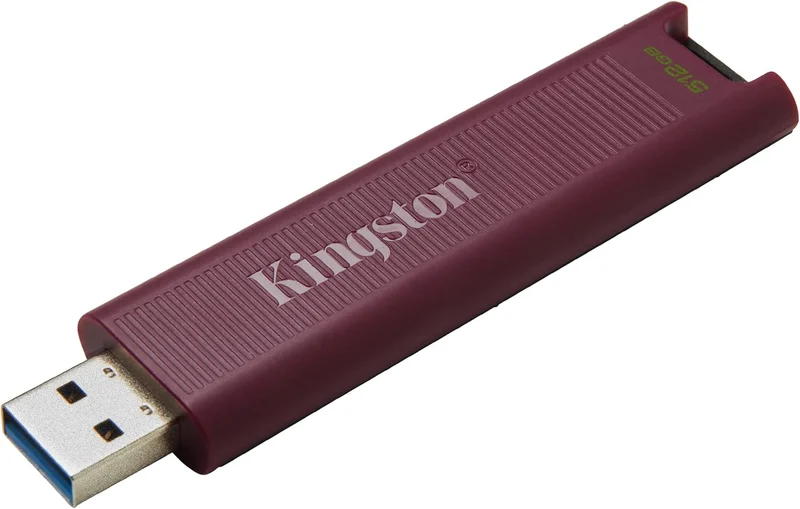
- Buy Kingston DataTraveler Max (USB-A) A pocketable flash drive aimed at portable-SSD-like speed.
- Buy Samsung Type-C USB Flash Drive A tiny USB-C drive that handles everyday transfers for the money. Amazon
- It depends SanDisk Ultra Dual Drive Luxe USB Type-C A handsome all-metal drive with both plugs - convenience first, speed second. Amazon
- Skip Kingston DataTraveler Exodia Onyx Cheap and widely stocked, but the slow writes show why it's cheap. Amazon
What actually matters
- Real-world write speed decides how long a big copy actually takes, and it's usually much slower than the advertised read speed, especially on budget drives.
- Connector type (USB-C vs USB-A) determines whether the drive plugs into your devices at all, so this is the first thing to get right before comparing anything else.
- Capacity should match your habits, big enough for how you transfer files but not so large you pay for empty space you'll never touch.
- Build and cap design affect how likely the drive is to survive a year in a bag or pocket; a metal body or cap-less slider is less likely to lose parts than thin plastic with a loose cap.
- Everyday size and shape matter because a long, chunky drive can block neighbouring ports and a tiny one is easy to misplace.
- Reliability over time is worth weighing, since a drive that runs hot or has a wobbly slider may wear out faster than a sturdier rival.
The specs, in plain English
Green flags vs red flags
Green flags
- The listing states both read and write speeds clearly, not just one big number.
- The connector matches the ports you use most, or the drive offers both.
- A cap-less slider or captive cap design so there's nothing to lose.
- Solid build, such as a metal shell.
- A sensible capacity for your needs rather than the biggest number on sale.
Red flags
- Only a read speed is advertised, with the write speed buried or missing entirely.
- Suspiciously large capacity at a suspiciously low price, a classic sign of an overstated or fake drive.
- A loose removable cap that's easy to lose, or flimsy plastic that flexes.
- A drive that runs very hot or slows to a crawl on big copies.
- A single connector that doesn't fit your main device, with no adapter included.
- No mention of the USB generation, making the real speed impossible to judge.
Who's who: the brands
- Samsung - Makes its own flash memory and sells compact USB-C drives aimed at everyday use.
- Kingston - A long-standing storage specialist with everything from top-speed performance drives to cheap, widely stocked budget sticks.
- SanDisk - One of the most recognised flash names, with dual-connector and metal-bodied drives in its range.
- PNY - A value-focused brand offering no-frills drives, best judged carefully on write speed.
- Lexar - A memory-card and flash-drive maker with a spread of mid-range drives.
How to read a listing without getting fooled
Start by ignoring the giant headline number, which is usually the read speed, and hunt for the write speed instead; if a listing won't tell you the write speed, assume it's slow and treat that as a warning. Next, confirm the connector actually fits your devices, because a fast drive with the wrong plug is useless to you. Check the USB generation (a 3.x label) to sanity-check the speed claim, and remember your computer's port has to match to hit those numbers. Treat capacity as a separate decision from speed; a huge drive can still be slow. Finally, weigh the price against build quality, and be wary of a drive that offers enormous storage for a tiny price, which often points to overstated or counterfeit capacity.
How much should you spend?
The sweet spot for most people is a mid-range drive from a known brand: it pairs a sensible everyday capacity with a connector that fits modern devices and write speeds that won't test your patience. Spending up usually buys faster, more consistent transfers and sturdier builds, which is worth it if you routinely move large video files or use the drive for quick backups, but wasted money if you only ever carry a few documents. The bargain-bin end is a false economy: the drives are cheap precisely because their writes are slow and their plastic is basic, and a small step up in budget can deliver a better everyday experience. Above all, don't pay for a mountain of capacity you'll never fill, since extra gigabytes add cost without making the drive any faster.
Questions, answered
Why is my flash drive so slow when copying files even though it's advertised as fast?
Because the advertised speed is usually the read speed, and writing data onto the drive is much harder work for the memory inside. Budget drives in particular can write far more slowly than they read, so a big folder copy crawls even though files open quickly. If a copy feels painfully slow, the drive's write speed, not its capacity, is the culprit.
Do I need USB-C or USB-A?
Match the drive to the ports you use most. Newer laptops, phones and tablets favour the small, reversible USB-C plug, while many desktops, TVs, cars and older laptops still use the flat rectangular USB-A. If you regularly switch between both, a dual-connector drive saves carrying an adapter; otherwise just pick the single plug that fits your main devices.
How much capacity do I actually need?
For documents, photos and the occasional video, a mid-size capacity is plenty and keeps the price sensible. Only step up to a larger size if you routinely move big video files or use the drive for backups. Buying far more space than you'll use mainly adds cost, so size it to how you actually transfer files.
What's the difference between a flash drive and a portable SSD?
A flash drive is a small, self-contained stick that plugs straight into a port with no cable. A portable SSD is a larger drive in its own enclosure that usually connects by cable and tends to deliver faster, more consistent speeds on very large transfers. Flash drives win on pocketability and price; portable SSDs win on endurance and heavy workloads.
Is a flash drive safe for storing my only copy of important files?
No, treat any flash drive as convenient transport rather than a backup. They can be lost, worn out by heavy repeated writing, or simply fail without warning, so always keep a second copy of anything important somewhere else. The golden rule stands whichever drive you own: never let a flash drive hold the only copy of files you can't afford to lose.
How can a cheap drive advertise such huge capacity?
Sometimes it genuinely can, but a suspiciously large capacity at a suspiciously low price is a classic red flag for an overstated or counterfeit drive that reports more space than it actually has. Stick to known brands from reputable sellers, and be sceptical of no-name drives offering enormous storage for pocket change.
Or jump to the head-to-head: Kingston DataTraveler Max (USB-A) vs Samsung Type-C USB Flash Drive.