Explained
Wireless Keyboards, Explained
After reading this you will understand every spec on a wireless keyboard listing and know which ones actually matter for the way you work.
In this guide
A wireless keyboard listing throws around words like mechanical, low-profile, 2.4 GHz, gasket-mounted, and hot-swappable as if everyone already knows them. Most of it comes down to three questions: how the keys feel under your fingers, how the keyboard talks to your devices, and how often you have to think about charging it. This guide translates the jargon so you can match a board to your desk instead of to a spec sheet.
The 30-second version
- Typing feel is a preference, not a ranking. Low-profile boards are quiet and slim; mechanical boards are tactile and louder, and neither is objectively better for productivity.
- Connection type decides how you switch devices. Bluetooth with multiple saved devices lets you hop between a laptop and desktop; a 2.4 GHz receiver or wired mode adds reliability.
- Battery claims are backlight-dependent. The same keyboard can last months with the lights off and only a week or two with backlighting on, so read which number a listing quotes.
- Layout affects both workflow and desk space. A number pad and control knob help some tasks but make the board wider, while low-profile designs keep your desk tidy.
- Cross-platform support is not automatic. Confirm the board labels and remaps keys for both Windows and Mac if you move between them, because some are tuned for a single ecosystem.
The products this guide is about
Our verdict on each, with the full reasoning on the companion review.
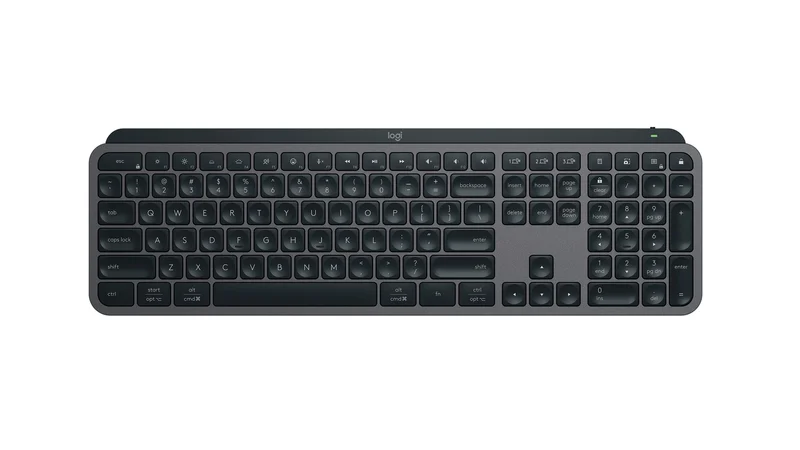
- Buy Logitech MX Keys S The low-profile productivity keyboard that does everything a desk worker needs and gets out of the way. Amazon
- Buy Keychron V6 Max A full-size mechanical board with a genuinely great typing feel and triple-mode wireless, at a price that undercuts the big names. Amazon
- It depends Apple Magic Keyboard with Touch ID and Numeric Keypad Effortless if you live on an Apple Silicon Mac, frustrating the moment you need to share it with anything else. Amazon
- Skip Incase Ergonomic Keyboard (Designed by Microsoft) The revival of the classic Microsoft ergonomic shape is welcome, but it is wired-only, which rules it out of a wireless setup.
What actually matters
- Typing feel and noise - how comfortable and quiet the board is over a full workday matters far more than any headline feature, and it splits mainly into low-profile versus mechanical.
- Multi-device switching - if you use more than one computer, look for at least two or three saved connections with one-press switching so you are not re-pairing all day.
- Connection reliability - Bluetooth is fine for typing, but a 2.4 GHz USB receiver or a wired mode gives a rock-solid link when you cannot afford dropouts.
- Battery life and charging - prefer USB-C recharging and check whether the quoted runtime assumes backlighting on or off, because that changes the number dramatically.
- Layout and footprint - decide whether you need a number pad, function row, and knob, and weigh that against how much desk space the board will occupy.
- Cross-platform labeling - verify the keyboard supports and clearly labels both Windows and Mac modifier keys if you switch operating systems.
- Ergonomics - a comfortable resting posture, key height, and optional wrist support matter over long sessions, especially on taller mechanical boards.
The specs, in plain English
Green flags vs red flags
Green flags
- Two or three saved device slots with one-press switching, ideal if you juggle a laptop and a desktop
- USB-C recharging plus a clear, honest battery figure that states whether backlighting is on or off
- A choice of connection modes (Bluetooth plus a 2.4 GHz receiver or wired USB) for flexibility and reliability
- Modifier keys labeled and remappable for both Windows and Mac
- A stated, comfortable typing feel backed by consistent owner reports about noise and accuracy
Red flags
- Wired-only or single-device pairing sold as a 'wireless, everywhere' board
- Headline battery life that quietly assumes the backlight is switched off
- A promised wireless model that is listed but not available to buy
- No mention of platform support, leaving Mac or Windows compatibility a guess
- Vague 'ergonomic' claims with no detail on layout, key feel, or wrist support
Who's who: the brands
- Logitech - Mainstream productivity keyboards known for refined low-profile boards, easy multi-device switching, and its own Bolt USB receiver.
- Keychron - Enthusiast-friendly mechanical boards offering hot-swap switches, QMK/VIA customization, and triple-mode wireless at accessible prices.
- Apple - Slim, quiet scissor-key boards built for the Mac, with tight ecosystem integration and, on some models, Touch ID.
- Incase - Recently revived the well-loved Microsoft ergonomic keyboard designs, focused on split, curved layouts and comfortable posture.
- Microsoft - Long associated with the classic split ergonomic keyboard shape that many comfort-focused typists still seek out.
How to read a listing without getting fooled
Start by finding the two things listings often bury: the exact connection options and the conditions behind the battery claim. 'Wireless' can mean anything from full multi-device Bluetooth to a single 2.4 GHz dongle, so look for how many devices it pairs with and whether there is a wired fallback. When you see a big battery number, check whether it assumes the backlight is off, because that is where the impressive figures usually come from. Treat 'mechanical', 'low-profile', and named switch types as feel-and-noise descriptors, not quality grades, and read owner reports for words like quiet, mushy, or satisfying rather than trusting adjectives in the marketing copy. Finally, confirm platform support explicitly: a board that only labels Windows keys, or one whose best features are reserved for a single ecosystem, is a compromise if your desk mixes systems.
How much should you spend?
How much to spend tracks how central the keyboard is to your day. If you type for hours, a keyboard is one of the highest-value upgrades on your desk, and the mid-range to premium tiers buy you genuinely better comfort, sturdier build, smoother multi-device switching, and longer battery life. The value sweet spot sits in the mid-range, where mechanical boards from customization-friendly makers deliver excellent feel without flagship pricing. Paying up to the premium tier makes sense when you want a polished, quiet low-profile design, seamless switching across several devices, and refined software. Spending more is not worth it when you are paying largely for an ecosystem badge or a design flourish rather than better ergonomics or connectivity, and the cheapest boards often cut corners on feel, battery, and reliability in ways you will notice every day.
Questions, answered
Is a wireless keyboard reliable enough for serious work?
Yes. Modern Bluetooth Low Energy and 2.4 GHz connections are stable for everyday typing, email, and coding, and owners rarely report lag. If you want the most rock-solid link, choose a board that also offers a USB receiver or a wired mode, and keep the battery charged.
Do I need a mechanical keyboard to be productive?
No. Productivity comes down to comfort and accuracy, not switch type. Many people type fastest and quietest on a low-profile board, while others prefer the tactile feedback of a mechanical one. It is a personal preference, so try both feels if you can before deciding.
What is the difference between Bluetooth and a 2.4 GHz receiver?
Bluetooth is cable-free and pairs directly with phones, tablets, and computers, and it usually supports switching between several saved devices. A 2.4 GHz receiver is a small USB dongle that usually gives a faster, more reliable link to one machine at a time. Some keyboards offer both so you can pick reliability or flexibility as needed.
How should I read battery life claims?
Check what the number assumes. A backlit keyboard can last only a week or two with the lights on but stretch to months with them off, so the same board may advertise wildly different figures. Look for USB-C recharging and treat any headline number as a best case unless the listing says otherwise.
Will a wireless keyboard work on both Windows and Mac?
Often, but not always. Boards designed for both label the modifier keys for each platform and let you remap them, and some include swappable keycaps. Keyboards built around a single ecosystem may work elsewhere over Bluetooth but reserve their best features for their home platform, so confirm cross-platform support before buying.
Do split or curved ergonomic keyboards actually reduce wrist strain?
Many owners of split and curved boards report a more natural hand and wrist posture, and ergonomics guidance broadly supports reducing awkward angles. Results vary by person, however, and this is general product information, not medical advice. If you have pain or a repetitive-strain concern, consult a qualified professional.
Or jump to the head-to-head: Logitech MX Keys S vs Keychron V6 Max.