Explained
Ultrawide Monitors, Explained
After reading this, you'll be able to look at any ultrawide monitor listing and know exactly which specs matter for your desk - and which are marketing noise.
In this guide
An ultrawide monitor stretches the familiar widescreen shape into something closer to two screens fused together, giving you dual-monitor workspace without the bezel down the middle. The catch is that ultrawide spec sheets are dense with jargon - aspect ratios, curve radii, panel chemistries, refresh rates - and the numbers that sound most impressive aren't always the ones that affect your day. This guide translates all of it into plain English so you know what you're actually paying for.
The 30-second version
- Panel type sets the personality. OLED wins motion clarity, contrast, and HDR; a quality LCD (especially IPS Black) wins long-session text comfort and removes any burn-in worry.
- 34 inches at 21:9 is the sweet spot for most desks - roughly the workspace of two smaller monitors, one cable, and no seam in the middle.
- Refresh rate should match your hours, not your ego: 100-120Hz is genuinely smooth for work and casual play, while 240Hz mainly rewards fast-paced gaming.
- The ports can matter as much as the panel. USB-C or Thunderbolt with laptop charging, a KVM switch, and Ethernet can replace an entire docking station - or be entirely absent.
- Curve radius and screen finish quietly shape daily comfort: deeper curves immerse gamers, gentler ones suit design work, and matte coatings forgive bright rooms where glossy ones glare.
The products this guide is about
Our verdict on each, with the full reasoning on the companion review.
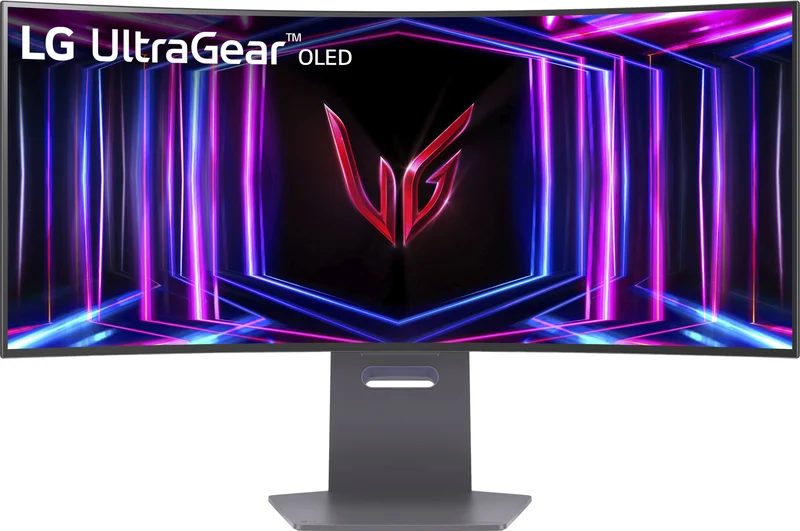
- Buy LG UltraGear 34GS95QE-B The 240Hz OLED ultrawide that delivers flagship-class gaming for noticeably less than its rivals. Amazon
- Buy Dell UltraSharp U3425WE A Thunderbolt-hub workhorse that turns one cable into an entire desk setup. Amazon
- It depends ASUS ROG Swift OLED PG34WCDM A polished 34-inch OLED with 90W USB-C, if you're willing to pay flagship money for it.
- Skip Samsung Odyssey OLED G8 (G85SD) A gorgeous QD-OLED held back by a slower refresh rate and smart-TV baggage its rivals don't carry. Amazon
What actually matters
- Panel technology - OLED, QD-OLED, or LCD (IPS, VA, IPS Black) - decides contrast, motion clarity, text sharpness, and whether burn-in is even a conversation. It's the single biggest fork in the road.
- Size and resolution together determine sharpness. The mainstream combo is 34 inches at 3440x1440; bigger ultrawides need more resolution (and more graphics power) to stay crisp.
- Refresh rate and response time control how smooth motion looks. Office work is happy at 100-120Hz; competitive gaming benefits from 165Hz and up, especially on OLED's near-instant pixels.
- Connectivity and hub features - USB-C/Thunderbolt with power delivery, KVM switching, Ethernet - decide whether one cable runs your whole desk or you still need a separate dock.
- Curve and coating affect comfort more than spec sheets suggest: an aggressive curve pulls you into games, a matte finish tames window reflections, glossy looks richer in dim rooms.
- Brightness behavior, not just the peak number. OLEDs dim when the whole screen is bright white (think spreadsheets in a sunny room); LCDs hold full brightness all day.
- Warranty terms on OLED models - some makers explicitly cover burn-in, and that coverage is worth checking before you buy.
The specs, in plain English
Green flags vs red flags
Green flags
- The maker states an explicit multi-year warranty that names burn-in coverage on OLED models
- Full-size HDMI and DisplayPort inputs, plus USB-C with laptop charging if you dock a laptop
- The maker states factory color calibration or accuracy figures, so you may not need calibration gear
- A refresh rate of at least 100Hz - smooth scrolling is a real daily-comfort upgrade over 60Hz
- A usable on-screen menu and a stand with height and tilt adjustment, the things you touch every week
Red flags
- A premium price paired with a slower refresh rate than same-price rivals - you're paying for the badge, not the panel
- Built-in smart-TV software or remotes on a monitor meant for a desk, which adds friction
- Micro-sized or proprietary video connectors that need adapters instead of standard full-size ports
- HDR badges on LCDs without real local dimming - entry-level 'HDR400'-style claims add little actual HDR
- No mention of burn-in coverage in the warranty of an OLED model
- Gaming-first ultrawides sold for docked-laptop work with no USB-C input or KVM at all
Who's who: the brands
- LG - Its UltraGear line includes gaming OLED ultrawides, often priced below flagship rivals.
- Dell - Its UltraSharp line is the productivity benchmark - accurate color, superb build, and Thunderbolt hubs with KVM and Ethernet that replace a dock.
- ASUS - ROG gaming monitors chase the performance crown, with panel-cooling heatsinks and flexible ports, usually at flagship prices.
- Samsung - Its Odyssey line includes QD-OLED ultrawides; beautiful panels, though some models bundle a smart platform not everyone wants.
- MSI and Gigabyte - Value challengers that frequently offer OLED or fast-VA ultrawides with strong specs for less, with slightly less polished software and support.
How to read a listing without getting fooled
Start with the panel type and ignore the marketing name wrapped around it - 'UltraGear', 'Odyssey', and 'ROG' tell you the target audience, not the quality. Then check size and resolution as a pair: 34 inches at 3440x1440 is the proven combination, and anything larger at the same resolution will look softer. Read the refresh rate against your actual use rather than the biggest number on the box. Next, scroll past the panel specs to the port list, which is where gaming and productivity models quietly diverge: look for whether USB-C exists at all, whether it charges a laptop, and whether the video inputs are full-size. Treat peak-brightness claims carefully - OLED peak numbers describe small highlights, not a full white screen - and be suspicious of HDR badges on LCDs with no local dimming. Finally, check the warranty text itself on any OLED: the confident manufacturers name burn-in explicitly.
How much should you spend?
The gap between the cheapest and priciest 34-inch ultrawides is driven almost entirely by panel technology and hub features. Basic VA and IPS models at modest refresh rates cost the least and are fine for pure office work. The value sweet spot for most buyers sits with either a fast OLED sold at the aggressive end of its class or a well-equipped IPS productivity model with a full Thunderbolt hub - both deliver the experiences that matter (motion or docking) without flagship pricing. Spending up to a true flagship buys refinement such as nicer materials and extra ports rather than a fundamentally different picture, so it's only worth it if you'll genuinely notice those margins. Be wary of paying premium money for a model whose core spec, like refresh rate, trails its same-tier rivals: that's the clearest sign the price is buying the brand rather than the monitor.
Questions, answered
Is an ultrawide better than two separate monitors?
For most people, yes. You get roughly the workspace of two smaller screens with no bezel seam, one cable, and simpler window management. Dual monitors still win if you want to angle one screen toward a colleague or run a display in portrait orientation.
Will an ultrawide work with my laptop?
Almost certainly for the screen itself - any modern laptop with HDMI, DisplayPort, or USB-C video output can drive 3440x1440. The real question is convenience: a productivity ultrawide with USB-C or Thunderbolt charging turns one cable into power, display, and peripherals, while gaming-focused models often make you juggle separate cables and a charger.
Should I worry about OLED burn-in for work use?
It's real but manageable. Modern OLED ultrawides include pixel-refresh routines and screen-shift features, and some makers cover burn-in under warranty. If your screen shows the same static toolbars eight hours a day, every day, an LCD removes the concern entirely.
Do all games and apps support the 21:9 shape?
Most modern games and virtually all productivity software support it well. Some older games and some competitive titles lock to 16:9, showing black bars at the sides, and streaming video shot in standard widescreen will also letterbox. Most people find the trade-off worth it, but it's worth knowing before you buy.
How much graphics power do I need for ultrawide gaming?
3440x1440 pushes about a third more pixels than standard 1440p, so demanding games at high frame rates want a mid-range to high-end modern graphics card. Esports and older titles run fast on much more modest hardware, and upscaling technologies close the gap in heavier games. For desktop work, any recent computer handles an ultrawide easily.
Is 120Hz enough, or should I insist on 240Hz?
For office work, browsing, and casual gaming, 120Hz looks and feels genuinely smooth - a big step up from a standard 60Hz office monitor. Competitive and fast-paced gamers will notice the extra motion clarity of 240Hz, especially on OLED with its near-instant pixel response. If gaming isn't a priority, put the money toward panel quality or connectivity instead.
Or jump to the head-to-head: LG UltraGear 34GS95QE-B vs Dell UltraSharp U3425WE.