Explained
USB-C Hubs and Docks, Explained
After reading this, you will understand what every line on a USB-C hub spec sheet means and which ports actually matter for the way you work.
In this guide
A USB-C hub turns one laptop port into many, but the category is a minefield of overlapping standards, misleading port counts, and specs that only pay off if your laptop supports them. Most buyers get tripped up by two things: assuming any hub will charge their laptop and drive a second monitor, and trusting a big number on the box. This guide decodes the jargon so you can match a hub to your actual hardware.
The 30-second version
- Your laptop decides everything. A full-speed dock needs a Thunderbolt or USB4 port; plug it into a plain USB-C laptop and you quietly lose much of what you paid for.
- Charging is not automatic. A hub only powers your laptop if it has Power Delivery pass-through and you plug your charger into it, and even then some wattage is lost to the hub's own ports.
- One display is the norm. Most single-cable hubs drive a single monitor; native dual-display output usually requires a Thunderbolt or USB4 dock.
- Port count hides trade-offs. A fifteen-in-one spec sheet often conceals a catch, such as software-compressed video or no laptop charging at all.
- Heat is normal, dropouts are not. Aluminum bodies warm up under load by design; worry only when ports disconnect or transfers slow.
The products this guide is about
Our verdict on each, with the full reasoning on the companion review.
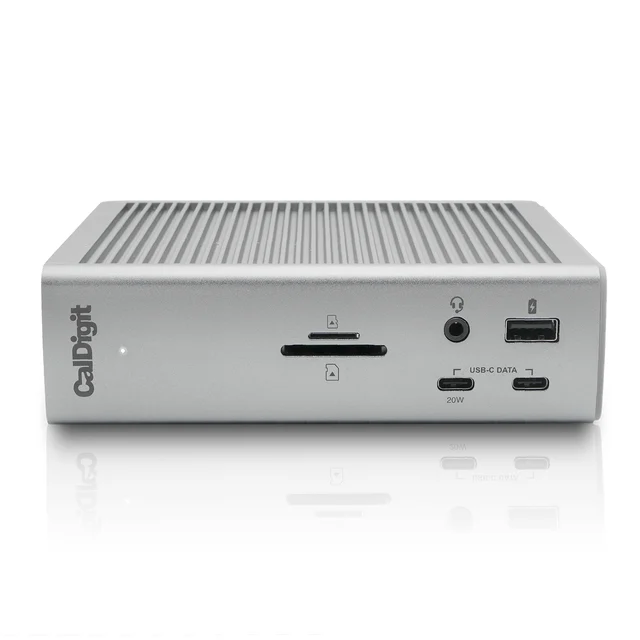
- Buy CalDigit TS4 A do-everything Thunderbolt 4 dock that earns its high price only if your laptop and workload actually need it. Amazon
- Buy UGREEN Revodok Pro 109 A well-rounded 9-in-1 hub with an unusually sensible port mix for the money, if a single monitor is enough. Amazon
- Buy Satechi OntheGo 7-in-1 Multiport Adapter A pocket hub that trades desk-grade power and dual displays for genuine portability and a tidy magnetic design. Amazon
- Skip Wavlink WL-UG69DK13 DisplayLink Dock A port-stuffed DisplayLink dock whose extra monitors come with software compression, driver hassle and no laptop charging.
What actually matters
- Host support (Thunderbolt / USB4 vs plain USB-C) - this single fact decides whether a dock runs at full capability or at half speed, so confirm what your laptop's port actually is before anything else.
- Charging via Power Delivery (PD) pass-through - if you want one cable to charge the laptop and connect peripherals, the hub must accept your charger and pass enough wattage to comfortably exceed what your machine draws.
- Display output and refresh rate - count the external monitors you need and confirm the hub drives them at a usable refresh rate; 4K at 30Hz feels sluggish for a cursor, so look for 4K60 stated explicitly.
- Wired networking (Ethernet speed) - a built-in Ethernet jack is more reliable than Wi-Fi for calls and large transfers, and the better docks now exceed the old Gigabit ceiling.
- Data bandwidth on the ports - the difference between 5Gbps, 10Gbps, and higher decides how fast external drives and busy peripherals actually run.
- Build and thermals - a metal-bodied hub with airflow stays reliable under sustained load, while a plastic unit buried in a drawer is the classic recipe for dropped connections.
- Honest port labeling and firmware track record - hubs that clearly state what each port delivers, and get firmware updates, age far better than mystery-spec bargains.
The specs, in plain English
Green flags vs red flags
Green flags
- The listing states Thunderbolt 4 or USB4 explicitly, not just "USB-C"
- 4K60 display output is named clearly, rather than a vague "4K supported"
- Power Delivery wattage is quoted and comfortably exceeds your laptop's charger rating
- An aluminum or metal body, which spreads heat instead of trapping it
- Each port is labeled with its actual speed and function
- A history of firmware updates and broad Mac and Windows compatibility
Red flags
- A very high port count with no explanation of the compromises behind it
- "4K" advertised with no refresh rate, which usually means 30Hz
- No mention of Power Delivery or charging when you expect one-cable operation
- Reliance on DisplayLink presented as native dual-monitor support
- A plastic shell paired with claims of high-wattage, high-bandwidth performance
- Vague port descriptions such as "USB-C" with no speed and no wattage
Who's who: the brands
- CalDigit - Premium Thunderbolt docks known for high port counts, strong charging, and dependable cross-platform behavior.
- UGREEN - Value-focused maker whose hubs pack a sensible port mix, often with capable charging, for a modest outlay.
- Satechi - Design-led accessories, including compact travel hubs with tidy, portable form factors.
- Anker - A widely stocked mainstream brand spanning budget hubs to higher-end docks, with broad availability.
- Wavlink - Budget-oriented brand often built around DisplayLink for multi-monitor setups, with the compromises that approach carries.
How to read a listing without getting fooled
Read a hub listing from your laptop outward, not from the biggest number down. First find the host requirement: if the fine print says Thunderbolt or USB4 is needed for full function, and your laptop only has plain USB-C, expect reduced speed and features. Next, treat every "4K" claim as 30Hz until you see 60Hz stated, and treat every "charges your laptop" claim as absent until you see a Power Delivery wattage. Then map the port list to what you actually own, ignoring ports you will never use, because a padded count exists to impress rather than inform. Finally, look for what the listing does not brag about: honest specs name refresh rates, Ethernet speeds, and card-reader classes, while evasive ones hide them.
How much should you spend?
Spend according to your laptop and your desk, not the spec sheet. Compact single-monitor hubs sit at the affordable end and are the right call if you run one display and a handful of peripherals; paying for a full Thunderbolt dock here buys headroom you will never use. The step up in cost tracks real capability: native dual displays, faster-than-Gigabit Ethernet, high-wattage charging, and the bandwidth for fast external storage. Those features are worth the premium only when your laptop supports Thunderbolt or USB4 and your workload genuinely needs them. The worst value is a bargain hub that hides its compromises, or an expensive dock whose best features your laptop cannot use, so the sweet spot is the least capable device that still covers everything you actually connect.
Questions, answered
What is the difference between a USB-C hub and a Thunderbolt dock?
A USB-C hub is a compact, lower-cost adapter that splits one port into several, usually for a single display. A Thunderbolt dock is larger and pricier, with far more bandwidth for dual monitors, faster storage, and high-wattage laptop charging over one cable. Match the type to your laptop and how much you connect.
Will any USB-C hub charge my laptop?
No. A hub charges your laptop only if it has Power Delivery pass-through and you plug your own charger into it. It then powers the laptop and peripherals through one cable. Check the wattage, because some pass-through designs reserve power for internal ports, so a demanding laptop may still charge slowly.
Can I run two external monitors from a USB-C hub?
Usually not natively. Most single-cable hubs drive one display over HDMI or DisplayPort. Native dual-monitor output typically needs a Thunderbolt or USB4 dock. DisplayLink docks can add screens on limited laptops, but they compress the video in software, which adds lag and CPU load and needs a driver.
Why does my USB-C hub get hot?
Heat is normal. A hub pushing high wattage and fast data generates warmth, and aluminum shells spread it deliberately. Concern is warranted only if ports drop out or transfers slow, which can signal thermal throttling. Give the hub airflow rather than burying it on a shelf.
Do USB-C hubs need drivers?
Most do not. Standard USB-C and Thunderbolt hubs are plug-and-play on Windows and macOS. The exception is DisplayLink docks, which require a driver install and, on Mac, a screen-recording permission before the extra monitors will work. That extra setup is a real drawback.
Is a higher port count always better?
No. A long port list often hides trade-offs, such as software-compressed video, a slow card reader, capped Ethernet, or no laptop charging. Count only the ports you will actually use and confirm each one delivers the speed you need, rather than being swayed by the total.
Or jump to the head-to-head: CalDigit TS4 vs UGREEN Revodok Pro 109.