Explained
KVM Switches, Explained
After reading this you'll understand what a KVM switch does, why cheap ones cause black screens, and exactly which specs to match to your monitors and computers.
In this guide
A KVM switch lets one keyboard, mouse, and set of monitors control several computers, swapping your whole desk to a different machine with a button press. The category sounds simple, but it's full of boxes that drop a display, scramble your windows, or quietly cap your resolution on every switch. The trick is knowing which specs actually protect your dual-monitor setup and which are marketing.
The 30-second version
- KVM stands for keyboard, video, mouse - it routes your monitors too, not just your peripherals, which is what separates a real KVM from a plain USB sharing box.
- EDID handling is the make-or-break feature - a switch that holds a stable EDID stops the black screens and rearranged windows that ruin cheap boxes.
- Match the connector and bandwidth to your gear - HDMI 2.1 or DisplayPort 1.4 for 4K high-refresh, and confirm it drives two independent displays rather than mirroring.
- Count your computers honestly - most switches top out at two hosts, so if a third machine is coming, buy for it now.
- USB-C is elegant but has a catch - one USB-C cable usually carries a single video stream, so true dual monitors need an MST-capable host or a downstream dock.
The products this guide is about
Our verdict on each, with the full reasoning on the companion review.
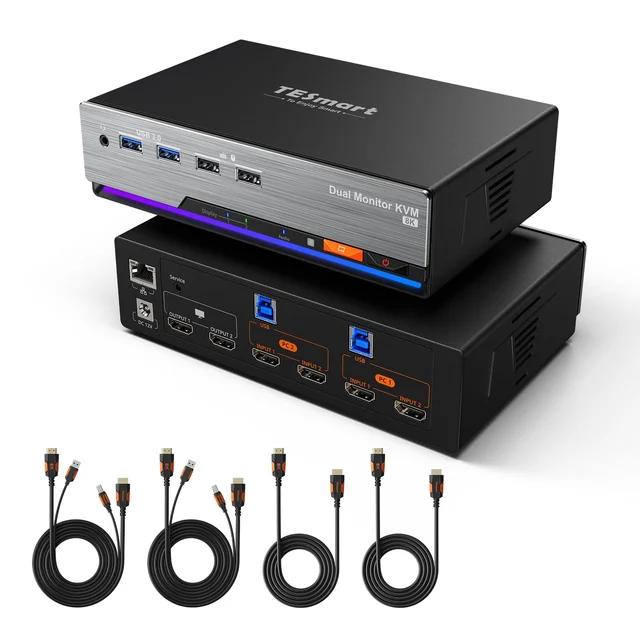
- Buy TESmart HKS202-M24 Dual Monitor KVM Switch Dual 4K 144Hz HDMI 2.1 switching for two desktops, with the EDID smarts that cheap boxes lack. Amazon
- Buy Level1Techs DisplayPort 1.4 KVM Switch (Dual Monitor, Four Computer) The enthusiast DisplayPort pick: dual DP 1.4 up to 4K 120Hz, broad peripheral compatibility, and up to four machines.
- It depends Level1Techs USB-C KVM Switch v3 (135W Power Delivery) One USB-C cable per host for video, data, and power, but it drives a single monitor.
- It depends CKL 922HUA-3 Dual Monitor HDMI KVM Switch A budget two-computer, dual-HDMI switch at 4K 60Hz, without stated EDID emulation. Amazon
- It depends ATEN CS1942DP Dual Display DisplayPort KVMP Switch An office-grade dual DisplayPort switch with RS-232 control and independent audio switching, capped at 4K 60Hz. Amazon
- Skip TESmart HDC202-X24 Thunderbolt 4 KVM Dock Slick Thunderbolt docking, but too restrictive and too pricey for a typical multi-computer desk. Amazon
What actually matters
- Real dual-monitor support (not mirroring) - the whole point of a multi-monitor desk is two independent screens; confirm the switch drives both at full resolution and refresh after every switch, rather than cloning one image.
- EDID emulation - this is the key feature that keeps your displays and window layout stable when you swap machines; without it you get black-screen flicker and reshuffled desktops.
- Connector and bandwidth match - buy HDMI 2.1 or DisplayPort 1.4 to match your GPUs and monitors; an older switch or the wrong standard will silently cap you below 4K high-refresh.
- Number of computer ports - two-port boxes are common, but a growing desk needs three or four inputs; adding a machine later usually means buying a whole new switch.
- USB speed for peripherals - a USB 3.x hub matters if you switch external drives, webcams, or fast dongles; a USB 2.0 hub is fine for just a keyboard and mouse.
- Switching method - front button, keyboard hotkeys, and a remote each suit different desks; make sure at least one is convenient where you actually sit.
- Build and thermal reliability - KVMs run continuously and can overheat or flake in cheap enclosures; a solid metal box with good reviews for longevity is worth prioritizing.
The specs, in plain English
Green flags vs red flags
Green flags
- The listing explicitly names a dedicated EDID chip or robust EDID emulation, not just 'EDID compatible'.
- It states true dual-monitor / dual-screen support with two independent outputs, not mirroring.
- The video standard and ceiling are spelled out (e.g. HDMI 2.1 up to 4K 144Hz, or DisplayPort 1.4 high-refresh).
- Multiple switching methods are offered - button, keyboard hotkeys, and ideally a remote.
- Owner reports over long periods mention stable switching with no black screens or window reshuffles.
Red flags
- Vague video claims like 'supports 4K' with no refresh rate or HDMI/DisplayPort version stated.
- No mention of EDID at all, or reviews complaining about black screens and rearranged windows on switch.
- 'Dual monitor' that turns out to be mirroring the same image, not two independent screens.
- A two-port box sold to someone who clearly needs three or more computers down the line.
- USB-C models pitched as effortless dual-monitor when the host or dock lacks MST support.
- A suspiciously cheap generic box with thin specs and a flood of reviews about overheating or dropouts.
Who's who: the brands
- Level1Techs - Enthusiast-favorite specialist known for DisplayPort and USB-C switches that work with demanding USB peripherals; its DisplayPort and USB-C KVMs do not include monitor emulation, which it sells as a separate repeater.
- TESmart - Broad, value-minded lineup covering HDMI 2.1 dual-monitor switches through Thunderbolt docks, generally with proper EDID handling at more accessible prices.
- IOGEAR - Long-established KVM maker with a wide catalog aimed at office and prosumer desks, from simple USB switches to multi-monitor models.
- StarTech - Connectivity-focused brand with a large range of KVMs and docks, popular in IT and business settings for straightforward, well-documented boxes.
- ATEN - Professional and enterprise KVM specialist known for high-port-count and rack-oriented switches, often found in server rooms and demanding setups.
How to read a listing without getting fooled
Start with the video line and read it literally: a good listing states the standard (HDMI 2.1 or DisplayPort 1.4), the resolution, and the refresh rate together, like '4K at 144Hz'. Be suspicious of a bare '4K' with no refresh figure - that often hides a 30 or 60Hz cap. Next, hunt for the word EDID; a switch that brags about a dedicated EDID chip or emulation is telling you it solved the black-screen problem, while silence usually means it didn't. Confirm 'dual monitor' means two independent screens, not mirroring, and count the computer inputs against your actual machines plus any you'll add. Finally, check the USB hub speed (2.0 vs 3.x) if you switch drives or webcams, and for USB-C or Thunderbolt models, verify your own laptop and monitors support what the box needs - the fine print about MST and Thunderbolt inputs is where most buyer disappointment starts.
How much should you spend?
KVM switches span a wide range, and the money mostly buys reliability rather than flashy features. The cheapest generic boxes are tempting but tend to skimp on exactly the thing that matters - stable EDID handling - so they cost you in daily frustration even when they work on paper. The value sweet spot is a mid-range switch from a specialist that clearly matches your connector (HDMI 2.1 or DisplayPort 1.4), supports true dual monitors, and has a real EDID chip; for most two-computer desks that's plenty. Spending more is genuinely worth it when you run three or four machines, live in DisplayPort at high refresh, or simply can't afford a single glitch during the workday - that's when a flagship's port count, peripheral compatibility, and support reputation pay off. Spending up for Thunderbolt docking only makes sense if a Thunderbolt laptop is one of your machines; otherwise you're paying a premium for compatibility you can't use.
Questions, answered
What's the difference between a KVM switch and a plain USB switch?
A USB switch only moves peripherals like a keyboard and mouse between computers. A KVM (keyboard, video, mouse) switch also routes your monitors, so one press swaps your whole screen setup and your peripherals to a different machine at once. For a multi-monitor desk you want a true KVM, not just a USB sharing box.
Why do cheap KVM switches cause black screens or rearranged windows?
Because they don't hold a stable EDID - the small data block a monitor uses to tell the computer what it can display. When you switch away, the computer sees the display vanish, drops the resolution, and shuffles your windows; switching back triggers a renegotiation, often with a black-screen flicker. Switches with proper EDID emulation keep that handshake alive for every connected computer, which is why the good ones cost more.
Do I need an HDMI or a DisplayPort KVM?
Use whatever your graphics cards and monitors already use. Adapters between HDMI and DisplayPort can introduce handshake and refresh-rate problems, so matching the standard end to end is the safest path. If your gear is HDMI, buy an HDMI 2.1 switch; if it's DisplayPort, buy a DisplayPort 1.4 one. Mixing standards through a KVM is where a lot of owner headaches begin.
Will a KVM run my dual monitors at full resolution and refresh rate?
Only if it's rated for it. Match the switch to your GPUs and monitors: HDMI 2.1 or DisplayPort 1.4 for 4K high-refresh, and confirm it supports two independent displays rather than mirroring. Switches with real EDID emulation keep both monitors at full resolution and stop windows from rearranging when you swap machines.
Can I use one KVM for a laptop and a desktop together?
Yes, and USB-C models are designed around it: a single USB-C cable can carry video, data, and charging to a laptop while a desktop uses the same switch. Just remember a single USB-C connection usually provides one video stream, so a true dual-monitor laptop setup needs a host and dock that support MST. A Thunderbolt dock KVM also works; some take the laptop over Thunderbolt and the desktop over DisplayPort or HDMI, so check the input list.
How many computers can a KVM switch handle?
It varies by model. Many consumer switches top out at two computers, while higher-end and enterprise units handle four, eight, or more. Count your machines honestly and add any you expect to bring in - upgrading from a two-port box to a four-port one later usually means buying an entirely new switch, so it's cheaper to plan ahead.
Or jump to the head-to-head: TESmart HKS202-M24 Dual Monitor KVM Switch vs Level1Techs DisplayPort 1.4 KVM Switch (Dual Monitor, Four Computer).