Explained
Laptop Cooling Pads, Explained
You'll know how to tell a cooling pad that genuinely lowers temperatures from one that's just a tilted stand with fans.
In this guide
Laptop cooling pads all look similar in photos: a flat platform, a few fans, some RGB. But the number printed on the box ("5 fans!") tells you almost nothing about whether the thing actually cools your laptop. What trips up most buyers is assuming more fans means more cooling, when airflow direction and fit matter far more.
The 30-second version
- Airflow design beats fan count. a single sealed fan that pulls air through your laptop's own vents can out-cool five open fans blowing at a closed underside.
- Noise and cooling trade off directly. the pads that cool the hardest under load are also the loudest at full speed, so check for a variable speed dial.
- Size compatibility isn't just about fitting on the pad. the fans need to line up with your specific laptop's intake and exhaust vents to do any good.
- Height adjustment is an ergonomics feature, not a cooling feature. a taller typing angle helps your neck and wrists, but it doesn't move more air on its own.
- A cooling pad won't fix a laptop with clogged internal vents. if dust has built up inside the machine, external airflow can only do so much.
The products this guide is about
Our verdict on each, with the full reasoning on the companion review.
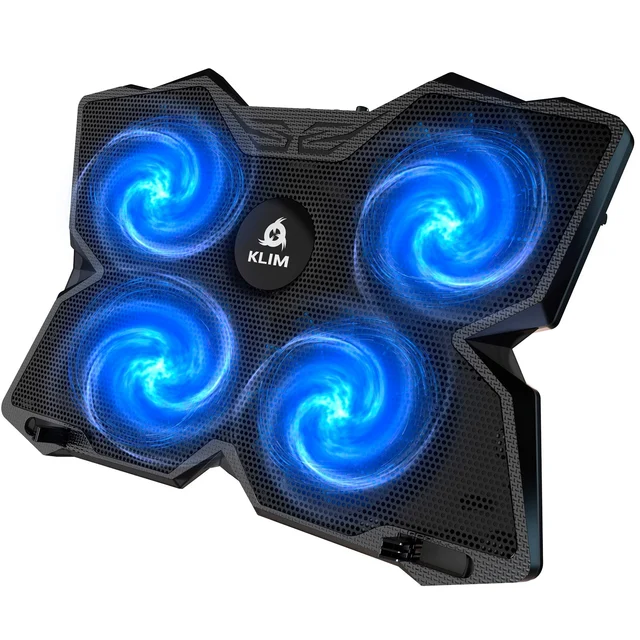
- Buy KLIM Wind Laptop Cooling Pad Four fast-but-quiet fans and a 5-year warranty make this the safe everyday pick for most laptops.
- Buy IETS GT500 Turbo-Fan Laptop Cooler A single high-pressure turbofan and sealing foam pull real heat off a gaming laptop, if you can live with the noise.
- It depends TopMate C5 Gaming Laptop Cooling Pad Five fans, an LCD readout, and height adjustment for cheap, but the airflow is more show than substance.
- Skip Havit HV-F2056 Slim Laptop Cooling Pad A wildly popular bargain pad that works best as a quiet, tilted stand rather than a real cooler.
What actually matters
- Airflow direction: whether the pad blows air up into the laptop's underside (intake) or pulls hot air out through the laptop's own vents (vacuum/extraction) changes how effective it is far more than fan count does.
- Fan count and layout: matters less than whether the fans actually sit under your laptop's real intake and exhaust points, not just spread evenly across the pad.
- Noise at full speed: the loudest pads can be as distracting as a conversation in the room, so check whether the fans run quiet at lower, still-useful speeds.
- Height and tilt adjustment: raises the back of the laptop for a better typing and viewing angle, which reduces neck and wrist strain during long sessions.
- Build material: metal mesh resists flexing and dents better than thin plastic, and it grips a laptop more securely at an angle.
- USB passthrough: a built-in hub replaces the port the pad itself uses to draw power, so you don't lose a port to plug it in.
- Size compatibility range: the inch range printed on the box only matters if the fan positions line up with your laptop's actual vent locations, not just its footprint.
The specs, in plain English
Green flags vs red flags
Green flags
- The listing describes where the fans sit relative to typical laptop vent locations, not just a fan count.
- A variable speed control is included, so you're not stuck choosing between silent and jet-engine.
- The size range is described in terms of vent placement or intake style, not just inches of screen.
- Metal mesh or a rigid frame that doesn't flex when the laptop sits on it at an angle.
- Owner reports mention a genuine, measurable temperature drop under sustained load, not just "feels cooler."
- A sealing kit or fitted gasket is included for vacuum-style designs, sized to common laptop models.
Red flags
- Marketing leans entirely on fan count ("6 fans!") with no mention of airflow direction or design.
- No noise information at all, or only a vague "quiet operation" claim with no speed control.
- Thin plastic construction that visibly flexes in photos or owner images.
- A vacuum-style design with no fitting guide or gasket sizing information for different laptops.
- Fixed single-speed fans with no way to trade cooling for quiet.
- Reviews cluster around "nice stand" and rarely mention actual temperature changes.
Who's who: the brands
- KLIM - Known for balanced multi-fan pads that prioritize a quiet, durable everyday design over maximum raw cooling.
- IETS - Specializes in sealed vacuum-style turbofan coolers aimed at gaming and workstation laptops that need the strongest possible cooling.
- TopMate - Popular for feature-heavy multi-fan pads with LCD readouts, RGB lighting, and adjustable height stands.
- Havit - A budget-focused brand whose slim, lightweight pads sell in high volume as inexpensive stands with light airflow.
- Cooler Master - A PC-hardware company that also makes laptop cooling pads, generally leaning toward gaming-oriented multi-fan designs.
- Thermaltake - Another PC-cooling brand extending into laptop pads, typically with RGB styling aimed at gaming setups.
How to read a listing without getting fooled
Skim past the fan count and lighting claims first and look for two things: how the listing describes airflow (does it mention vents, intake, or a sealed/vacuum design, or just "5 fans"?) and whether a noise level or speed control is mentioned at all. A listing that only brags about fan count and RGB, with no mention of where the air actually goes, is usually a sign the design is more decorative than functional. Also check the supported size range against your specific laptop model, since a pad built for larger laptops can leave a smaller machine's vents unreached by any fan.
How much should you spend?
Cost mostly tracks build quality and airflow engineering rather than fan count. The cheapest pads use thin plastic and open fans that add a gentle breeze and a bit of tilt, which is fine for light browsing but won't stop a laptop from throttling under real load. Stepping up typically buys a sturdier metal-mesh frame, a variable speed dial, and fans positioned to match common vent layouts, which is where most everyday buyers land. The top of the market is dominated by sealed vacuum-style coolers built for gaming and workstation laptops that genuinely throttle, and that extra spend only pays off if your laptop actually needs the stronger cooling and you're willing to fit the sealing foam to your specific model.
Questions, answered
Do I need a cooling pad if my laptop isn't overheating?
Not necessarily. If your laptop stays cool and doesn't slow down under normal use, a cooling pad mostly buys you a more comfortable typing angle. It's worth adding one if you notice fan noise ramping up, performance dipping during longer sessions, or the bottom of the laptop getting uncomfortably hot.
Why do more fans not always mean better cooling?
Open fans blowing at a laptop's closed underside can only push air around the outside of the machine. A single sealed design that forces air through the laptop's actual intake and exhaust vents moves heat directly out of the machine, which is why a one-fan vacuum-style cooler can outperform a pad with five open fans.
Will a cooling pad work with any laptop?
Most multi-fan pads work reasonably well across a wide size range since they're just blowing general airflow upward. Sealed vacuum-style designs are pickier: the foam gasket needs to match your laptop's underside and vent locations, so check compatibility notes or sizing kits before buying one of these.
How loud are cooling pads in practice?
It depends heavily on the fan speed and design. Balanced multi-fan pads at moderate speeds are easy to ignore. High-pressure vacuum-style coolers at full speed are noticeably louder, comparable to a conversation happening near your desk. A speed dial lets you run quieter when you don't need peak cooling.
Does a cooling pad replace cleaning the dust out of my laptop?
No. A cooling pad adds external airflow, but it can't clear dust clogging the laptop's own internal fans and heat sinks. If your laptop was running cool and now runs hot despite a cooling pad, internal dust buildup is a more likely cause than the pad itself.
Do the USB ports on a cooling pad slow down my other devices?
Passthrough hubs on cooling pads are typically basic USB 2.0 connections meant for a mouse, keyboard, or flash drive, not high-speed transfers. For anything that needs fast data transfer, plug directly into the laptop instead.
Or jump to the head-to-head: KLIM Wind Laptop Cooling Pad vs IETS GT500 Turbo-Fan Laptop Cooler.