

Office & WFH
Which KVM Switch Should You Buy? 6 Compared
We compared six current desk KVM switches across HDMI, DisplayPort, and USB-C to see which reliably drive dual monitors and multiple computers.
The short version
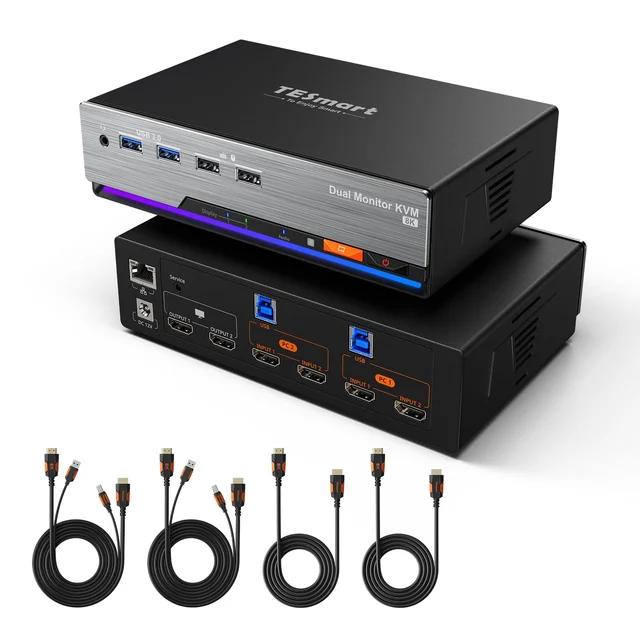
For a shared desk with two desktops and two monitors, the TESmart HKS202-M24 is the best all-round pick: true dual 4K 144Hz over HDMI 2.1, variable refresh, and built-in EDID emulation that stops the black screens and window-shuffling that ruin cheap switches. If you run three or four machines or live in DisplayPort, the Level1Techs DisplayPort 1.4 KVM is the enthusiast flagship, though it lacks monitor emulation, so set your OS to remember window positions. The CKL 922HUA-3 is the budget dual-HDMI option at 4K 60Hz, with no stated EDID emulation. The ATEN CS1942DP suits offices on DisplayPort that want RS-232 control and independent audio switching, but it is a 60Hz DisplayPort 1.2 design. The Level1Techs USB-C KVM is a fine one-cable docking solution for laptop-first desks, but it drives only one monitor. Skip the TESmart HDC202-X24 dock unless you pair one Thunderbolt laptop with one desktop, because it handles only two machines and caps dual 4K at 60Hz. Best for: two-computer, dual-monitor desks that want reliable 4K high-refresh switching without paying flagship prices.
Our picks at a glance
- TESmart HKS202-M24 Dual Monitor KVM Switch - Buy. Dual 4K 144Hz HDMI 2.1 switching for two desktops, with the EDID smarts that cheap boxes lack.
- Level1Techs DisplayPort 1.4 KVM Switch (Dual Monitor, Four Computer) - Buy. The enthusiast DisplayPort pick: dual DP 1.4 up to 4K 120Hz, broad peripheral compatibility, and up to four machines.
- Level1Techs USB-C KVM Switch v3 (135W Power Delivery) - It depends. One USB-C cable per host for video, data, and power, but it drives a single monitor.
- CKL 922HUA-3 Dual Monitor HDMI KVM Switch - It depends. A budget two-computer, dual-HDMI switch at 4K 60Hz, without stated EDID emulation.
- ATEN CS1942DP Dual Display DisplayPort KVMP Switch - It depends. An office-grade dual DisplayPort switch with RS-232 control and independent audio switching, capped at 4K 60Hz.
- TESmart HDC202-X24 Thunderbolt 4 KVM Dock - Skip. Slick Thunderbolt docking, but too restrictive and too pricey for a typical multi-computer desk.
The verdict in 30 seconds
What mattered most
- Video support
- Connection type
- Computers supported
- Dual-monitor & EDID
- USB & peripherals
- Switching method
A KVM switch lets one keyboard, mouse, and pair of monitors control several computers, but the category is full of boxes that drop a display or scramble your windows on every switch. We focused on switches that hold a stable EDID and pass full dual-monitor resolution and refresh, across HDMI, DisplayPort, and USB-C. Two are easy buys, three suit only specific kinds of desk, and one popular option is best skipped.
Dual 4K 144Hz HDMI 2.1 switching for two desktops, with the EDID smarts that cheap boxes lack.
Best for: Two-desktop desks running dual HDMI monitors for both gaming and work.
- True dual-monitor HDMI 2.1 up to 4K 144Hz with VRR and HDR
- Built-in EDID emulation keeps windows and displays stable on switch
- Switch via front button, keyboard hotkeys, mouse wheel, or the included IR remote
- Only two computers supported
- Each PC needs two HDMI outputs plus a USB link for full dual-monitor use
Own the TESmart HKS202-M24 Dual Monitor KVM Switch? Tell us how it held up.
Thanks. Counted, and shown once enough owners have weighed in.
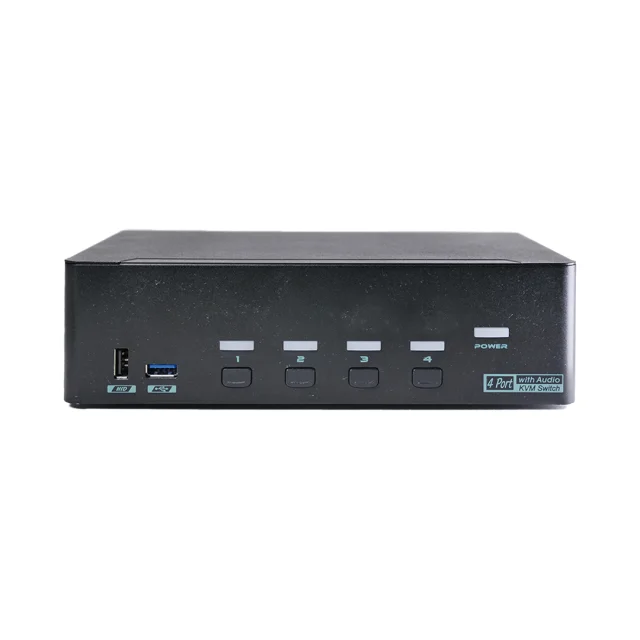
The enthusiast DisplayPort pick: dual DP 1.4 up to 4K 120Hz, broad peripheral compatibility, and up to four machines.
Best for: Power users juggling three or four DisplayPort machines with demanding USB peripherals.
- Handles up to four computers on two DisplayPort 1.4 displays
- Works with USB 3.2 Gen 1 (5Gbps) peripherals and RGB gaming keyboards with built-in hubs
- Dual DisplayPort 1.4 up to 4K 120Hz per monitor, with DSC support
- Flagship price is overkill for a simple two-PC setup
- DisplayPort-only inputs mean HDMI gear needs adapters
- No monitor emulation, so windows can shuffle on switch unless you set the OS to remember window positions
Own the Level1Techs DisplayPort 1.4 KVM Switch (Dual Monitor, Four Computer)? Tell us how it held up.
Thanks. Counted, and shown once enough owners have weighed in.
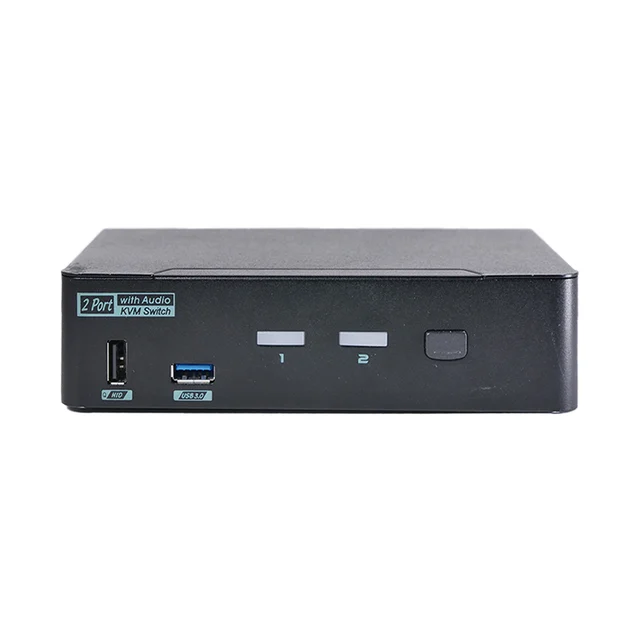
One USB-C cable per host for video, data, and power, but it drives a single monitor.
Best for: Laptop-centric single-monitor desks that value one-cable docking.
- Single USB-C cable carries video, data, and power delivery from a 135W power supply
- Rear switch lets you prioritize USB 5Gbps speed or DisplayPort bandwidth
- Ideal one-click docking for laptop-first desks
- One DisplayPort output only, and the maker advises against going past 5K 75Hz
- No monitor emulation, so windows can shuffle on switch
- Premium price for a two-host switch
Own the Level1Techs USB-C KVM Switch v3 (135W Power Delivery)? Tell us how it held up.
Thanks. Counted, and shown once enough owners have weighed in.
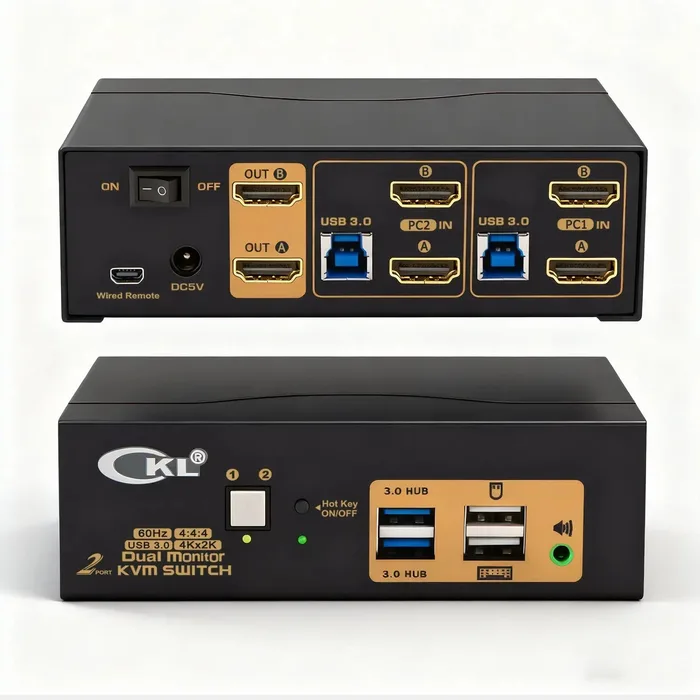
A budget two-computer, dual-HDMI switch at 4K 60Hz, without stated EDID emulation.
Best for: Two desktops on a 60Hz dual-monitor work desk where price matters more than refresh rate.
- Two HDMI 2.0 displays at up to 4K 60Hz, or 3440x1440 and 3840x1080 at 120Hz, extended or mirrored.
- Two extra USB 3.0 hub ports at 5Gbps for a webcam, drive or printer.
- Hotkeys, front button, mouse double-click, wired remote and auto-scan, with HDMI and USB cables included.
- 4K tops out at 60Hz.
- CKL makes no claim of EDID emulation, so windows may shuffle on a switch.
- Each computer needs two HDMI outputs, and audio passes only over HDMI.
Own the CKL 922HUA-3 Dual Monitor HDMI KVM Switch? Tell us how it held up.
Thanks. Counted, and shown once enough owners have weighed in.
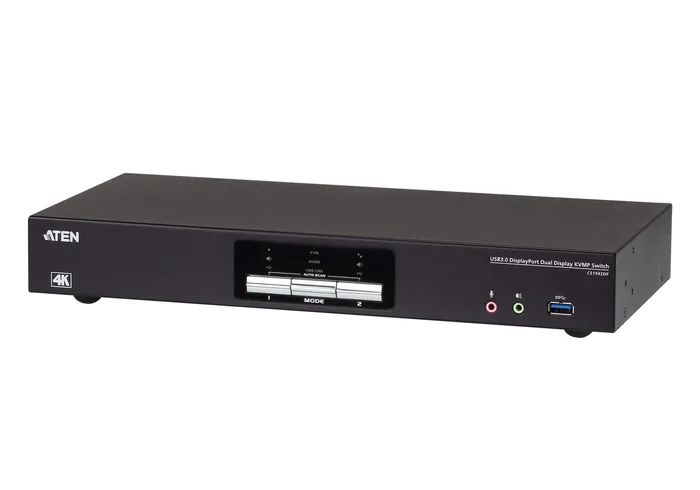
An office-grade dual DisplayPort switch with RS-232 control and independent audio switching, capped at 4K 60Hz.
Best for: Offices standardized on DisplayPort that value control options over refresh rate.
- Two DisplayPort displays at up to 4096 x 2160 at 60Hz, with MST and dual-mode support for HDMI or DVI monitors.
- Independent switching of KVM, USB and audio, plus RS-232 control and front and rear audio jacks.
- A daisy-chain port pairs two units for a quad-display setup.
- A DisplayPort 1.2 design capped at 60Hz.
- ATEN warns that windows on an extended desktop may be repositioned after a switch.
- Priced by quote rather than a listed figure.
Own the ATEN CS1942DP Dual Display DisplayPort KVMP Switch? Tell us how it held up.
Thanks. Counted, and shown once enough owners have weighed in.
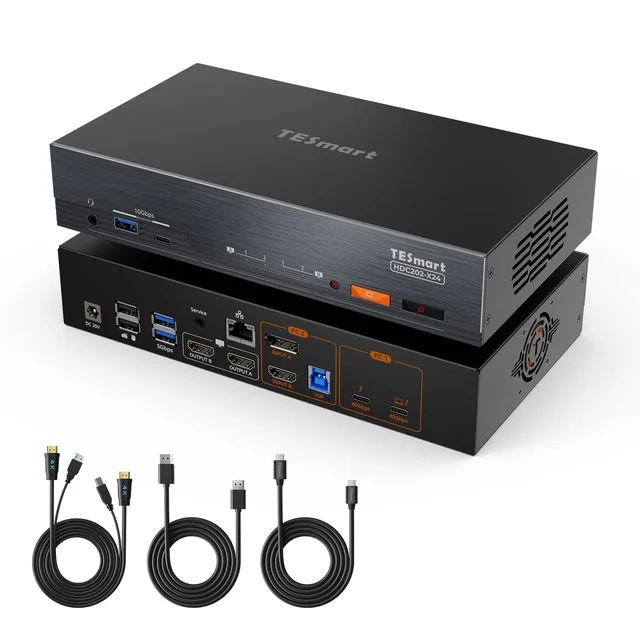
Slick Thunderbolt docking, but too restrictive and too pricey for a typical multi-computer desk.
Best for: The narrow niche of a Thunderbolt laptop paired with one desktop on a 60Hz dual-monitor desk.
- Clean single-cable Thunderbolt 4 docking with 60W charging
- Handles hybrid laptop-and-desktop switching with EDID emulation
- Only one input is Thunderbolt 4 / USB-C, so it suits one laptop plus one desktop and nothing else
- Only two computers and dual 4K capped at 60Hz
- Near-flagship price for a narrow use case
Own the TESmart HDC202-X24 Thunderbolt 4 KVM Dock? Tell us how it held up.
Thanks. Counted, and shown once enough owners have weighed in.
| Criteria | TESmart HKS202-M24 Dual Monitor KVM Switch Top pick Buy it Buy | Level1Techs DisplayPort 1.4 KVM Switch (Dual Monitor, Four Computer) Buy it Buy | Level1Techs USB-C KVM Switch v3 (135W Power Delivery) It depends Buy | 922HUA-3 Dual Monitor HDMI KVM Switch It depends Buy | CS1942DP Dual Display DisplayPort KVMP Switch It depends Buy | TESmart HDC202-X24 Thunderbolt 4 KVM Dock Skip it Buy |
|---|---|---|---|---|---|---|
| Best for | Two-desktop desks running dual HDMI monitors for both gaming and work. | Power users juggling three or four DisplayPort machines with demanding USB peripherals. | Laptop-centric single-monitor desks that value one-cable docking. | Two desktops on a 60Hz dual-monitor work desk where price matters more than refresh rate. | Offices standardized on DisplayPort that value control options over refresh rate. | The narrow niche of a Thunderbolt laptop paired with one desktop on a 60Hz dual-monitor desk. |
| Price tier | $$ · mid-range | $$$$ · flagship | $$$ · premium | $ · budget | $$$ · premium | $$$ · premium |
| Video support | Dual HDMI 2.1, up to 4K 144Hz with VRR + HDR | Dual DisplayPort 1.4, up to 4K 120Hz | One DisplayPort 1.4 output, maker advises up to 5K 75Hz | Dual HDMI 2.0, up to 4K 60Hz | Dual DisplayPort 1.2, up to 4K 60Hz | Dual 4K 60Hz over Thunderbolt 4 |
| Connection type | HDMI 2.1 + USB-B per PC | DisplayPort 1.4 + USB per PC | One USB-C cable per host (video/data/power) | 2x HDMI + USB 3.0 per PC | 2x DisplayPort + USB 3.1 Gen 1 per PC | Thunderbolt 4 / USB-C laptop + DP or HDMI desktop |
| Computers supported | 2 | Up to 4 | 2 | 2 | 2 | 2 (1 laptop + 1 desktop) |
| Dual-monitor & EDID | True dual-screen; built-in EDID emulation | True dual-screen; no monitor emulation | Single screen only; no monitor emulation | True dual-screen; EDID emulation not stated | True dual-screen; maker warns windows may reposition | True dual-screen; EDID emulation |
| USB & peripherals | USB 3.2 Gen 1 (5Gbps) + Gigabit Ethernet sharing | USB 3.2 Gen1 (5Gbps) peripheral hub | USB 5Gbps or USB 2.0 mode + power delivery | USB 3.0 (5Gbps), 2 hub ports | USB 3.1 Gen 1 (5Gbps), 2 hub ports | USB hub + 60W charging |
| Switching method | Button, hotkey, mouse wheel, IR remote | Front buttons, hotkey | Hotkey | Button, hotkey, mouse, wired remote, auto-scan | Button, hotkey, mouse, RS-232 | Button, hotkey, mouse wheel, IR remote |
| Best use case | Two desktops on a dual-4K/high-refresh desk | Three to four DisplayPort machines | Laptop-first, single-cable docking | Two PCs on a 60Hz dual-HDMI desk, on a budget | Office DisplayPort desks at 60Hz | Thunderbolt laptop + one desktop (niche) |
| Price tier | $$ · mid-range | $$$$ · flagship | $$$ · premium | $ · budget | $$$ · premium | $$$ · premium |
Which one is right for you?
- Two-desktop desks running dual HDMI monitors for both gaming and work. Buy it TESmart HKS202-M24 Dual Monitor KVM Switch
- Power users juggling three or four DisplayPort machines with demanding USB peripherals. Buy it Level1Techs DisplayPort 1.4 KVM Switch (Dual Monitor, Four Computer)
- Laptop-centric single-monitor desks that value one-cable docking. It depends Level1Techs USB-C KVM Switch v3 (135W Power Delivery)
- Two desktops on a 60Hz dual-monitor work desk where price matters more than refresh rate. It depends CKL 922HUA-3 Dual Monitor HDMI KVM Switch
- Offices standardized on DisplayPort that value control options over refresh rate. It depends ATEN CS1942DP Dual Display DisplayPort KVMP Switch
- The narrow niche of a Thunderbolt laptop paired with one desktop on a 60Hz dual-monitor desk. Skip it TESmart HDC202-X24 Thunderbolt 4 KVM Dock
How we judged the field
We don’t run our own lab. Instead we synthesize independent testing, long-run owner reports, and manufacturer specs, then weight them toward the things that actually break a multi-computer desk: whether both monitors keep their full resolution and refresh rate after a switch, whether the KVM holds a stable EDID so windows don’t shuffle every time you swap machines, how quickly USB peripherals re-enumerate, and how many computers you can realistically wire in. Price matters, but a cheap switch that drops a monitor or resets your desktop layout costs more in frustration than it saves. We deliberately included one popular option we think most desk owners should skip, so the recommendations mean something.
Most of the field here comes from two specialists that enthusiasts and IT folks keep coming back to, across HDMI, DisplayPort, and USB-C connections, alongside a budget HDMI box from CKL and an office-grade DisplayPort switch from ATEN. That is not an accident: reliable EDID handling and honest high-refresh support are hard, and most generic boxes get them wrong.
TESmart HKS202-M24 Dual Monitor KVM Switch
Buy itThis is the switch we’d put on most two-desktop, dual-monitor desks. It runs two HDMI 2.1 displays at up to 4K 144Hz (8K 60Hz) with variable refresh (FreeSync/G-Sync), ALLM, and HDR, and its built-in EDID emulation means owners rarely report the black-screen-on-switch problem that plagues budget boxes. It behaves like a proper dual-screen setup rather than mirroring, shares a USB 3.2 Gen 1 hub and Gigabit Ethernet between both PCs, and switches via the front button, hotkeys, mouse wheel, or the included IR remote. It is not the cheapest option, but for the money it covers gaming and work equally well, which is exactly what a shared desk needs.
Level1Techs DisplayPort 1.4 KVM Switch (Dual Monitor, Four Computer)
Buy itIf you have three or four machines on DisplayPort, this is the enthusiast’s choice. It drives two DisplayPort 1.4 monitors at up to 4K 120Hz, switches among up to four computers, and its USB side works with 5Gbps USB 3 peripherals and RGB gaming keyboards with built-in hubs, which many server-oriented KVMs do not. One caveat matters: Level1Techs states it does not support monitor emulation, so the monitors re-handshake on each switch and windows will shuffle unless you turn on the OS setting that remembers window positions or add the maker’s repeater. The maker’s support reputation is a large part of why people pay flagship money for it. It is expensive and overkill for a simple two-PC desk, but for a serious multi-machine DisplayPort workstation it is a strong choice.
Level1Techs USB-C KVM Switch v3 (135W Power Delivery)
It dependsFor a laptop-first desk, the appeal is obvious: one USB-C cable per host carries video, data, and power delivery from the included 135W supply, so docking is a single click. A rear switch lets you favor 5Gbps USB or full DisplayPort bandwidth. The catch is that it has a single DisplayPort output, the maker advises against running past 5K 75Hz, and like its DisplayPort sibling it has no monitor emulation, so windows can shuffle on switch. It is not the dual-screen answer that the HDMI and DisplayPort boxes are. If your machines are USB-C laptops on one monitor and you value one-cable docking, it is a good fit. If you are wiring two tower desktops to two monitors, buy one of the buys above instead.
CKL 922HUA-3 Dual Monitor HDMI KVM Switch
It dependsThe CKL 922HUA-3 is the budget way into a true dual-monitor KVM. It switches two computers across two HDMI 2.0 displays at up to 4K 60Hz, or 3440x1440 and 3840x1080 at 120Hz, in extended or mirrored mode, and it shares two extra USB 3.0 ports at 5Gbps for a webcam, drive or printer. Switching is generous for the price: keyboard hotkeys, a front button, a mouse double-click, a wired remote and an optional auto-scan, and CKL includes four HDMI 2.0 cables, two USB 3.0 cables and the power adapter. The limits are clear next to the TESmart. Refresh tops out at 60Hz in 4K, CKL makes no claim of EDID emulation, so windows may shuffle on a switch, and each computer needs two HDMI outputs, which many laptops lack. Audio passes only over HDMI unless you add a USB audio adapter. It suits two desktops on a 60Hz dual-monitor work desk where price matters more than gaming refresh rates.
ATEN CS1942DP Dual Display DisplayPort KVMP Switch
It dependsThe ATEN CS1942DP is an office-grade DisplayPort switch from a company that builds KVMs for trading floors and edit suites. It handles two computers on two DisplayPort displays at up to 4K (4096 x 2160) at 60Hz, supports MST and DisplayPort dual-mode for HDMI or DVI monitors through passive adapters, and shares a two-port USB 3.1 Gen 1 hub at 5Gbps. It adds features the consumer boxes skip: independent switching of KVM, USB and audio, RS-232 control, front and rear audio jacks, console keyboard and mouse emulation, and a daisy-chain port to pair two units for a quad-display setup. ATEN ships four DisplayPort cables, two USB cables and four audio cables. The trade-offs are age and openness: it is a DisplayPort 1.2 design capped at 60Hz, ATEN itself warns that windows on an extended desktop may be repositioned after a switch, and pricing is by quote rather than a listed figure. It suits offices standardized on DisplayPort that want control options over refresh rate.
TESmart HDC202-X24 Thunderbolt 4 KVM Dock
Skip itOn paper this is tempting: dual 4K 60Hz, single-cable Thunderbolt 4 docking for a laptop, 60W charging, and EDID emulation. In practice it is the wrong tool for most multi-computer desks. Only one input is Thunderbolt 4 / USB-C, with the second computer joining over DisplayPort or HDMI, so it fits exactly one laptop plus one desktop; TESmart notes it is not yet Intel certified for Thunderbolt; and dual 4K is capped at 60Hz, so high-refresh gamers lose out. You pay near-flagship money for a narrow niche. Unless that describes your exact setup, your money buys more capability elsewhere.
Sources
Specs in this review come from these pages.
- TESmart, HKS202-M24 HDMI 2.1 Dual 4K144Hz KVM Switch product page (tesmart.com)
- Level1Techs, 1.4 DisplayPort KVM Switch Dual Monitor Four Computer product page (store.level1techs.com)
- Level1Techs, USB-C KVM Switch v3 (135W Power Delivery) product page (store.level1techs.com)
- TESmart, HDC202-X24 Thunderbolt 4 KVM product page (tesmart.com)
- CKL, 2-Port Dual Monitor HDMI KVM Switch (922HUA-3) product page (cklkvm.com)
- ATEN, CS1942DP 2-Port USB 3.0 4K DisplayPort Dual Display KVMP Switch product page (aten.com)
Who should buy which
- Two desktops on dual HDMI monitors, gaming and work: the TESmart HKS202-M24 Dual Monitor KVM Switch. Dual 4K 144Hz with built-in EDID emulation at a mid-range price.
- Three or four DisplayPort machines: the Level1Techs DisplayPort 1.4 KVM Switch (Dual Monitor, Four Computer). Up to four computers on dual DisplayPort 1.4 with demanding USB peripherals.
- Laptop-first, single monitor: the Level1Techs USB-C KVM Switch v3 (135W Power Delivery). One USB-C cable per host for video, data and power.
- Budget dual-monitor work desk: the CKL 922HUA-3 Dual Monitor HDMI KVM Switch. Dual HDMI at 4K 60Hz with cables included, if window shuffling is tolerable.
- Office on DisplayPort that wants control options: the ATEN CS1942DP Dual Display DisplayPort KVMP Switch. RS-232 control, independent audio switching and quad-display expansion at 60Hz.
TESmart HKS202-M24 vs Level1Techs DisplayPort 1.4 KVM: which should you buy?
Both are true dual-monitor switches, so the decision comes down to scale, connection type, and EDID handling. The TESmart is HDMI 2.1, tops out at two computers, has built-in EDID emulation, and costs mid-range money - perfect if you have two desktops and two HDMI monitors and want 4K 144Hz gaming plus work in one tidy box. The Level1Techs is DisplayPort 1.4, scales to four computers, handles demanding USB peripherals, lacks monitor emulation, and carries a flagship price and support reputation to match.
Put simply: if your setup is two machines on HDMI, the TESmart gives you nearly everything the Level1Techs does for a lot less. If you run three or four machines or live in DisplayPort, the Level1Techs earns its premium. Most readers will be happiest with the TESmart; power users will not regret the Level1Techs.
What to look for
- Real dual-monitor support, not mirroring - confirm the switch drives two independent displays, and that both keep full resolution and refresh after a switch.
- EDID emulation - this is the key feature that stops black screens and rearranged windows when you swap machines; it separates good switches from cheap ones.
- Matching connectors and bandwidth - buy HDMI 2.1 or DisplayPort 1.4 to match your GPUs and monitors; do not assume an older switch will pass 4K high-refresh.
- Enough computer ports - count your machines honestly; a two-port box is a dead end if you add a third PC next year.
- USB speed and peripheral count - a USB 3.x hub matters if you switch external drives or webcams, not just a keyboard and mouse.
- Switching you’ll actually use - front button, keyboard hotkeys, and a remote are all useful; make sure at least one suits your desk.
- USB-C caveat - a single USB-C cable is elegant for laptops, but remember it usually means one video stream unless your host and dock support MST.
Our final take
For the majority of multi-computer desks, the TESmart HKS202-M24 is the sweet spot: genuine dual 4K 144Hz, built-in EDID emulation, and gaming-plus-work versatility at a mid-range price. Step up to the Level1Techs DisplayPort KVM if you run three or four DisplayPort machines, and consider the Level1Techs USB-C KVM only if your desk is laptop-first, single-monitor, and one-cable docking is the priority. The TESmart Thunderbolt dock is capable but too restrictive and too pricey for a typical desk - skip it unless you specifically pair one Thunderbolt laptop with one desktop.
Questions, answered
What's the difference between a KVM switch and a plain USB switch?
A USB switch only moves peripherals like a keyboard and mouse between computers. A KVM (keyboard, video, mouse) switch also routes your monitors, so one press swaps your whole screen setup and your peripherals to a different machine at once. For a multi-monitor desk you want a true KVM, not just a USB sharing box.
Will a KVM run my dual monitors at full resolution and refresh rate?
Only if it is rated for it. Match the switch to your GPUs and monitors: buy HDMI 2.1 or DisplayPort 1.4 for 4K high-refresh, and check that it supports two independent displays rather than mirroring. Switches with real EDID or monitor emulation, like the TESmart HKS202-M24, keep both monitors at full resolution and stop windows from rearranging when you swap machines.
Do I need an HDMI or a DisplayPort KVM?
Use whatever your graphics cards and monitors already use, because adapters between HDMI and DisplayPort can introduce handshake and refresh-rate problems. If your gear is HDMI, the TESmart HKS202-M24 is a natural fit; if it is DisplayPort, the Level1Techs DisplayPort KVM is built for it. Mixing standards through a KVM is where a lot of owner headaches begin.
Can I use one KVM for a laptop and a desktop together?
Yes, and USB-C models are designed around it: a single USB-C cable can carry video, data, and charging to a laptop while a desktop uses the same switch. Check how many monitor outputs the switch has, since some USB-C KVMs drive only one. A Thunderbolt dock KVM such as the TESmart HDC202-X24 takes the laptop over Thunderbolt and a desktop over DisplayPort or HDMI.
Why do cheap KVM switches cause black screens or rearranged desktop windows?
Because they don't hold a stable EDID, the small data block a monitor uses to tell the computer what it can display. When you switch away, the computer sees the display disappear, drops the resolution, and shuffles your windows; when you switch back it renegotiates, often with a black-screen flicker. Switches with proper EDID emulation keep that handshake alive for every connected computer. Not every premium switch has it, and the Level1Techs models here leave it to an OS setting or a separate repeater.
Deciding between the top two? See our head-to-head: TESmart HKS202-M24 Dual Monitor KVM Switch vs Level1Techs DisplayPort 1.4 KVM Switch (Dual Monitor, Four Computer).
More in Office & WFH
KVM Switches, Explained Plain-English guide → TESmart HKS202-M24 Dual Monitor KVM Switch vs Level1Techs DisplayPort 1.4 KVM Switch (Dual Monitor, Four Computer) Head-to-head →  The Best Label Printers: 4 Compared (and One to Skip)
  The Best Laminators: 4 Compared (and One to Skip)
  The Best Lap Desks: 4 Compared (and One to Skip)
  The Best Laptop Backpacks for Commuting: 4 Compared (and One to Skip)