Explained
Laptop Docking Stations, Explained
After reading, you'll understand what a docking station actually does, how to read its spec sheet, and how to match one to your specific laptop and monitors.
In this guide
A docking station turns a single cable into a whole desk - many ports, one or more external monitors, and enough power to charge your laptop while you work. The trap for first-time buyers is that the impressive spec sheet only pays off if the dock's connection standard, display limits, and OS support all line up with the exact laptop you own. Get one of those wrong and monitors won't light up, or the dock quietly underperforms.
The 30-second version
- A dock is not a hub. A true docking station has its own power supply, many ports, and real multi-monitor support; a USB-C hub is bus-powered and does far less.
- Your laptop sets the ceiling. The port on your machine - Thunderbolt 4, USB4, or plain USB-C - decides how many monitors and how much bandwidth you'll actually get, no matter how capable the dock is.
- Match the OS first. Some docks are Windows-focused and may not support Macs, so confirm compatibility before anything else.
- Reliability beats port count. Owner reports about sleep/wake stability and behavior after OS updates predict day-to-day happiness better than a long spec list.
- Buy for the ports you use. SD readers, wired Ethernet, native HDMI/DisplayPort, and front fast-charge USB-C aren't universal - pay only for what your gear needs.
The products this guide is about
Our verdict on each, with the full reasoning on the companion review.
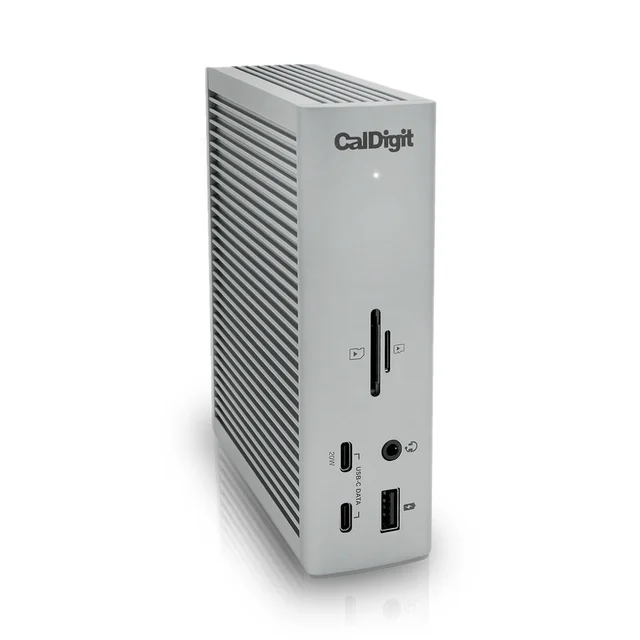
- Buy CalDigit TS4 Thunderbolt 4 Dock A very complete Thunderbolt 4 dock - 18 ports, 98W host charging, and 8K single-display support in one brick. Amazon
- Buy Kensington SD5700T Thunderbolt 4 Docking Station A quieter, more affordable office workhorse with dual 4K output, a aluminum build, and security-lock mounting. Amazon
- It depends Anker 568 USB-C Docking Station (11-in-1, USB4) A charging-forward USB4 dock with native HDMI and dual DisplayPort - great for Windows, wrong for Macs.
- Skip Plugable Thunderbolt 4 Quad Display Dock (TBT4-UDZ) A 16-port quad-display dock that dazzles on paper but stumbles on real-world stability. Amazon
What actually matters
- Connection standard - Thunderbolt 4, USB4, or USB-C decides bandwidth and how strictly displays and charging are guaranteed; it must match your laptop's port to work fully.
- Display support - how many external monitors the dock can drive, and at what resolution and refresh rate, is often the whole reason people buy one.
- Laptop charging (power delivery) - a good dock sends enough watts back over the single cable to run and charge your laptop, replacing its own charger for many machines.
- Port selection - the mix of USB-A, USB-C, Ethernet, card readers, and video outputs determines whether you'll still need adapters and extra hubs.
- Reliability - stability across sleep/wake cycles and OS updates is the quiet dealbreaker; a dock that drops monitors after every nap is worse than fewer ports.
- Build and footprint - a heavier aluminum body stays put on the desk and sometimes adds security-lock mounting for shared or office spaces.
- OS compatibility - Windows-only features (like quad-monitor output) may not apply to Macs, so the same dock can behave very differently by platform.
The specs, in plain English
Green flags vs red flags
Green flags
- The dock's own power supply delivers enough wattage to charge your specific laptop over one cable
- Its display support matches your monitor count and resolution - and your laptop can actually drive that many screens
- Explicit, current compatibility with your operating system (full Mac and Windows support, or clearly stated)
- A sturdy build that stays planted on the desk
- Consistent owner reports of stable behavior after sleep/wake and OS updates
Red flags
- Marketing that blurs the line between a bus-powered 'hub' and a true self-powered dock
- A high monitor count in the headline that only applies to one OS (often Windows-only)
- The maker does not list your operating system as supported
- Recurring owner complaints about dropped monitors, disconnected drives, or wobble when loaded with cables
- Charging wattage below what your laptop needs, so you still have to carry its charger
- Native video outputs (HDMI/DisplayPort) missing when your monitors need them, forcing extra adapters
Who's who: the brands
- CalDigit - Known for high-end, port-packed Thunderbolt docks favored by creators and professionals who want maximum connectivity.
- Kensington - Office-focused workhorses emphasizing stability, durable builds, and security-lock mounting for shared or corporate desks.
- Anker - Value-oriented USB-C and USB4 docks with strong charging features; some models are aimed at Windows rather than Mac.
- Plugable - Specializes in multi-display docks, including quad-monitor Windows setups, with a spec-heavy approach.
- Dell - Business-line docks tuned to work seamlessly with its own laptops, common in managed corporate fleets.
- OWC - Mac-friendly maker of Thunderbolt docks and storage aimed at creative professionals.
How to read a listing without getting fooled
Start from your laptop, not the dock. Find out whether its port is Thunderbolt 4, USB4, or plain USB-C, and how many external displays the laptop itself can drive - Apple Silicon Macs in particular cap external monitors regardless of the dock. Then read the dock's spec sheet in that light: a '40Gbps' number could be Thunderbolt-certified or USB4 (behaves more variably); a 'quad display' or 'triple monitor' claim often carries a quiet 'on Windows' asterisk; and the charging figure (say 90W or 100W) only matters relative to what your laptop needs. Check the port list for the specific connectors you use - native HDMI/DisplayPort, SD reader, wired Ethernet, front fast-charge USB-C - since none are guaranteed. Finally, weigh reliability: a modest, dependable dock beats a maxed-out spec sheet that drops your monitors after every sleep.
How much should you spend?
Docks scale in price with three things: the connection standard (Thunderbolt certification usually costs more than USB4), the number and type of ports, and display muscle. The value sweet spot for most people is a mid-tier Thunderbolt or USB4 dock that comfortably drives two monitors and delivers enough wattage to charge their laptop - that covers most real desks. Paying up for a flagship makes sense only if you genuinely juggle many drives, cameras, wired networking, and multiple high-resolution displays at once; otherwise the extra ports sit unused. Spending less on a bus-powered hub is a false economy if you actually need charging and multi-monitor output - that's a different, lesser class of device. And a premium price is not worth it when it buys a headline feature (like quad monitors) you can't use on your OS or a spec sheet undermined by shaky real-world reliability.
Questions, answered
What's the difference between a docking station and a USB-C hub?
A docking station has its own power brick, many ports, and true multi-monitor support, so it can charge your laptop and run a full desk from one cable. A USB-C hub is smaller, usually bus-powered (it runs off your laptop's port), and adds only a few ports with limited charging and display output. For a permanent workstation, a dock outclasses a hub.
Do I need Thunderbolt, or is USB4 / USB-C good enough?
It depends on your laptop. Thunderbolt 4 guarantees 40Gbps and strict display and charging behavior, so it's the safest bet if your machine supports it. USB4 can hit the same 40Gbps but isn't Thunderbolt-certified, so results vary more by laptop - often a great value on Windows. Plain USB-C may work for a single monitor and light use. Check which standard your laptop's port supports before you buy.
How many external monitors can a dock actually drive?
That's set by both the dock and your laptop, and the two don't always agree. A dock might advertise triple or quad displays, but your laptop's graphics may cap the number - Apple Silicon MacBooks are a common example, often limiting external displays no matter the dock. Always look up your laptop's own external-display limit alongside the dock's spec.
Can a docking station replace my laptop charger?
For most thin-and-light laptops, yes - many docks deliver roughly 90W to 100W back over the single connecting cable, enough to power and charge ultrabooks and even some larger laptops. Very high-wattage gaming or workstation laptops may still need their own charger under heavy load. Check your laptop's required wattage against the dock's power output. This is general product information, not a guarantee for every model.
Will any dock work with a MacBook?
Not always - compatibility varies. Some docks are fully Mac and Windows compatible, some support Macs only for a reduced feature set (for example, dual display instead of quad), and a few are aimed only at Windows. Confirm the maker states Mac support for the exact model, and remember Apple Silicon Macs cap external monitors independently of the dock.
Why does my dock drop monitors or drives after the laptop sleeps?
Sleep/wake instability is one of the most common real-world complaints and usually comes down to the specific dock, cable, laptop firmware, or an OS update changing behavior. It's why owner reliability reports matter more than port counts. Keeping firmware and drivers current helps, but if a dock has a widespread track record of dropping devices after sleep, that's a reason to choose a different model.
Or jump to the head-to-head: CalDigit TS4 Thunderbolt 4 Dock vs Kensington SD5700T Thunderbolt 4 Docking Station.