

Tech & Gadgets
The Best Laptop Docking Stations: 4 Compared (and One to Skip)
We compared four current Thunderbolt 4 and USB4 docks on ports, multi-display output, charging, build, and real-world reliability.
The short version
For a single dock that does everything, the CalDigit TS4 is the clear top pick: 18 ports, 98W charging, and single 8K support, at a flagship price only pros will justify. The Kensington SD5700T is the value-conscious runner-up - fewer ports but rock-solid, secure, and dual-4K capable. The Anker 568 is a strong Windows-only pick with native HDMI, dual DisplayPort, and fast device charging, but it is aimed at Windows rather than Macs. The Plugable TBT4-UDZ can drive four monitors on Windows yet trails on reliability, so we'd skip it unless you specifically need quad HDMI/DisplayPort output. Match the standard (Thunderbolt vs USB4) and OS to your laptop before you buy. Best for: anyone who wants a one-cable desk that adds ports, monitors, and power to a modern laptop.
Our picks at a glance
- CalDigit TS4 Thunderbolt 4 Dock - Buy. A very complete Thunderbolt 4 dock - 18 ports, 98W host charging, and 8K single-display support in one brick.
- Kensington SD5700T Thunderbolt 4 Docking Station - Buy. A quieter, more affordable office workhorse with dual 4K output, a aluminum build, and security-lock mounting.
- Anker 568 USB-C Docking Station (11-in-1, USB4) - It depends. A charging-forward USB4 dock with native HDMI and dual DisplayPort - great for Windows, wrong for Macs.
- Plugable Thunderbolt 4 Quad Display Dock (TBT4-UDZ) - Skip. A 16-port quad-display dock that dazzles on paper but stumbles on real-world stability.
The verdict in 30 seconds
What mattered most
- Connection standard
- Total ports
- Display support
- Laptop charging
- Card reader
- Mac compatibility
A true docking station turns one cable into a full desk: many ports, multiple monitors, and enough power to charge your laptop while you work - far more than a bus-powered USB-C hub can manage. We pitted four current models against each other: CalDigit's do-everything flagship, Kensington's steady office workhorse, Anker's charging-forward USB4 value pick, and Plugable's quad-display specialist. Two are easy buys, one depends entirely on whether you run Windows or macOS, and one is worth skipping.
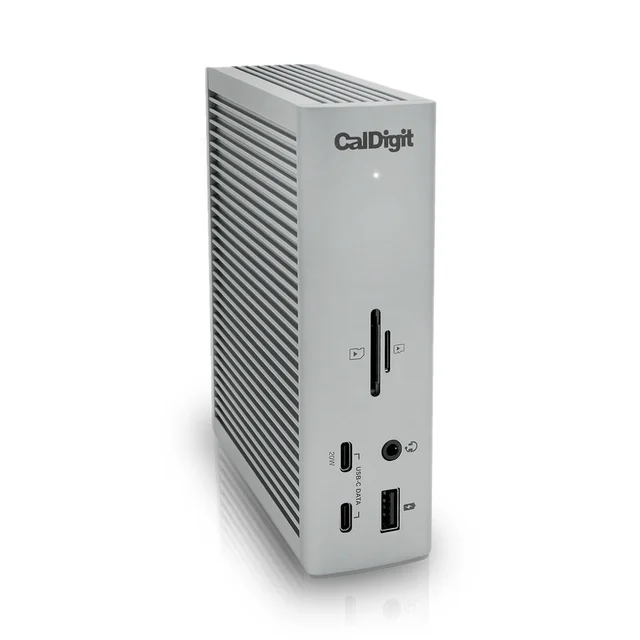
A very complete Thunderbolt 4 dock - 18 ports, 98W host charging, and 8K single-display support in one brick.
Best for: Creators and professionals who want one dock to end all docks and will pay for the port count.
- 18 ports including three Thunderbolt 4 40Gbps ports (compatible with Thunderbolt 5 computers), five USB-A and three USB-C
- 98W laptop charging through the host Thunderbolt 4 port
- 2.5GbE networking plus UHS-II SD and microSD readers built in, with single 8K at 30Hz support and dual 4K@60Hz (dual 6K@60Hz on some Macs with DSC)
- Flagship pricing that only pros will justify
- Owners report it runs warm under heavy load, and a few see USB-C SSDs drop after sleep
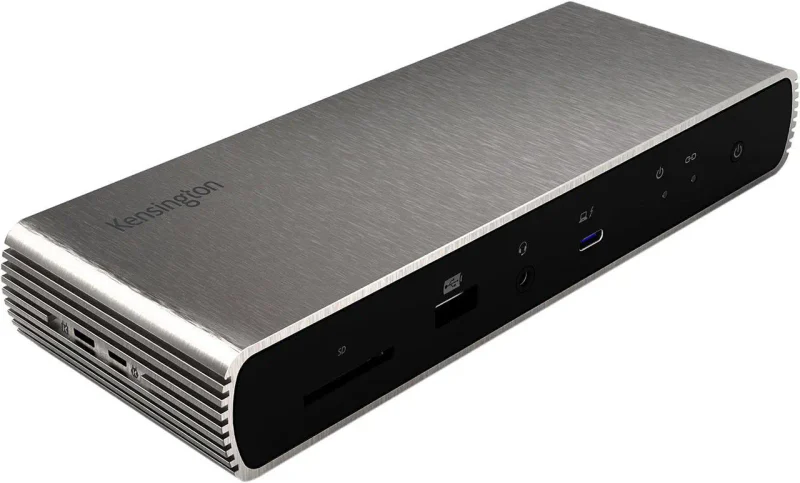
A quieter, more affordable office workhorse with dual 4K output, a aluminum build, and security-lock mounting.
Best for: Office and hybrid setups that value stability, security, and a lower price over maximum port count.
- 11 ports with three downstream Thunderbolt 4 ports and 90W laptop charging over one cable
- Dual 4K@60Hz or single 8K@30Hz output that owners describe as plug-and-play
- Durable aluminum shell with a Kensington lock slot and bracket mounting for shared or secured desks
- No dedicated HDMI or DisplayPort - monitors must connect over Thunderbolt/USB-C or adapters
- Fewer ports than the TS4 and no front fast-charge USB-C for phones
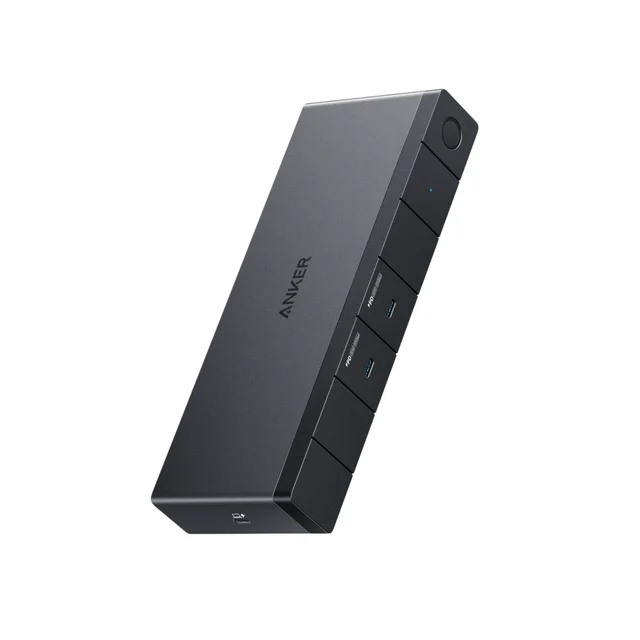
A charging-forward USB4 dock with native HDMI and dual DisplayPort - great for Windows, wrong for Macs.
Best for: Windows users who want multi-monitor output and fast device charging on a tighter budget.
- 100W laptop charging plus two front USB-C ports that each push 30W to phones and tablets
- Native dual DisplayPort and HDMI drive up to three monitors - no adapters needed
- USB4 40Gbps data and strong value versus Thunderbolt-certified rivals
- Anker positions it for Windows, so Mac users should check macOS support or look elsewhere
- No SD card reader, can wobble with many cables attached, and a few owners report host-port compatibility hiccups
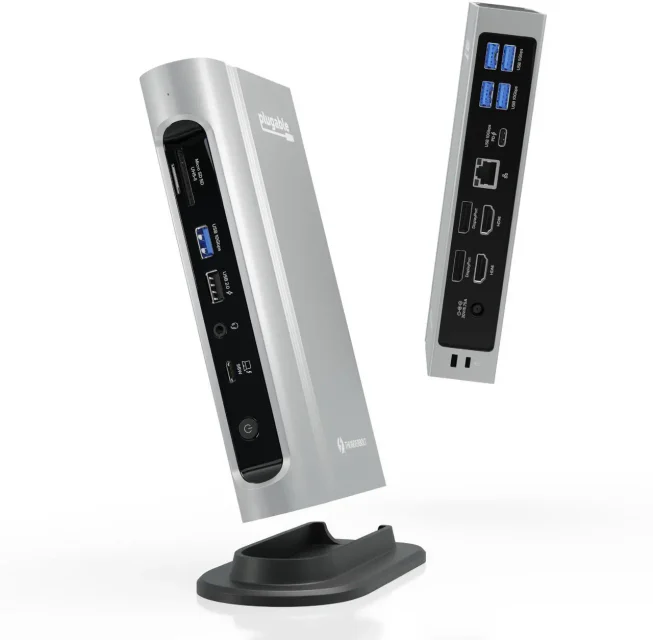
A 16-port quad-display dock that dazzles on paper but stumbles on real-world stability.
Best for: Windows power users who specifically need four HDMI/DisplayPort monitors and can tolerate occasional fussiness.
- Drives up to four 4K@60Hz displays on compatible Windows laptops via dual HDMI and dual DisplayPort
- 16 ports including UHS-II SD and microSD readers and 98W laptop charging
- Brushed-aluminum build with a stand for vertical or horizontal placement
- Reviewers and owners report connection and stability quirks that trail its rivals
- Quad display is Windows-only; Macs are limited to dual, and it costs premium money for middling polish
| Criteria | CalDigit TS4 Thunderbolt 4 Dock Top pick Buy it Buy | Kensington SD5700T Thunderbolt 4 Docking Station Buy it Buy | Anker 568 USB-C Docking Station (11-in-1, USB4) It depends Buy | Plugable Thunderbolt 4 Quad Display Dock (TBT4-UDZ) Skip it Buy |
|---|---|---|---|---|
| Best for | Creators and professionals who want one dock to end all docks and will pay for the port count. | Office and hybrid setups that value stability, security, and a lower price over maximum port count. | Windows users who want multi-monitor output and fast device charging on a tighter budget. | Windows power users who specifically need four HDMI/DisplayPort monitors and can tolerate occasional fussiness. |
| Price tier | $$$$ · flagship | $$$ · premium | $$ · mid-range | $$$ · premium |
| Connection standard | Thunderbolt 4, 40Gbps | Thunderbolt 4, 40Gbps | USB4 40Gbps (not TB-certified) | Thunderbolt 4, 40Gbps |
| Total ports | 18 | 11 | 11 | 16 |
| Display support | Dual 4K@60Hz or single 8K@30Hz | Dual 4K@60Hz or single 8K | Triple 4K@30Hz or single 8K | Quad 4K@60Hz (Windows) |
| Laptop charging | 98W | 90W | 100W | 98W certified |
| Card reader | SD + microSD (UHS-II) | SD (UHS-II) | None | SD + microSD (UHS-II) |
| Mac compatibility | Full | Full | Windows-focused | Full, dual display only |
| Build & mounting | Premium aluminum | Aluminum, lock slot + bracket | Aluminum, upright stand | Aluminum, vertical/horizontal stand |
| Price tier | $$$$ · flagship | $$$ · premium | $$ · mid-range | $$$ · premium |
Which one is right for you?
- Creators and professionals who want one dock to end all docks and will pay for the port count. Buy it CalDigit TS4 Thunderbolt 4 Dock
- Office and hybrid setups that value stability, security, and a lower price over maximum port count. Buy it Kensington SD5700T Thunderbolt 4 Docking Station
- Windows users who want multi-monitor output and fast device charging on a tighter budget. It depends Anker 568 USB-C Docking Station (11-in-1, USB4)
- Windows power users who specifically need four HDMI/DisplayPort monitors and can tolerate occasional fussiness. Skip it Plugable Thunderbolt 4 Quad Display Dock (TBT4-UDZ)
How we judged the field
We don’t run our own lab. Instead we work from maker specifications and aggregated owner reports from retailers and forums, then weigh what actually matters day to day. That means the number and type of ports, how many external displays a dock can drive and at what refresh rate, how much power it sends back to your laptop over a single cable, build quality and desk footprint, and - the quiet dealbreaker - long-term reliability across sleep/wake cycles and OS updates. A spec sheet full of ports is worthless if monitors drop or drives disconnect after every nap.
We also drew a hard line between true docking stations and simple USB-C hubs. Every product here ships with its own power supply, offers many ports, and supports multiple monitors - capabilities a bus-powered hub can’t match. The real question isn’t dock versus hub; it’s which dock fits your laptop, your operating system, and your monitor count.
CalDigit TS4 Thunderbolt 4 Dock
Buy itThe TS4 remains the reference point. With 18 ports - three Thunderbolt 4 ports (the dock works with Thunderbolt 5 computers), five USB-A, three USB-C, 2.5GbE, and UHS-II SD plus microSD readers - few docks pack this much into one enclosure. It sends up to 98W to the laptop through the host port. It supports a single 8K display at 30Hz, and dual displays at up to 4K@60Hz (dual 6K@60Hz on certain Macs with DSC), and works with Mac and PC.
The caveats: it commands a flagship price, owners note it runs warm under sustained load, and a minority report USB-C SSDs dropping after sleep. But for anyone whose desk demands maximum connectivity from a single cable, few rivals match its completeness.
Kensington SD5700T Thunderbolt 4 Docking Station
Buy itThe SD5700T is the sensible-shoes pick, and that’s a compliment. Its 11 ports include three downstream Thunderbolt 4 ports, and a single cable delivers 90W to your laptop while supporting dual 4K@60Hz (or a single 8K) monitors. Owners describe it as dependable and plug-and-play, and the durable aluminum body adds a security lock slot and bracket mounting - genuinely useful in shared or corporate environments.
The main limitation is the lack of dedicated HDMI or DisplayPort outputs; monitors connect over Thunderbolt/USB-C or adapters. There’s also no front fast-charge USB-C for phones. For most office and hybrid setups, that’s a fair trade for stability and a lower price than the TS4.
Anker 568 USB-C Docking Station (11-in-1, USB4)
It dependsThe Anker 568 is the value story with a catch. It charges your laptop at up to 100W and - unusually - offers two front USB-C ports that each supply 30W to fast-charge a phone or tablet. Its USB4 40Gbps connection and native dual DisplayPort plus HDMI let Windows users run up to three monitors without adapters, which is a strength for the money.
The catch is compatibility. Anker positions the dock for Windows, so Mac owners should check macOS support before buying. It also omits an SD card reader, can wobble when loaded with cables, and a few owners report host-port hiccups on certain laptops. If you’re on Windows and want multi-monitor output plus device charging on a budget, it’s a smart buy - otherwise it isn’t.
Plugable Thunderbolt 4 Quad Display Dock (TBT4-UDZ)
Skip itOn paper the TBT4-UDZ is impressive: 16 ports, dual HDMI and dual DisplayPort feeding up to four 4K@60Hz monitors on compatible Windows laptops, UHS-II SD and microSD readers, 98W charging, and a stand for vertical or horizontal use. It’s the go-to concept for a genuine four-monitor Windows desk.
But reviewers and owners report connection and stability quirks that put it behind its rivals, and the quad-display headline applies only to Windows - Macs are capped at dual. For premium money, the reliability simply doesn’t keep pace, so unless you specifically need four HDMI/DisplayPort outputs, we’d steer you elsewhere.
CalDigit TS4 vs Kensington SD5700T: which should you buy?
These are the two we’d hand most people, and the choice comes down to ambition versus economy. The TS4 wins on raw capability: 18 ports to the Kensington’s 11, built-in 2.5GbE and dual card readers, and a slightly higher 98W charge. If your workflow juggles drives, cameras, networking, and two big monitors, it pays for itself in cable sanity.
The SD5700T wins on value and peace of mind. It costs meaningfully less, is described as stable, and adds security locks and mounting that matter in offices. Its dual-4K output and 90W charging cover the vast majority of real desks. Choose the TS4 if you want the ceiling raised and don’t mind paying for it; choose the SD5700T if you want a dependable, secure, dual-monitor dock without flagship spend.
What to look for
- Match the standard to your laptop. Thunderbolt 4 guarantees 40Gbps and strict display/charging behavior; USB4 can match the bandwidth but isn’t certified, so results vary by machine.
- Confirm your monitor count. Note both the dock’s display support and your laptop’s own limit - Apple Silicon Macs in particular cap external displays regardless of the dock.
- Check charging wattage. 90 to 100W powers most ultrabooks; heavy workstation or gaming laptops may still need their own charger.
- Look at the ports you actually use. SD readers, 2.5GbE, front-facing fast-charge USB-C, and native HDMI/DisplayPort aren’t universal - buy for your peripherals.
- Weigh reliability over spec-sheet bragging. Owner reports about sleep/wake stability and OS-update behavior predict real satisfaction better than port counts.
- Mind the OS. At least one strong dock here is Windows-only; verify Mac support before you commit.
Our final take
Buy the CalDigit TS4 if you want the most capable, future-proof dock available and will pay a flagship price for it. Buy the Kensington SD5700T if you want nearly all of that dependability for less, with security mounting most offices will appreciate. Consider the Anker 568 only if you’re on Windows and value native multi-monitor output and fast device charging over Mac support or an SD reader. And skip the Plugable TBT4-UDZ unless a four-monitor Windows setup is non-negotiable - its stability track record doesn’t justify the outlay. Match the connection standard and operating system to your laptop first, and any of the top three will turn a single cable into a full workstation.
Questions, answered
What's the difference between a docking station and a USB-C hub?
A docking station has its own power brick, many ports, and true multi-monitor support, so it can charge your laptop and run a full desk from one cable. A USB-C hub is smaller and usually bus-powered, adding a few ports but limited charging and display output. All four products here are full docks, which is why they outclass hubs for a permanent workstation.
Do I need Thunderbolt, or is USB4 / USB-C good enough?
Thunderbolt 4 (as on the CalDigit, Kensington, and Plugable) requires 40Gbps bandwidth and strict display and charging standards. USB4 (as on the Anker 568) can hit the same 40Gbps but isn't Thunderbolt-certified, so behavior varies more by laptop. Check whether your laptop's port supports Thunderbolt 4, USB4, or DisplayPort Alt Mode before buying, since that determines how many monitors and how much data you'll actually get.
Will these work with a MacBook?
The CalDigit TS4 and Kensington SD5700T are fully Mac and Windows compatible. The Plugable TBT4-UDZ works with Macs but is limited to dual display (quad is Windows-only). The Anker 568 is the exception - Anker positions it for Windows, so Mac owners should choose one of the other three.
How many external monitors can these docks drive?
It depends on the dock and your laptop. The CalDigit and Kensington handle dual displays (4K@60Hz each), the Anker can reach triple 4K@30Hz on Windows, and the Plugable can push up to four 4K@60Hz monitors on compatible Windows machines. Apple Silicon MacBooks often cap external displays regardless of the dock, so verify your laptop's own limit.
Can a docking station replace my laptop charger?
For most thin-and-light laptops, yes - these docks deliver 90W to 100W back over the single connecting cable, enough to power and charge many ultrabooks and even some larger laptops. Very high-wattage gaming or workstation laptops may still need their own charger under heavy load. This is general product information; check your laptop's required wattage against the dock's output.
Deciding between the top two? See our head-to-head: CalDigit TS4 Thunderbolt 4 Dock vs Kensington SD5700T Thunderbolt 4 Docking Station.
More in Tech & Gadgets
Laptop Docking Stations, Explained Plain-English guide → CalDigit TS4 Thunderbolt 4 Dock vs Kensington SD5700T Thunderbolt 4 Docking Station Head-to-head →  The Best Camera Drones: 4 Compared (and One to Skip)
  The Best E-Ink Tablets: 4 Compared (and One to Skip)
  The Best E-Readers in 2026: Kindle vs Kobo, and the One to Skip
  The Best Electronic Chess Boards: 4 Compared (and One to Skip)