

Tech & Gadgets
The Best Graphics Tablets: 4 Compared (and One to Skip)
We compared four current drawing tablets on pen pressure, driver quality, screen versus screenless, and real-world value for artists.
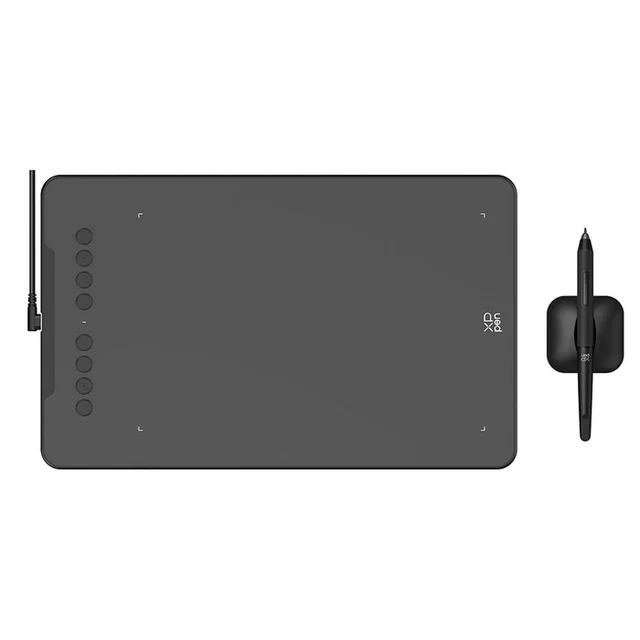
The short version
Screenless pen tablets remain the best value entry into digital art, and the XP-Pen Deco 01 V3 leads on sheer features-per-dollar with a large surface, 16,384 pressure levels, tilt, and eight keys. The Wacom Intuos costs more but rewards you with the most polished pen feel and the most reliable drivers in the class. If you specifically want to draw directly on a screen, the Huion Kamvas 13 (Gen 3) packs flagship-grade specs into an affordable pen display, though it demands a computer and desk space. The Wacom One pen tablet is the one to skip: it drops the express keys and trails budget rivals on pressure levels while asking for more money. Higher pressure numbers matter far less than pen feel and driver stability, so buy on reliability and comfort, not spec-sheet bragging rights. Best for: new and hobbyist digital artists who want proven hardware without overpaying.
Our picks at a glance
- XP-Pen Deco 01 V3 - Buy. A big, feature-loaded screenless tablet at a price that makes rivals look overpriced.
- Wacom Intuos (Small) - Buy. The safest first tablet: the most polished pen feel and the steadiest drivers in the category.
- Huion Kamvas 13 (Gen 3) - It depends. A laminated 13-inch pen display with flagship-grade specs, if you actually want to draw on a screen.
- Wacom One (Medium) Pen Tablet - Skip. Wacom build quality, but stripped of buttons and undercut on specs by cheaper rivals.
The verdict in 30 seconds
What mattered most
- Type
- Pen pressure levels
- Tilt support
- Controls
- Driver stability (owner reports)
- Drawing surface
Drawing tablets split into two camps: screenless pads you look up at a monitor to use, and pen displays you draw directly on. We weighed four current, buyable-in-2026 models on pen feel, pressure and tilt, driver reliability, and how much tablet you actually get for the money. Two earn a clear buy, one is a genuine 'it depends' on whether you want a screen, and one we would skip.
A big, feature-loaded screenless tablet at a price that makes rivals look overpriced.
Best for: Beginners and budget-conscious hobbyists who want the most drawing area and features per dollar.
- Generous 10 x 6.25-inch active area gives your arm room to move
- Battery-free pen with 16,384 pressure levels and 60-degree tilt
- Eight customizable express keys and broad OS support (Windows, macOS, Android, Chrome OS, Linux)
- Driver setup can need a little fiddling on first install per owner reports
- Pen tracking on fast diagonals is a hair behind Wacom per owner reports
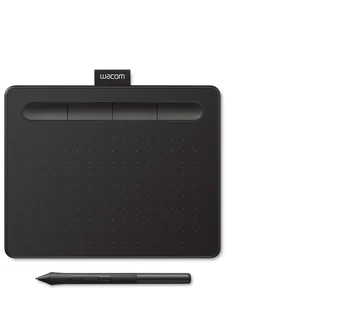
The safest first tablet: the most polished pen feel and the steadiest drivers in the category.
Best for: Beginners who value reliability and pen feel over raw specs, and anyone burned by flaky drivers before.
- Reviewers consistently rate Wacom's pen tracking and pressure transitions as the most natural
- Drivers are the most stable in the class, with the fewest conflicts in creative apps
- Compact, well-built, with four express keys and optional Bluetooth on select models
- Only 4,096 pressure levels and the standard pen has no tilt support
- Small active area and fewer features than cheaper competitors
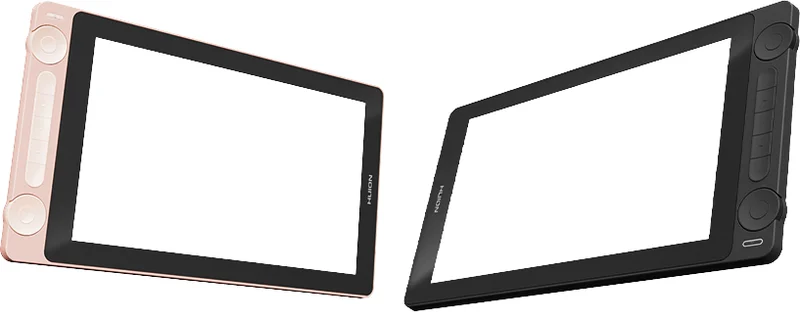
A laminated 13-inch pen display with flagship-grade specs, if you actually want to draw on a screen.
Best for: Artists ready to commit to drawing on a screen who want the most display for the money.
- Draw directly on a fully laminated 13.3-inch screen with minimal parallax and 99% sRGB coverage
- PenTech 4.0 pen with 16,384 pressure levels, plus two dials and five keys for canvas control
- Strong value versus screen tablets from bigger brands, per owner reports
- Costs more and needs a computer connection plus desk space and cable management
- More setup and display calibration than a simple screenless pad
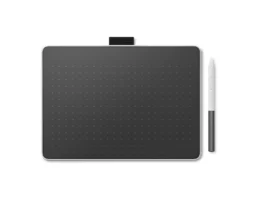
Wacom build quality, but stripped of buttons and undercut on specs by cheaper rivals.
Best for: Wacom loyalists who specifically want a minimalist pad and do not need shortcut keys.
- Genuine Wacom pen feel and reliable drivers
- Modern USB-C and Bluetooth connectivity, pen now supports tilt
- No express keys on the tablet itself, unlike the cheaper Intuos
- Only 4,096 pressure levels while budget rivals offer 16,384 for less money
| Criteria | XP-Pen Deco 01 V3 Top pick | Wacom Intuos (Small) | Huion Kamvas 13 (Gen 3) | Wacom One (Medium) Pen Tablet |
|---|---|---|---|---|
| Verdict | Buy it | Buy it | It depends | Skip it |
| Best for | Beginners and budget-conscious hobbyists who want the most drawing area and features per dollar. | Beginners who value reliability and pen feel over raw specs, and anyone burned by flaky drivers before. | Artists ready to commit to drawing on a screen who want the most display for the money. | Wacom loyalists who specifically want a minimalist pad and do not need shortcut keys. |
| Price tier | $ · budget | $$ · mid-range | $$$ · premium | $$ · mid-range |
| Type | Screenless pen tablet | Screenless pen tablet | Pen display (screen) | Screenless pen tablet |
| Pen pressure levels | 16,384 | 4,096 | 16,384 | 4,096 |
| Tilt support | Yes (60 degrees) | No (standard pen) | Yes | Yes |
| Controls | 8 express keys | 4 express keys | 5 keys + 2 dials | None on tablet |
| Driver stability (owner reports) | Good, minor setup | Excellent, most stable | Good, much improved | Excellent |
| Drawing surface | Large 10 x 6.25 in pad | Small compact pad | 13.3 in laminated screen | Medium pad |
| Connectivity | USB-C, Android | USB, Bluetooth | USB-C, Android | USB-C, Bluetooth |
| Price tier | $ · budget | $$ · mid-range | $$$ · premium | $$ · mid-range |
Which one is right for you?
- Beginners and budget-conscious hobbyists who want the most drawing area and features per dollar. Buy it XP-Pen Deco 01 V3
- Beginners who value reliability and pen feel over raw specs, and anyone burned by flaky drivers before. Buy it Wacom Intuos (Small)
- Artists ready to commit to drawing on a screen who want the most display for the money. It depends Huion Kamvas 13 (Gen 3)
- Wacom loyalists who specifically want a minimalist pad and do not need shortcut keys. Skip it Wacom One (Medium) Pen Tablet
How we judged the field
We do not run our own lab. Instead, we synthesize independent testing, expert reviews, and aggregated owner reports to reach a verdict you can trust. For drawing tablets, four things separate a good buy from a frustrating one, and we weighted them in this order:
- Pen feel and tracking: how natural strokes feel and whether diagonals stay smooth rather than wavy. This matters far more than headline specs.
- Driver stability: unreliable drivers are the single most common complaint owners raise, so consistency in real creative apps carries heavy weight.
- Screen versus screenless: whether you draw on a pad and look at a monitor, or directly on a display, changes price, portability, and comfort.
- Value: how much usable tablet, active area, controls, and pen capability you get for the money.
Pressure levels and tilt appear on every spec sheet, but reviewers and owners consistently report that beyond about 4,096 levels the differences are effectively marketing. We treated them as tie-breakers, not headline features.
XP-Pen Deco 01 V3
Buy itThe Deco 01 V3 is the clearest value in the category. For a budget price you get a generous 10 x 6.25-inch active area, a battery-free pen with 16,384 pressure levels and 60-degree tilt, and eight customizable express keys, plus support across Windows, macOS, Android, Chrome OS, and Linux. Owner reports place its drawing performance close behind Wacom, with only slightly less refined tracking on fast diagonal strokes, and owners note the driver may need a little attention on first install. For most beginners and hobbyists, none of that outweighs getting this much tablet for so little money.
Wacom Intuos (Small)
Buy itThe Intuos is the safe choice, and it earns a buy for the right person. Reviewers repeatedly single out Wacom for the most natural pen feel, the smoothest pressure transitions, and the least wavy lines, and its drivers remain the most stable in the class with the fewest software conflicts. The trade-offs are real: only 4,096 pressure levels, no tilt on the standard pen, a small active area, and a higher price than more generously specced rivals. If reliability and pen feel top your list, and you have been burned by flaky drivers before, it is worth the premium.
Huion Kamvas 13 (Gen 3)
It dependsThis is our pen display option, and whether it belongs on your desk depends entirely on whether you want to draw on a screen at all. The Kamvas 13 (Gen 3) offers a fully laminated 13.3-inch display with minimal parallax, 99% sRGB coverage, a PenTech 4.0 pen rated at 16,384 pressure levels, and unusually generous controls in two dials and five keys. Owner reports and independent coverage rate it strong value against screen tablets from larger brands. But it costs more than any screenless pad here, needs a computer connection, and asks for desk space, cabling, and display calibration. Commit to it only if the direct hand-to-artwork experience is what you are after.
Wacom One (Medium) Pen Tablet
Skip itThe Wacom One pen tablet is the one we would pass on, and it is instructive to see why next to its own sibling. It has genuine Wacom pen feel, reliable drivers, modern USB-C and Bluetooth, and a pen that now supports tilt. The problem is value: it removes the express keys that the cheaper Intuos includes, and it sticks to 4,096 pressure levels while budget rivals offer far more for less money. You end up paying a Wacom premium for a tablet that has been stripped of features. Unless you specifically want a minimalist, button-free pad, your money goes further elsewhere.
XP-Pen Deco 01 V3 vs Wacom Intuos: which should you buy?
These two screenless tablets are the strongest picks, and the choice comes down to what you value. The Deco 01 V3 wins on raw substance: a much larger drawing surface, four times the pressure levels, tilt support, twice the express keys, and a noticeably lower price. The Intuos wins where it is hardest to measure: the pen simply feels a touch more natural, and its drivers are the least likely to interrupt a session. If you are cost-conscious, want the most room to draw, or expect to use shortcut keys heavily, take the Deco. If you would rather pay more for the most dependable, most refined experience and never think about your hardware again, take the Intuos. Both are genuinely good; neither is a mistake.
What to look for
- Decide screen or screenless first. It is the biggest fork in price and workflow; start screenless if you are unsure.
- Prioritize pen feel and driver stability over pressure-level numbers, which are largely marketing beyond 4,096.
- Match the active area to your desk and arm, a larger pad is more comfortable but needs more space.
- Check for express keys and dials if you rely on shortcuts; their absence is a real daily annoyance.
- Confirm OS and app compatibility, and always install the latest driver before your first session.
- Weigh total value, not brand name; the challengers often deliver more hardware per dollar.
Our final take
Drawing tablets have never offered better value, and you do not need to overspend to get professional-capable hardware. For most people the XP-Pen Deco 01 V3 is the smart first buy, delivering the most surface, features, and pen capability for the least money. Choose the Wacom Intuos instead if dependable drivers and the most natural pen feel are worth a premium to you. Step up to the Huion Kamvas 13 (Gen 3) only when you know you want to draw directly on a screen. And skip the Wacom One pen tablet, which asks for more while giving less than its own cheaper sibling. Buy on reliability, comfort, and value, not spec-sheet bragging rights, and any of our recommended picks will serve you for years.
Questions, answered
Do I need a pen display with a screen, or is a screenless tablet enough?
A screenless tablet, where you draw on a pad and watch your monitor, is cheaper, more portable, and completely capable of professional work; many artists never switch. A pen display lets you draw directly on the artwork, which feels more natural to most people but costs more, needs a computer connection, and takes up desk space. Beginners are usually better served starting screenless and upgrading only if the disconnect between hand and screen bothers them.
Are higher pressure levels like 16,384 actually better than 4,096?
In practice, not really. Experienced owners widely say that 4,096 levels are already plenty for most hands to control, and jumps to 8,192 or 16,384 matter little in practice. Pen tracking accuracy, pressure smoothness, and driver stability affect your lines far more than the headline pressure figure.
Is Wacom still worth paying more for over XP-Pen and Huion?
Wacom's advantage is now narrow but real: reviewers report its pen feel is slightly more natural and its drivers are the most stable, with fewer conflicts in software like Photoshop. XP-Pen and Huion have closed the gap dramatically and win decisively on price and features. Pay the Wacom premium if reliability and pen feel are your priority; choose the challengers if value and specs matter more.
Will these tablets work with my computer and drawing apps?
All four work with Windows and macOS and support the major creative programs, including Photoshop, Clip Studio Paint, Krita, and others. All four also list Android support, which is useful for drawing on a phone or tablet, though phones need a compatible USB connection. Always download the latest driver from the manufacturer before your first session, as a clean driver install prevents most early problems.
What should a complete beginner buy first?
Start with an affordable screenless tablet rather than an expensive pen display. It removes financial risk while you learn whether digital art suits you, and the skills transfer completely if you upgrade later. A large budget pad like the XP-Pen Deco 01 V3 or a dependable Wacom Intuos both make excellent first tablets.
Deciding between the top two? See our head-to-head: XP-Pen Deco 01 V3 vs Wacom Intuos (Small).
More Tech & Gadgets reviews
 The Best Handheld Gaming Consoles: 4 Compared (and One to Skip)
  The Best HDMI Cables: 4 Compared (and One to Skip)
  The Best Home NAS Devices: 4 Compared (and One to Skip)
  The Best Home Theater Projectors: 4 Compared (and One to Skip)
  The Best Instant Print Cameras: 4 Compared (and One to Skip)
  The Best Internal NVMe SSDs: 4 Compared (and One to Skip)