Explained
Graphics Tablets, Explained
After reading this you will understand how drawing tablets differ, which specs genuinely affect your art, and how to avoid overpaying for numbers that do not matter.
In this guide
A graphics tablet lets you draw into a computer with a pen instead of a mouse, and the category splits into two very different kinds of device that look similar on paper. The single thing that trips up first-time buyers is treating the spec sheet like a scoreboard, chasing the biggest pressure number when pen feel and driver reliability decide how good your lines actually look. This guide decodes the terms so you can shop by what matters.
The 30-second version
- Screen or screenless is the first fork. A screenless pad is cheaper, more portable, and completely professional-capable, while a pen display lets you draw directly on the picture at a higher price and with more desk setup.
- Pressure levels are mostly marketing. Beyond roughly 4,096 levels most hands cannot feel the difference, so treat 16,384 as a tie-breaker rather than a headline feature.
- Drivers make or break the experience. Unstable software is the most common owner complaint, and steady drivers matter far more than any number printed on the box.
- Beginners should start affordable and screenless. It removes financial risk while you learn whether digital art suits you, and every skill transfers if you later upgrade.
The products this guide is about
Our verdict on each, with the full reasoning on the companion review.
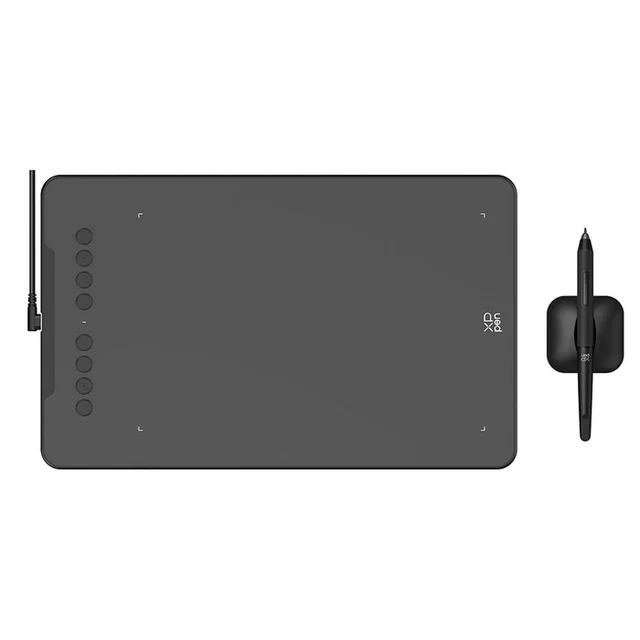
- Buy XP-Pen Deco 01 V3 A big, feature-loaded screenless tablet at a price that makes rivals look overpriced. Amazon
- Buy Wacom Intuos (Small) The safest first tablet: the most polished pen feel and the steadiest drivers in the category. Amazon
- It depends Huion Kamvas 13 (Gen 3) A laminated 13-inch pen display with flagship-grade specs, if you actually want to draw on a screen. Amazon
- Skip Wacom One (Medium) Pen Tablet Wacom build quality, but stripped of buttons and undercut on specs by cheaper rivals. Amazon
What actually matters
- Pen feel and tracking determine whether strokes feel natural and diagonals stay smooth rather than wavy, and this affects your finished art more than any spec.
- Driver stability decides whether the tablet cooperates with your creative apps or drops out mid-session, so it deserves heavy weight.
- Screen versus screenless changes price, portability, and comfort more than any other single choice you will make.
- Active drawing area should match your desk space and arm movement; too small feels cramped, too large can be awkward.
- Express keys and dials save constant trips to the keyboard, and their absence becomes a daily annoyance if you rely on shortcuts.
- Compatibility with your operating system and drawing software should be confirmed before you buy, especially for phones and less common systems.
- Overall value means how much usable hardware you get for the money, which the challenger brands often win regardless of badge.
The specs, in plain English
Green flags vs red flags
Green flags
- A battery-free pen with tilt and generous pressure, so you never charge the pen and get natural shading.
- Broad, clearly listed operating-system support that includes your setup, including phones if you want to draw on one.
- Enough express keys or a dial for the shortcuts you use most, keeping your other hand off the keyboard.
- On a pen display, a fully laminated screen with low parallax and high sRGB coverage.
- A reputation for stable drivers in the specific apps you plan to use.
Red flags
- Marketing that leans entirely on a huge pressure number while saying nothing about pen feel or driver reliability.
- A screenless pad sold at pen-display prices, or a display that hides that it needs a separate computer.
- No mention of your operating system or drawing software in the compatibility list.
- A pen that requires disposable batteries or frequent charging.
- A pen display with a visible air gap between glass and panel, which increases parallax.
Who's who: the brands
- Wacom - The long-standing name, known for the most natural pen feel and the steadiest drivers, usually at a premium price.
- XP-Pen - A value-focused challenger that packs large drawing areas, high specs, and many keys in for less money.
- Huion - Another strong-value challenger, especially competitive on affordable pen displays with flagship-grade features.
How to read a listing without getting fooled
Start by pinning down which kind of device a listing describes, because a screenless pad and a pen display can carry similar prices and spec words while offering very different experiences; look for whether it says you draw on a screen or on a pad while watching a monitor. Skim past the giant pressure-level figure, since most hands cannot feel differences above roughly 4,096 levels, and instead hunt for concrete details on pen feel, tilt, active area, and included keys or dials. For pen displays, check for lamination, parallax, and sRGB coverage, and confirm whether a computer connection is required. Finally, verify your operating system and drawing apps appear in the compatibility list, and remember that owner reports about driver stability tell you more than any single printed number.
How much should you spend?
How much to spend follows your commitment more than your ambition. A first-time buyer is almost always best served by an affordable screenless pad, which removes financial risk while you discover whether digital art suits you, and the skills transfer intact if you later upgrade. Spending more is worth it in two cases: when you specifically want the most polished pen feel and the most dependable drivers, or when you have decided you want to draw directly on a screen and are ready for the extra cost, cabling, and desk space a pen display demands. Spending more is not worth it merely to chase a larger pressure number, and it is a poor deal when a pricier tablet strips out features, such as express keys, that cheaper rivals include. The value sweet spot sits with a well-supported screenless pad that gives you a comfortable drawing area and the shortcut keys you will actually use.
Questions, answered
Do I need a pen display with a screen, or is a screenless tablet enough?
A screenless tablet, where you draw on a pad and watch your monitor, is cheaper, more portable, and completely capable of professional work; many artists never switch. A pen display lets you draw directly on the artwork, which feels more natural to most people but costs more, needs a computer connection, and takes up desk space. Beginners are usually better off starting screenless and upgrading only if the hand-and-screen separation bothers them.
Are higher pressure levels like 16,384 actually better than 4,096?
In practice, not really. Experienced owners widely say that 4,096 levels are already plenty for most hands to control, so jumps to 8,192 or 16,384 matter little in practice. Pen tracking accuracy, pressure smoothness, and driver stability shape your lines far more than the headline pressure figure.
Why do people complain so much about drivers?
The driver is the software that lets the tablet talk to your computer and creative apps, and when it is unstable the pen can lag, lose pressure, or stop responding mid-session. It is the single most common source of frustration owners report, which is why steady drivers matter more than flashy specs. Downloading the latest driver directly from the manufacturer before your first session prevents most early problems.
Will a graphics tablet work with my computer and drawing apps?
Most current tablets support Windows and macOS and the major creative programs, including Photoshop, Clip Studio Paint, and Krita, while many challenger models add Android and other systems that let you draw on a phone or tablet. Always confirm your specific operating system and software appear in the compatibility list before buying, and install the latest driver first for the cleanest start.
What should a complete beginner buy first?
Start with an affordable screenless tablet rather than an expensive pen display. It removes financial risk while you learn whether digital art suits you, and the skills transfer completely if you upgrade later. A large budget pad or a dependable compact tablet both make excellent first purchases.
Or jump to the head-to-head: XP-Pen Deco 01 V3 vs Wacom Intuos (Small).