Explained
Home NAS Devices, Explained
After reading this you will understand what a home NAS does, which specs actually matter for your use, and how to read a spec sheet without being misled.
In this guide
A NAS (network-attached storage) box is a small always-on computer packed with hard-drive bays that stores your files, backs up your devices, and streams your media across your home network. Newcomers to the category usually get tripped up by the same three things: NAS units almost always ship without any drives inside, the processor determines whether media streaming will be smooth or stuttery, and RAID gives you resilience but is not the same as a real backup. This guide decodes the vocabulary so you can match a box to how you actually plan to use it.
The 30-second version
- Drives are almost always separate. Most home NAS units ship diskless, so budget for two to four hard drives on top of the box itself and, where possible, buy matching drives so a RAID array stays balanced.
- The processor decides media performance. If you want to stream 4K video through Plex, Jellyfin or Emby, you need a CPU with integrated graphics that can hardware-transcode; a chip with no GPU will struggle.
- RAID is redundancy, not backup. A mirrored or parity array survives a single dead drive, but it does not protect against theft, fire, ransomware or accidental deletion, so you still need an off-site copy.
- Software polish is a real feature. The operating system and mobile apps vary widely in maturity; a refined platform matters far more for a non-technical household than raw hardware specs.
- Match the box to your workload. A simple backup vault has very different needs from a busy media server or a virtualization host, so decide what the NAS is for before comparing spec sheets.
The products this guide is about
Our verdict on each, with the full reasoning on the companion review.
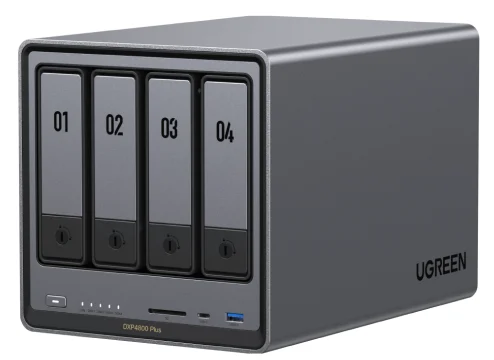
- Buy UGREEN NASync DXP4800 Plus The most hardware you can get in a home NAS right now, with true 10GbE and modern transcoding baked in. Amazon
- Buy TerraMaster F4-424 Pro The horsepower-per-dollar champion: an eight-core Intel chip and DDR5 for the price others charge for four-core boxes. Amazon
- It depends Synology DiskStation DS925+ The gold standard for software and reliability, but the hardware choices make it a poor fit for media streaming. Amazon
- Skip QNAP TS-464 A once-strong all-rounder now running aging silicon at a price the competition has left behind. Amazon
What actually matters
- Processor and transcoding ability determine whether the box can convert 4K video on the fly for streaming; an Intel chip with integrated graphics (Quick Sync) handles this efficiently, while a GPU-less processor cannot hardware-transcode and falls back to slow software transcoding.
- Number of bays sets your ceiling for capacity and redundancy; two bays suit backups and a photo vault, while four bays give room for a large, growing media library and more flexible RAID.
- Networking speed governs how fast files move; 2.5GbE is the practical floor today, and 10GbE is a meaningful upgrade only if the rest of your network and workflow can actually use it.
- Memory and NVMe headroom keep the unit useful for years; expandable DDR memory and cache slots age far better than fixed, soldered configurations, especially if you run containers or virtual machines.
- Software maturity shapes daily life with the box; the polish and reliability of the operating system, backup tools and mobile apps matter most for households that want set-and-forget operation.
- Drive compatibility and freedom affect both cost and flexibility; some makers nudge you toward their own branded drives, so confirm you can use the drives you want before buying.
- Expansion and connectivity extend the box's life; extra USB ports, an HDMI output, eSATA or PCIe slots and expansion-bay support decide how far you can grow later.
The specs, in plain English
Green flags vs red flags
Green flags
- An Intel processor with integrated graphics if media streaming and 4K transcoding are on your list
- At least 2.5GbE networking, with memory you can expand later rather than soldered-in RAM
- Open drive compatibility, so you are free to use standard third-party hard drives
- A mature, well-reviewed operating system with solid backup, mobile and app support
- Two NVMe slots and clear expansion paths that let the box grow with your needs
Red flags
- A GPU-less processor being marketed for a Plex or media-server role, which cannot hardware-transcode
- Aging silicon sold at a premium price when newer, cheaper rivals outspec it
- Fixed, non-upgradable memory that boxes you in within a year or two
- Restrictive drive-compatibility rules that push you toward the maker's own branded drives
- A cluttered or immature software platform, or a brand with a poor security-patch track record
Who's who: the brands
- UGREEN - A newcomer that reset expectations by pairing fast networking and modern transcoding-capable chips with aggressive pricing; software is younger but improving quickly.
- TerraMaster - Known for horsepower-per-dollar value, often shipping strong Intel chips and DDR5 for less; software is functional rather than polished, and it is popular with DIY-OS tinkerers.
- Synology - The long-standing benchmark for software polish and reliability, with the most mature app ecosystem; recent hardware choices lag on transcoding and it nudges buyers toward its own drives.
- QNAP - A feature-dense, powerful platform with an optional ZFS-based edition; strong on expansion, but recent mainstream models can run older silicon and its security history rewards diligent patching.
How to read a listing without getting fooled
Start with the processor, because it tells you more than any headline capacity figure: look for the exact chip name and check whether it has integrated graphics, since that determines hardware transcoding for media. Treat 'diskless' as the default and add drives to every price you see. Read the networking line carefully, a single fast port is only useful if the rest of your network matches it, and confirm whether memory is expandable or soldered. Watch for drive-compatibility fine print that limits you to the maker's own drives, and weigh the software honestly: a spec sheet cannot show you how polished or reliable the operating system and mobile apps are, which is where independent testing and owner reports are most valuable. Finally, be skeptical of a premium price attached to an older chip generation, and cross-check the model's silicon against current rivals before committing.
How much should you spend?
Spending on a home NAS breaks into two parts: the diskless box and the drives, and the drives can be a meaningful share of the total, so plan for both. The value sweet spot is a mid-range unit with a capable Intel chip, expandable memory and 2.5GbE networking, which covers backups, a photo library and comfortable media streaming for most homes. Paying more is worth it when you genuinely need premium features such as 10GbE, a large memory ceiling for virtualization, or the reassurance of an exceptionally mature software platform; it is not worth it when you are simply buying a well-known badge attached to older hardware. Going too cheap usually means a weak, GPU-less processor or fixed memory that leaves you upgrading again within a year or two, so favor a box you can grow into over the lowest sticker.
Questions, answered
Do home NAS devices come with hard drives?
Usually not. Most home NAS units ship diskless, which is standard for the class. You buy two to four 3.5-inch SATA hard drives (or SSDs) separately and install them yourself. Treat the drives as a meaningful part of the total cost, and where possible buy identical drives so a RAID array stays balanced. Always check the maker's current compatibility list before purchasing.
How many bays do I actually need, two or four?
A 2-bay unit in a mirrored configuration is plenty for backups and a photo vault, and it is cheaper and quieter. Choose a 4-bay model if you run a large, growing media library, want to stream several 4K files at once, or value more flexible expansion and redundancy. For a long-lived home server, four bays are widely considered the sweet spot.
Which specs matter most for a Plex or Jellyfin media server?
The processor, above all. Media servers lean on hardware transcoding to convert 4K video on the fly, so you want an Intel chip with integrated graphics. A processor with no GPU cannot hardware-transcode and forces demanding streams into slow software transcoding, which stutters. After the CPU, adequate memory and at least 2.5GbE networking round out a good media box.
Is RAID the same as a backup?
No, and this trips up many first-time buyers. RAID keeps your data available if a single drive dies, but it does not protect against accidental deletion, theft, fire or ransomware, because those affect every drive in the box at once. Plan a separate off-site backup copy in addition to any RAID redundancy; a single NAS, however configured, is not a complete backup strategy.
Is a NAS worth it over a cloud subscription?
For most households that store a lot of photos, video and backups, yes. A NAS is a one-time hardware cost (plus drives and electricity) rather than a recurring fee, keeps your data in your own home, and gives you far more space than typical cloud tiers. The trade-off is that you are responsible for setup, updates and an off-site backup copy.
What is the drive lock-in issue I have heard about?
Some makers have restricted full functionality on certain models to their own branded drives or a short approved list, which limits your freedom and can raise costs. Policies change over time, sometimes loosening after criticism, so if maximum drive freedom matters to you, favor brands that openly support standard third-party drives and confirm the current rules for the exact model before buying.
Or jump to the head-to-head: UGREEN NASync DXP4800 Plus vs TerraMaster F4-424 Pro.