Explained
USB-C Docking Stations, Explained
After reading this you'll be able to look at any dock listing and know what the upstream link really is, how many watts will reach your laptop, and how many monitors your specific machine can drive.
In this guide
Every docking station ends in the same oval USB-C plug, which is exactly why so many of them get returned. Behind that identical connector sits one of four very different technologies, and each one fails in its own way. The three things that decide whether a dock works on your desk are the upstream link it uses, the wattage it pushes back into the laptop, and whether your computer is even allowed to drive the number of monitors you want.
The 30-second version
- The connector tells you nothing. Thunderbolt 4, Thunderbolt 5, USB4, DisplayPort Alt Mode, and DisplayLink all terminate in a USB-C plug and behave completely differently, so read the upstream port spec, not the plug shape.
- Host charging wattage is the spec buyers underestimate. What matters is the power the dock sends back up the single cable to your laptop, not the total wattage printed on its power brick, and the two numbers are rarely the same.
- No dock adds displays your computer isn't allowed to drive. Apple Silicon chips have hard external-display limits baked into the silicon, and the extra HDMI port on the box is not a promise that you can use it.
- DisplayLink is the one real workaround, and it costs you something. It compresses your screen on the CPU and streams it over ordinary USB, escaping hardware limits at the price of a driver, extra heat, shorter battery life, and softer motion.
- A dock is infrastructure, not an accessory. A good one can outlive more than one laptop and you touch it every day, so the limits you accept to save money are limits you notice every morning.
The products this guide is about
Our verdict on each, with the full reasoning on the companion review.
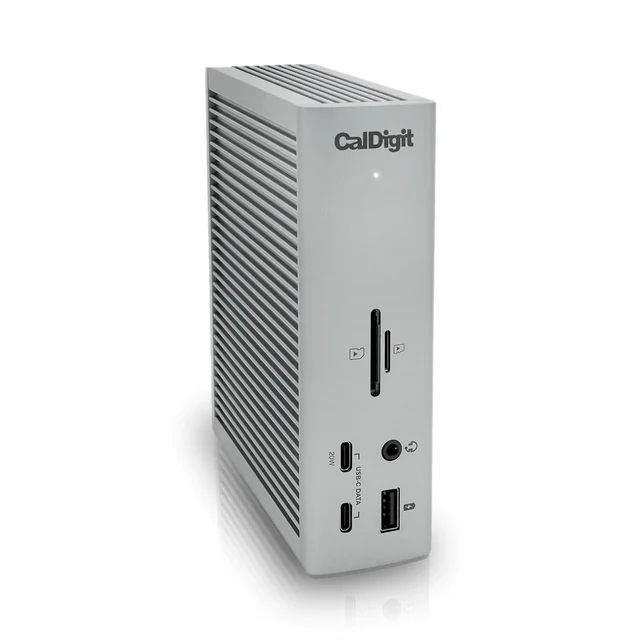
- Buy CalDigit TS4 Thunderbolt 4 Dock The reference Thunderbolt 4 dock: eighteen genuinely useful ports, 98W to the host, and a reputation for waking up correctly every morning. Amazon
- Buy Anker Prime Thunderbolt 5 Docking Station (14-in-1) 80Gbps upstream and 140W back to the laptop, which is what a 16 inch machine actually needs to charge at full speed while you work. Amazon
- It depends Plugable UD-6950PDZ USB-C Triple 4K Docking Station A DisplayLink dock that gets a base-chip MacBook past Apple's external display limit, at the cost of a driver and some CPU load. Amazon
- Skip UGREEN Revodok Pro 209 9-in-1 Docking Station A budget USB-C dock with four video ports that can only drive two screens, and a page that states two different charging figures.
What actually matters
- Upstream link type. This is the single most important spec and the one listings hide best. Thunderbolt 4 guarantees a 40Gbps pipe with dedicated display bandwidth, and USB4 runs at up to 40Gbps. Thunderbolt 5 doubles it to 80Gbps symmetric with a boost mode for display-heavy desks. A plain USB-C dock rides DisplayPort Alt Mode on a 5Gbps or 10Gbps USB link, so monitors, drives, Ethernet, and your webcam all fight over the same narrow lane. Under light use you may never notice. Copy a big folder to an external SSD with two 4K monitors lit and you absolutely will.
- Host charging wattage. Match the wattage of the charger that shipped with your laptop or accept slower charging. A thin 13-inch ultrabook is content with a modest supply, a 14 or 15-inch machine wants noticeably more, and a large 16-inch laptop or mobile workstation needs the top tier that only the USB Power Delivery 3.1 extended range spec can supply. Some docks quote a headline figure that quietly drops once downstream ports start drawing current.
- Your computer's actual display limit. Look this up before you shop, not after the monitors are on the desk. Base M1 and M2 MacBooks drive one external display. The base M3 MacBook Air drives two, but only with the laptop lid closed. Base M4 and M5 MacBooks drive two with the lid open. Pro, Max, and Ultra chips go further. Windows machines vary by GPU and by whether the port supports DisplayPort Alt Mode at all.
- Whether you need a driver. Thunderbolt and DisplayPort Alt Mode docks are plug-and-play. DisplayLink docks require software you install, update, and, on macOS, grant screen recording permission, which plenty of corporate IT policies forbid outright. If you can't install software on your work machine, DisplayLink is off the table before you compare anything else.
- Sleep and wake reliability. The most-used feature of a dock is the boring one: you open the laptop lid in the morning and everything is still connected. Cheap docks routinely drop displays, forget peripherals, or need an unplug-replug ritual. This never appears on a spec sheet and is the number one theme in long-run owner reports.
- Whether the ports are full-speed ports. Port count is the least useful number on the box. Plenty of docks pad the total with USB-A ports running at ancient USB 2.0 speeds, which are fine for a keyboard or mouse and useless for an external drive. Count the ports you'd actually plug something fast into.
- Ethernet speed and power design. 2.5 Gigabit Ethernet costs little extra and removes a bottleneck you can't fix later if your router supports it. Separately, docks with their own external power brick and a metal chassis run cooler than bus-powered plastic hubs, and cooler docks drop connections less often.
The specs, in plain English
Green flags vs red flags
Green flags
- The listing names the upstream link precisely, e.g. 'Thunderbolt 4 upstream, 40Gbps', rather than saying 'USB-C 40Gbps compatible' or similar hedged wording
- Host charging wattage is stated separately from the power adapter's total wattage, with the dock's own draw acknowledged
- The dock has its own external power brick and a metal chassis, both signs it's designed for a permanent desk rather than a bag
- Display support is broken out by platform, with separate Windows and macOS figures instead of one optimistic number
- Long-run owner reports mention reliable sleep and wake behaviour, which is the hardest thing for a dock to get right
- The manufacturer publishes a compatibility page listing which laptops and chips get which display configuration
Red flags
- A big port count where several USB-A ports are quietly USB 2.0 speed, padding the number with keyboard ports
- 'Dual monitor' or 'triple display' claims with no mention of MST, DisplayLink, or any macOS caveat anywhere in the listing
- A headline wattage that turns out to be passthrough from a charger you supply, or the dock's brick total rather than what reaches the laptop
- Marketing that uses 'Thunderbolt' and 'USB-C' interchangeably, or leans on the Thunderbolt logo without a certification claim
- Reviews clustering around disconnects, flickering monitors, or a required unplug-replug ritual after the laptop sleeps
- A dock that promises to give an Apple Silicon Mac more displays than its chip supports without saying the word DisplayLink
Who's who: the brands
- CalDigit - The specialist the category is measured against, known for deep port selection and a long record of docks that wake up correctly.
- Anker - The mainstream charging and accessory giant, usually early to new standards like Thunderbolt 5 and high-wattage power delivery, with strong support policies.
- Plugable - The connectivity house that leans heavily into DisplayLink and unusual multi-display problems, with unusually detailed compatibility documentation.
- UGREEN - Aggressive value pricing across hubs and travel adapters; capable hardware, but products are often sold as docks when they're really portable hubs.
- Kensington - An office and IT-procurement staple, focused on fleet deployment, security features, and docks that a helpdesk can standardise on.
- OWC - Mac-centric storage and connectivity maker whose docks are built around Apple hardware quirks and often bundle better card readers.
How to read a listing without getting fooled
Start at the bottom of the listing, not the top. The headline is almost always a port count and a display claim, and both are the least reliable numbers on the page. Find the upstream port first and get its exact name: Thunderbolt 5, Thunderbolt 4, USB4, USB 3.2 with DisplayLink, or DisplayPort Alt Mode. If the listing won't say plainly, assume it's the cheapest option. Next find the host charging figure and check that it's described as power delivered to the laptop rather than the adapter's total output, then look for a footnote about wattage dropping under load, which is the tell for a passthrough design. Then read the display claim twice: once for Windows and once for macOS, because a dock that does dual extended desktop on Windows via MST will mirror on a Mac, and the listing will usually admit this in a footnote or an FAQ rather than the bullet points. Finally, scan the port list for speeds instead of counts. A dock whose port count includes USB 2.0 ports has fewer ports you'd actually use for fast devices. When a spec sheet gives you a number without a unit or a condition attached, treat it as marketing until you find the condition.
How much should you spend?
Spending is really a decision about which technology you're buying, and the tiers are separated by capability rather than polish. The cheapest tier is portable hubs sold as docks: genuinely useful in a bag, and a poor choice as the permanent anchor of a desk, because passthrough charging, gigabit Ethernet, slow USB-A ports, and MST-dependent dual-monitor claims are limits you meet daily. The middle tier is where DisplayLink docks live, and they're worth it only if you specifically need more displays than your hardware allows, or your laptop has no Thunderbolt port at all. Paying for one when your machine could drive the monitors natively buys you a worse picture and a driver to maintain. The premium tier buys certified Thunderbolt bandwidth, real host charging, a metal chassis, an external brick, and the sleep-and-wake reliability that owner reports keep circling back to. That's where most people should land if they have a Thunderbolt laptop and a permanent desk. The top tier, Thunderbolt 5, earns its premium in three specific cases: your laptop actually speaks Thunderbolt 5 or USB4 v2, you need the highest charging tier for a large notebook, or you regularly move big files to fast storage while monitors are lit. Outside those, the money is better spent on ports and build quality. One genuine argument for buying ahead of your needs: a good dock can outlast more than one laptop, so its cost per year of use is far lower than the sticker suggests, and the highest-bandwidth options are backwards compatible with the machine you own now.
Questions, answered
What's the real difference between a Thunderbolt dock and a USB-C dock?
The connector is identical, the link behind it isn't. Thunderbolt 4 guarantees 40Gbps with bandwidth set aside for displays (USB4 runs at up to 40Gbps), and Thunderbolt 5 raises that to 80Gbps in both directions with a boost mode on top. A plain USB-C dock uses DisplayPort Alt Mode over a 5Gbps or 10Gbps USB link, so your monitors, external drives, Ethernet, and webcam all share one narrow pipe. For a mouse, a keyboard, and one monitor you may never notice. Copy a large project to an external SSD while two 4K displays are running and you will.
Will a docking station let my MacBook Air run two external monitors?
Only if the chip already allows it, or if the dock uses DisplayLink. Base M1 and M2 MacBooks drive one external display. The base M3 MacBook Air drives two, but only with the lid closed. Base M4 and M5 MacBooks drive two with the lid open. Pro, Max, and Ultra chips go further. A Thunderbolt dock cannot change that number no matter how many video outputs it has, which is why the extra HDMI port on the box isn't a promise. A DisplayLink dock is the one workaround, because it renders frames on the CPU and sends them as compressed USB data, so the Mac never knows it's driving a monitor.
How many watts of host charging do I actually need?
Match the charger that came with your laptop, or accept slower charging. A thin 13-inch ultrabook is happy with a modest supply. A 14 or 15-inch machine wants meaningfully more. A large 16-inch laptop or a mobile workstation needs the top tier, which requires the USB Power Delivery 3.1 extended range spec and is why that capability only shows up on newer flagship docks. Read the fine print too: some docks quote a headline wattage that falls once downstream ports start drawing current, which is common on passthrough hubs that rely on a charger you supply.
What are the downsides of DisplayLink?
DisplayLink compresses your screen on your computer's own processor and streams it over USB, which is how it escapes hardware display limits. The trade is that you must install and maintain a driver, and on macOS grant it screen recording permission that some workplace IT policies forbid. Your CPU does the encoding, so the machine runs warmer and battery life drops when you're unplugged. Fast motion, gaming, and colour-critical work look worse than a native connection, and some protected streaming video refuses to play on a DisplayLink screen. Use it when you need displays your hardware can't provide, not as a default.
Why does my cheap dock mirror my screens on a Mac but extend them on Windows?
Because it relies on Multi-Stream Transport, the DisplayPort feature that splits one video stream into several. Windows supports MST; macOS does not support it for an extended desktop. On a Mac, a single DisplayPort Alt Mode stream can only carry one picture, so both monitors show the same thing. Manufacturers usually disclose this, but in a footnote rather than the headline. If a listing advertises dual monitors and never mentions DisplayLink, assume the extended desktop is Windows-only.
Is Thunderbolt 5 worth paying for, or is Thunderbolt 4 enough?
For most two-monitor desks, Thunderbolt 4 is enough and the money is better spent on ports and build quality. Thunderbolt 5 earns its premium in three situations: your laptop needs the highest charging tier, you regularly run high-refresh or very high-resolution monitors, or you move large files to fast external storage while displays are active. Thunderbolt 5 docks are backwards compatible, so buying one for a Thunderbolt 4 laptop works fine, you just won't see the extra bandwidth until you upgrade the machine. Since a good dock can outlast more than one laptop, buying ahead is a defensible choice.
Or jump to the head-to-head: CalDigit TS4 Thunderbolt 4 Dock vs Anker Prime Thunderbolt 5 Docking Station (14-in-1).