

Office & WFH
The Best USB-C Docking Stations: 4 Compared (and One to Skip)
Four USB-C and Thunderbolt docks compared on upstream bandwidth, host charging wattage, real display support, and Apple Silicon limits.
The short version
Buy the CalDigit TS4 if your laptop has Thunderbolt 3 or Thunderbolt 4: eighteen ports, 98W host charging, and the most reliable sleep and wake behaviour here. Buy the Anker Prime Thunderbolt 5 Docking Station if you have a Thunderbolt 5 machine, a 16 inch laptop that wants 140W, or you push big files while running two monitors. The Plugable UD-6950PDZ is a DisplayLink dock, which is the only way to get more external displays than your Apple Silicon chip officially supports, but it needs a driver, borrows CPU cycles, and softens motion. Skip the UGREEN Revodok Pro 209 as a permanent dock: its four video ports drive only two screens, its page lists both 100W and 85W for charging, and it says nothing about Mac display behaviour. Before you buy anything, check your exact chip's external display limit, because base M1 and M2 MacBooks drive one display, the base M3 MacBook Air drives two only with the lid closed, and base M4 and M5 MacBooks drive two with the lid open. Best for: a permanent multi-monitor desk built around one cable, chosen by matching the dock's upstream link and charging wattage to the laptop you actually own.
Our picks at a glance
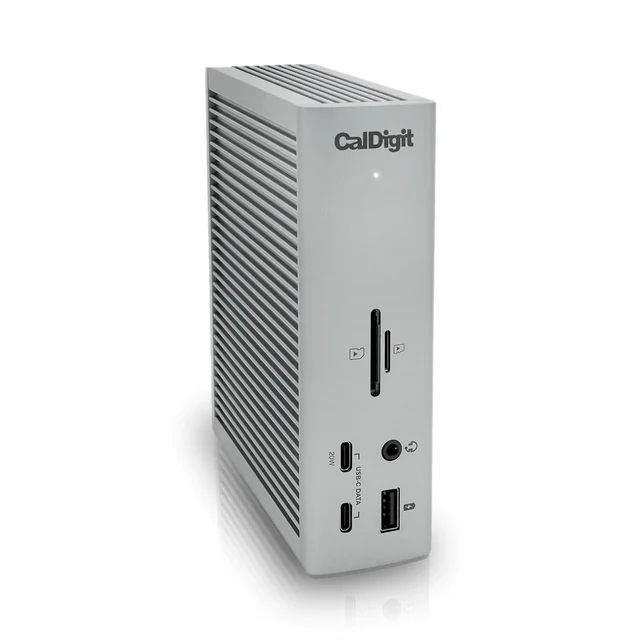
- CalDigit TS4 Thunderbolt 4 Dock - Buy. The reference Thunderbolt 4 dock: eighteen genuinely useful ports, 98W to the host, and a reputation for waking up correctly every morning.
- Anker Prime Thunderbolt 5 Docking Station (14-in-1) - Buy. 80Gbps upstream and 140W back to the laptop, which is what a 16 inch machine actually needs to charge at full speed while you work.
- Plugable UD-6950PDZ USB-C Triple 4K Docking Station - It depends. A DisplayLink dock that gets a base-chip MacBook past Apple's external display limit, at the cost of a driver and some CPU load.
- UGREEN Revodok Pro 209 9-in-1 Docking Station - Skip. A budget USB-C dock with four video ports that can only drive two screens, and a page that states two different charging figures.
The verdict in 30 seconds
What mattered most
- Upstream link
- Host charging
- Displays on Windows
- Displays on Apple Silicon
- Driver required
- Ethernet
Docking stations look interchangeable because they all end in the same USB-C plug, but a Thunderbolt 5 dock, a Thunderbolt 4 dock, a DisplayLink dock, and a plain USB-C hub are four different products with four different failure modes. The three specs that decide whether you keep yours are the upstream link, the wattage sent back to the laptop, and whether your machine can legally drive the monitors you want. We compared four current docks on exactly those points. Two are easy recommendations, one solves a narrow problem well, and one is the dock people buy by mistake.
The reference Thunderbolt 4 dock: eighteen genuinely useful ports, 98W to the host, and a reputation for waking up correctly every morning.
Best for: Anyone with a Thunderbolt 3 or Thunderbolt 4 laptop who wants one cable to run a permanent two-monitor desk.
- Eighteen ports including three Thunderbolt 4, UHS-II SD and microSD, and 2.5 Gigabit Ethernet
- 98W host charging covers most 14 inch laptops
- Owners and reviewers both single out reliable sleep and wake behaviour, where cheap docks fail
- Owners report it stays cool and quiet under a full port load
- Thunderbolt 4 rather than Thunderbolt 5, so displays and a fast SSD still share 40Gbps
- Costs more than most laptops' own chargers, and it is a premium buy in this category
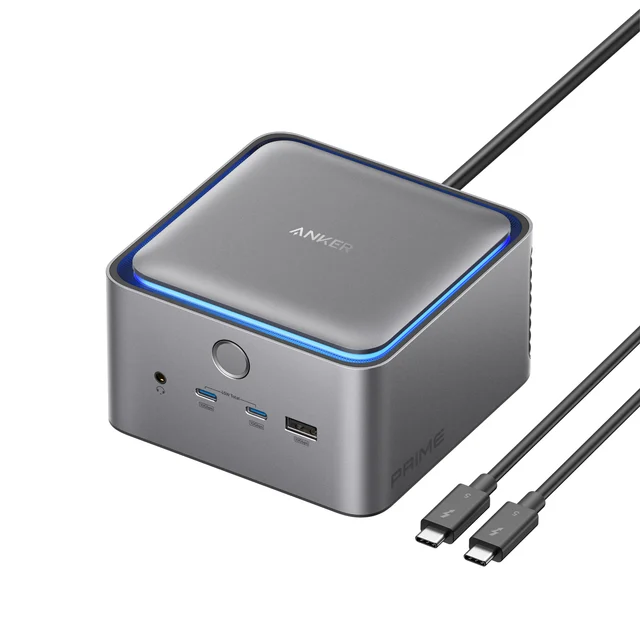
80Gbps upstream and 140W back to the laptop, which is what a 16 inch machine actually needs to charge at full speed while you work.
Best for: Thunderbolt 5 or USB4 v2 laptops, large notebooks that need 140W, and anyone moving big files while two monitors are lit.
- 140W host charging, the only dock here that fully feeds a 16 inch MacBook Pro
- Thunderbolt 5 at 80Gbps symmetric with a 120Gbps boost mode, so monitors and a fast SSD stop competing
- Fourteen well chosen ports including two downstream Thunderbolt 5 and 2.5 Gigabit Ethernet
- Built-in active cooling and interactive ambient lighting
- HDMI 2.1 and DisplayPort 2.1 cannot be used simultaneously, and it caps at two external displays
- Most of the bandwidth premium is wasted on a Thunderbolt 4 laptop
- SD and microSD readers are UHS-I only, slower than the TS4's UHS-II readers
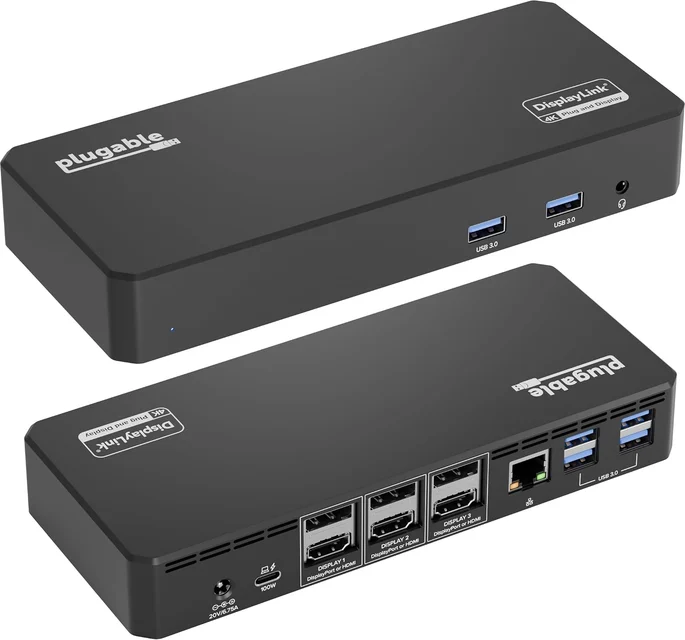
A DisplayLink dock that gets a base-chip MacBook past Apple's external display limit, at the cost of a driver and some CPU load.
Best for: Base M-series Mac owners who need more monitors than the chip allows, and older USB-C laptops without Thunderbolt.
- Drives up to three 4K 60Hz displays even from Macs whose chip officially supports one
- Works on many older USB-C laptops without Thunderbolt, as long as the port supports DisplayPort Alt Mode
- Each of the three outputs takes HDMI or DisplayPort, so no adapters needed
- 100W to the host from its own external brick, plus gigabit Ethernet and six USB ports
- Requires DisplayLink Manager, including screen recording permission on macOS that some IT policies block
- Compression runs on your CPU, so the machine warms up and battery life drops
- Motion, gaming, and color-critical work look worse than a native connection, and some protected video refuses to play
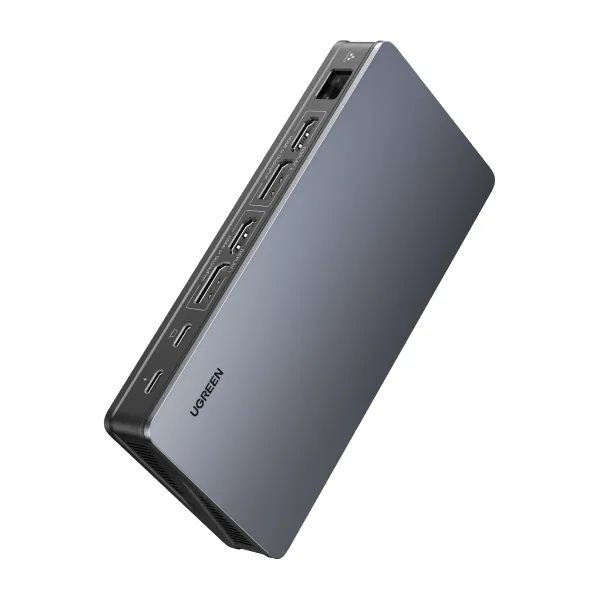
A budget USB-C dock with four video ports that can only drive two screens, and a page that states two different charging figures.
Best for: Windows laptop owners who want two 4K 60Hz screens and Ethernet on a tight budget, and can live with the port-pairing rules.
- Costs a fraction of the Thunderbolt options and packs two HDMI, two DisplayPort, Gigabit Ethernet and three 10Gbps data ports into one box
- Two extended displays at up to 4K 60Hz, per UGREEN
- UGREEN lists a 2-year warranty and 30-day returns
- Four video ports but only two extended monitors, and UGREEN notes the HDMI and DisplayPort in the same display group cannot work together
- The headline says 100W Power Delivery while the spec table lists the charging port at 85W
- Plain USB-C with 10Gbps data ports, so no Thunderbolt bandwidth to give displays and storage their own lanes
- The product page says nothing about how the dual-display mode behaves on a Mac
| Criteria | CalDigit TS4 Thunderbolt 4 Dock Top pick | Anker Prime Thunderbolt 5 Docking Station (14-in-1) | Plugable UD-6950PDZ USB-C Triple 4K Docking Station | UGREEN Revodok Pro 209 9-in-1 Docking Station |
|---|---|---|---|---|
| Verdict | Buy it | Buy it | It depends | Skip it |
| Best for | Anyone with a Thunderbolt 3 or Thunderbolt 4 laptop who wants one cable to run a permanent two-monitor desk. | Thunderbolt 5 or USB4 v2 laptops, large notebooks that need 140W, and anyone moving big files while two monitors are lit. | Base M-series Mac owners who need more monitors than the chip allows, and older USB-C laptops without Thunderbolt. | Windows laptop owners who want two 4K 60Hz screens and Ethernet on a tight budget, and can live with the port-pairing rules. |
| Price tier | $$$ · premium | $$$$ · flagship | $$ · mid-range | $ · budget |
| Upstream link | Thunderbolt 4, 40Gbps | Thunderbolt 5, 80Gbps symmetric (120Gbps boost) | USB-C 3.2 with DisplayLink compression | USB-C, 10Gbps data ports |
| Host charging | 98W | 140W (USB PD 3.1) | 100W from external brick | 100W PD headline, 85W in the spec table |
| Displays on Windows | Dual 4K 60Hz, or single 8K | Dual (HDMI 2.1 or DP 2.1, not both) | Triple 4K 60Hz | Dual 4K 60Hz, one per HDMI/DP group |
| Displays on Apple Silicon | Whatever your chip allows, up to dual 6K 60Hz | Whatever your chip allows, up to two | Up to triple 4K 60Hz on any Mac, driver required | Not stated by UGREEN |
| Driver required | No | No | Yes, DisplayLink Manager | Not stated |
| Ethernet | 2.5 Gigabit | 2.5 Gigabit | Gigabit | Gigabit |
| Port count | 18 | 14 | 12 | 9 |
| Price tier | $$$ · premium | $$$$ · flagship | $$ · mid-range | $ · budget |
Which one is right for you?
- Anyone with a Thunderbolt 3 or Thunderbolt 4 laptop who wants one cable to run a permanent two-monitor desk. Buy it CalDigit TS4 Thunderbolt 4 Dock
- Thunderbolt 5 or USB4 v2 laptops, large notebooks that need 140W, and anyone moving big files while two monitors are lit. Buy it Anker Prime Thunderbolt 5 Docking Station (14-in-1)
- Base M-series Mac owners who need more monitors than the chip allows, and older USB-C laptops without Thunderbolt. It depends Plugable UD-6950PDZ USB-C Triple 4K Docking Station
- Windows laptop owners who want two 4K 60Hz screens and Ethernet on a tight budget, and can live with the port-pairing rules. Skip it UGREEN Revodok Pro 209 9-in-1 Docking Station
How we judged the field
We do not run a lab. We synthesize independent testing and long-run owner reports, then weight the things that actually decide whether a dock works on your desk: what the upstream link really is, how many watts reach the laptop while every port is busy, whether displays survive a sleep and wake cycle, and how the dock behaves on Apple Silicon specifically. Port count is the least useful number printed on the box. A dock with eighteen ports and a thin power budget is worse than a dock with ten ports that charges your laptop at full speed.
Three technical facts drove most of the verdicts below, and they are the same three that cause most returns.
Thunderbolt is not the same thing as USB-C. Thunderbolt 4 guarantees a 40Gbps link (USB4 runs at up to 40Gbps) with enough display bandwidth for two 4K 60Hz monitors (or one 8K panel). Thunderbolt 5 doubles that to 80Gbps symmetric with a 120Gbps boost mode for display-heavy setups. A plain USB-C dock instead uses DisplayPort Alt Mode riding on a 5Gbps or 10Gbps USB link, so your monitors, your SSD, your webcam, and your Ethernet all share one narrow pipe. Same connector shape, very different product.
Host power delivery is the spec buyers underestimate. The number that matters is the wattage the dock pushes back up the cable to the laptop, not the total wattage of its brick. 60W to 65W is fine for a 13 inch ultrabook and not fine for a 16 inch laptop compiling code. 90W to 100W is the practical floor for a large notebook. 140W, which requires the USB Power Delivery 3.1 extended range spec, is what a 16 inch MacBook Pro needs to charge at full speed. Read the fine print too: some docks quote a headline figure that drops once the downstream ports are loaded.
No dock adds displays to an Apple Silicon Mac beyond what the chip allows. Base M1 and M2 MacBooks drive one external display. The base M3 MacBook Air drives two, but only with the laptop lid closed. Base M4 and M5 MacBooks finally drive two with the lid open. Pro, Max, and Ultra chips go further. A Thunderbolt dock respects that limit no matter how many HDMI ports it has. The one workaround is DisplayLink, which renders frames on your CPU and streams them as compressed USB data, so the Mac never knows it is driving a monitor. That is a real fix with real costs, covered below.
CalDigit TS4 Thunderbolt 4 Dock
Buy itThis is the reference Thunderbolt 4 dock, and years after launch it is still the one other docks get compared against. Eighteen ports is genuinely useful rather than a spec-sheet stunt: three Thunderbolt 4 ports at 40Gbps, five USB-A and three USB-C at 10Gbps, DisplayPort 1.4, 2.5 Gigabit Ethernet, UHS-II SD and microSD readers, and both a front and rear headphone jack. It pushes 98W back to the host, which covers most 14 inch laptops.
Owner reports consistently praise two things: the dock runs cool and quiet, and the dock reconnects reliably after sleep, which is where cheaper docks fail. On display support, CalDigit lists up to dual 4K 60Hz on Windows and Intel machines, single 8K 30Hz, and dual 6K 60Hz on Apple Silicon chips that allow two displays. It is not cheap, and it is Thunderbolt 4 rather than Thunderbolt 5, so it will not carry a pair of high-refresh 4K panels plus a fast external SSD at the same time. For a normal two-monitor desk it does not need to.
Anker Prime Thunderbolt 5 Docking Station (14-in-1)
Buy itIf your laptop has Thunderbolt 5 or USB4 v2, or if you want the dock to outlive the laptop, this is the pick. The upstream port delivers 140W, which is the difference between a 16 inch MacBook Pro charging at full speed and charging slowly while you work. The 80Gbps link (up to 120Gbps in boost mode) means displays and a fast external SSD stop fighting each other.
The port list is well chosen rather than merely long: two downstream Thunderbolt 5 ports, 2.5 Gigabit Ethernet, three USB-A and two front USB-C at 10Gbps, SD and microSD, and a combo audio jack. It also has built-in active cooling and interactive ambient lighting.
Two caveats worth knowing before you buy. The HDMI 2.1 and DisplayPort 2.1 outputs cannot be used at the same time, and the dock tops out at two external displays regardless. The SD and microSD readers are UHS-I only. It is the most expensive dock here by a clear margin, and on a Thunderbolt 4 laptop you will not see most of what you paid for.
Plugable UD-6950PDZ USB-C Triple 4K Docking Station
It dependsThis is the answer to a specific problem, and a poor answer to any other. It is a DisplayLink dock: video is compressed by a driver on your machine and sent over ordinary USB rather than a DisplayPort stream. That means it will drive three 4K 60Hz displays from a MacBook Air whose chip officially supports one, and it works on many older USB-C laptops that never had Thunderbolt, provided the port supports DisplayPort Alt Mode. Twelve ports, 100W to the host from an external brick, gigabit Ethernet, and a choice of HDMI or DisplayPort on each of the three outputs.
The costs are real and reviewers are consistent about them. You must install and keep updating DisplayLink Manager, and on macOS you have to grant it screen recording permission, which some IT departments will not allow. Compression is handled by your CPU, so a busy machine gets warmer and battery life on the go suffers. Fast motion, gaming, and color-critical work all look worse than a native connection, and some protected streaming video will refuse to play on a DisplayLink screen.
Buy it if you have a base-chip Mac and genuinely need more monitors than the chip supports, or if your laptop has no Thunderbolt port at all. If your machine can drive the displays natively, a Thunderbolt dock will look and feel better.
UGREEN Revodok Pro 209 9-in-1 Docking Station
Skip itTwo HDMI ports, two DisplayPort outputs, Gigabit Ethernet, three 10Gbps data ports and a price that makes the Thunderbolt options look absurd. On paper it is the value play. Read the page closely and the compromises land exactly where they hurt.
The four video ports drive only two extended monitors at up to 4K 60Hz, and UGREEN’s own note says the HDMI and DisplayPort in the same display group cannot work together, so you pick one port from each pair. The page also disagrees with itself on power: the headline promises 100W Power Delivery, while the spec table lists the charging port at 85W. It is plain USB-C with 10Gbps data ports, so there is no Thunderbolt bandwidth to give displays and storage their own lanes, and the product page says nothing about how the dual-display mode behaves on a Mac, which is the question Apple Silicon owners most need answered before they buy.
CalDigit TS4 Thunderbolt 4 Dock vs Anker Prime Thunderbolt 5 Docking Station (14-in-1): which should you buy?
The deciding question is what port your laptop actually has, not which dock is newer.
If your machine is Thunderbolt 3 or Thunderbolt 4, buy the TS4. It gives you more ports, a better card reader, and 98W of charging, and the extra bandwidth in the Anker is bandwidth your laptop cannot use. The TS4 also has the longer track record for the boring thing that matters most: waking up correctly, every morning, with every peripheral still attached.
If your machine is Thunderbolt 5 or USB4 v2, or you run a 16 inch laptop that wants 140W, or you regularly move very large files to an external SSD while two monitors are lit, buy the Anker. The 80Gbps link removes the contention that makes a Thunderbolt 4 dock feel slow under exactly that combination of loads, and the extra 42W of host charging is felt daily rather than occasionally.
Neither dock will give an Apple Silicon Mac more displays than its chip supports. If that is your problem, neither of these is your answer.
What to look for
- Read the upstream port, not the connector. Thunderbolt 4, Thunderbolt 5, USB4, DisplayPort Alt Mode, and DisplayLink all end in a USB-C plug and behave completely differently.
- Check host charging wattage against your laptop’s own charger. Match it or accept slower charging. 60W to 65W for a thin ultrabook, 90W to 100W for a 14 inch or 15 inch, 140W for a 16 inch MacBook Pro or a mobile workstation.
- Look up your exact chip’s external display limit before you shop. Base M1 and M2 MacBooks: one display. Base M3 MacBook Air: two, lid closed only. Base M4 and M5 MacBooks: two, lid open. Pro and Max: more. No dock changes this except DisplayLink.
- Treat “dual monitor” claims on cheap USB-C docks as Windows-only unless the listing says DisplayLink. macOS does not do MST, so those docks mirror instead of extend.
- Prefer 2.5 Gigabit Ethernet if your router or switch supports it. It costs little extra and removes a bottleneck you cannot fix later.
- Check whether the ports you care about are full speed. USB-A at 480Mbps is a keyboard port, not a drive port, and plenty of docks pad their port count that way.
- Favour docks with an external power brick and a metal chassis. They run cooler, and cooler docks drop connections less often.
- Buy the dock for the laptop you will own in three years, since a good dock can outlast more than one machine.
Our final take
Most people looking at this category are solving one of two problems, and they need different products. If you want a permanent, reliable, everything-plugged-in desk and your laptop has Thunderbolt, the CalDigit TS4 remains the safest purchase in the category and its port selection is still unmatched at the price. If you are on Thunderbolt 5, charging a large laptop, or moving big files while running two monitors, the Anker Prime Thunderbolt 5 dock is worth the premium and should stay useful across your next two machines.
If your problem is instead that your Mac refuses to drive the monitors you already own, no Thunderbolt dock will fix it. The Plugable UD-6950PDZ will, at the cost of a driver, some CPU load, and softer motion. Understand that trade before you buy it, not after.
The one to walk past is the budget USB-C dock. The UGREEN Revodok Pro 209 is a competent budget dock, but a dock is infrastructure. Port-pairing rules, an unclear charging figure, unstated Mac behaviour and shared bandwidth are the kind of limits you notice every single day, and no amount of saving up front makes that go away.
Questions, answered
What is the real difference between a Thunderbolt dock and a USB-C dock?
The connector is identical, the link behind it is not. Thunderbolt 4 guarantees 40Gbps with dedicated display bandwidth (USB4 runs at up to 40Gbps), and Thunderbolt 5 raises that to 80Gbps symmetric with a 120Gbps boost mode. A plain USB-C dock uses DisplayPort Alt Mode over a 5Gbps or 10Gbps USB link, so your monitors, external drives, Ethernet, and webcam all compete for the same pipe. Under light use you may never notice. Copy a large project to an external SSD while two 4K monitors are running, and you will.
Will a docking station let my MacBook Air run two external monitors?
Only if the chip already allows it, or if the dock uses DisplayLink. Base M1 and M2 MacBooks drive one external display. The base M3 MacBook Air drives two, but only with the laptop lid closed. Base M4 and M5 MacBooks drive two with the lid open. Pro, Max, and Ultra chips go further. A Thunderbolt dock cannot change that number no matter how many video ports it has, which is why the extra HDMI port on the box is not a promise. A DisplayLink dock like the Plugable UD-6950PDZ is the one workaround, because it renders frames on the CPU and sends them as compressed USB data.
How many watts of host charging do I actually need?
Match the wattage of the charger that came with your laptop, or accept slower charging. A thin 13 inch ultrabook is happy at 60W to 65W. A 14 inch or 15 inch machine wants 90W to 100W. A 16 inch MacBook Pro or a mobile workstation wants 140W, which requires the USB Power Delivery 3.1 extended range spec and is why that number appears on newer flagship docks. Also read the fine print: some docks quote a headline wattage that falls once downstream ports start drawing current, which is common on passthrough hubs that use a charger you supply.
What are the downsides of DisplayLink?
DisplayLink compresses your screen on the computer's own processor and streams it over USB, which is how it escapes hardware display limits. The trade is that you must install and maintain a driver, and on macOS grant it screen recording permission that some workplace IT policies forbid. Your CPU does the encoding, so the machine runs warmer and battery life drops when you are not plugged in. Fast motion, gaming, and color-critical work look worse than a native connection, and some protected streaming video will refuse to play on a DisplayLink screen. Use it when you need displays your hardware cannot provide, not as a default.
Is Thunderbolt 5 worth paying for, or is Thunderbolt 4 enough?
For most two-monitor desks, Thunderbolt 4 is enough and the money is better spent on ports and build quality. Thunderbolt 5 earns its premium in three situations: your laptop needs 140W of charging, you regularly run high-refresh or very high-resolution monitors, or you move large files to fast external storage while displays are active. Thunderbolt 5 docks are backwards compatible, so buying one for a Thunderbolt 4 laptop works fine, you simply will not see the extra bandwidth until you upgrade the machine. Since a good dock can outlast more than one laptop, that is a reasonable reason to buy ahead.
Deciding between the top two? See our head-to-head: CalDigit TS4 Thunderbolt 4 Dock vs Anker Prime Thunderbolt 5 Docking Station (14-in-1).
More Office & WFH reviews
 The Best Vertical Mice for Wrist Comfort: 4 Compared (and One to Skip)
  The Best Under-Desk Walking Pads: 4 Compared (and One to Skip)
  The Best Webcams for Working From Home (and One to Skip)
  The Best Whiteboards: 4 Compared (and One to Skip)
  The Best Wireless Presenters: 4 Compared (and One to Skip)
  The Best Keyboard Wrist Rests: 4 Compared (and One to Skip)