Explained
Stream Decks, Explained
After reading this you'll understand what every stream deck spec means, why the software matters more than the button count, and which features you'll actually use.
In this guide
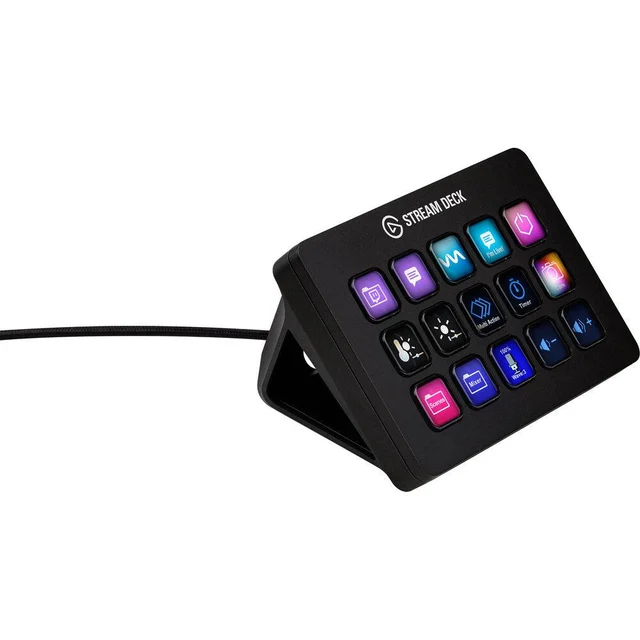
A stream deck is a small pad of programmable, screen-labeled buttons that fires shortcuts with one tap: switch scenes, mute a mic, play a sound, launch an app. The hardware looks simple, so first-time buyers fixate on how many keys they get and miss the thing that actually decides how good the device feels, which is the companion software that programs those keys.
The 30-second version
- The app matters more than the buttons. A stream deck is only as good as the software that programs it, so weigh integrations, plugins, and reliability above raw key count.
- Key count is about headroom, not power. Six keys fill up the moment you add scenes, sounds, and app shortcuts; around fifteen is the comfortable sweet spot for most people.
- Dials are a workflow feature, not an upgrade. Physical knobs are a big help if you constantly adjust audio, lighting, or timelines, and wasted money if you mostly switch scenes.
- Cheaper can be fine. Budget pads can deliver usable hardware and even add knobs; the trade-off is rougher software and a smaller icon and plugin library.
- Buy for how you actually work. Match the deck to your real daily tasks rather than the longest feature list, or you'll pay for controls you never touch.
The products this guide is about
Our verdict on each, with the full reasoning on the companion review.
- Buy Elgato Stream Deck MK.2 The 15-key standard the whole category is measured against, and still the safest buy for most creators. Amazon
- Buy AJAZZ AKP03E Desk Controller Six LCD keys plus three knobs for a fraction of Elgato money. Amazon
- It depends Elgato Stream Deck + Eight keys plus four tactile dials and a touch strip, brilliant if you'll actually turn the knobs and overkill if you won't. Amazon
- Skip Elgato Stream Deck Mini Elgato's compact six-key entry costs mid-range money for budget capability, and its own siblings beat it. Amazon
What actually matters
- Software depth is the single biggest factor: look for maintained native integrations with the apps you use (streaming tools, chat, creative software) and a real plugin marketplace, because that determines what your buttons can do.
- Key count and headroom decide how fast you run out of room; small pads fill up quickly once you add scenes, sound effects, and shortcuts, so buy more keys than you think you need today.
- Physical dials give continuous, tactile control over things like volume or timeline scrubbing, but they only earn their cost if your workflow involves constant fine adjustment.
- Reliability over long sessions matters more than a spec sheet; favor devices with a track record of running for hours without crashing or dropping inputs in owner reports.
- Build and connectivity age with you: a detachable cable, a stable stand, and a removable faceplate survive a busy desk far better than a fixed, flimsy body.
- Value per usable button is a useful way to compare price, since a cheap pad with knobs can beat a pricier one that gives you fewer keys for more money.
The specs, in plain English
Green flags vs red flags
Green flags
- Mature companion software with regular updates and native support for the specific apps you use
- A real plugin or marketplace ecosystem, not just a handful of built-in actions
- Owner reports describing long, crash-free sessions once the device is set up
- Enough keys to hold your scenes, sounds, and shortcuts with room to grow
- A detachable cable, stable stand, and generally serviceable build
Red flags
- Marketing that sells button count and dials while saying almost nothing about the software
- A pad priced close to fuller models but offering far fewer keys or features
- Vague or abandoned companion apps with rare updates and a tiny icon library
- Reports of dropped inputs, disconnects, or crashes during long use
- Paying a premium for dials when your workflow is almost entirely scene switching and hotkeys
Who's who: the brands
- Elgato - Defined the category, with a mature software app, a large plugin ecosystem and a lineup of several sizes.
- AJAZZ - Budget challenger that undercuts premium decks while adding physical knobs on some models, at the cost of rougher software and a smaller icon library.
- Loupedeck (Logitech) - Dial-focused consoles aimed at photo, video, and audio editors who want tactile control over creative apps rather than pure streaming.
- Mirabox - Value-oriented maker of compact LCD-key controllers, typically priced below the mainstream brands.
How to read a listing without getting fooled
When you read a stream deck listing, mentally sort the specs into hardware and software, then weight the software more heavily. A big key count and shiny dials are easy to photograph, but ask what the companion app actually supports: does it integrate natively with the exact programs you use, is it still being updated, and how large is its plugin library? Treat a long list of hardware buttons as headroom, not capability, and be skeptical of any product that leads with knobs and touch strips while staying quiet about the app. Finally, divide the value in your head by usable buttons and features rather than sticker appeal, and check owner reports for the boring but crucial detail of whether it stays connected and stable over hours of use.
How much should you spend?
Spend based on how central the deck is to your daily work rather than on the longest feature list. The best value usually sits in the middle of the range: enough keys that you won't outgrow them quickly, paired with mature software. Going cheaper is a legitimate move now that budget pads offer dependable hardware and sometimes even knobs, as long as you accept a rougher app and less certainty about long-term updates. Paying up is only worth it when you're buying a specific capability you'll genuinely use, such as physical dials for constant audio or editing adjustments; if your workflow is mostly scene switching and hotkeys, those extras are money you won't feel. The trap to avoid is a small, dated pad priced close to fuller models, where you overpay for less than budget rivals offer.
Questions, answered
Do I even need a stream deck if my keyboard already has macro keys?
The advantage is the labeled, changeable screen on each key, so you always see what a button does and it can reprogram itself per app or scene. Macro keys work, but you have to memorize them and they never relabel themselves. If you juggle scenes, sounds, mics, and shortcuts live, the visual feedback prevents real mistakes.
How many keys do I actually need?
Six keys feel roomy until you start adding scenes, sound effects, and app shortcuts, at which point they fill fast. Around fifteen is the comfortable sweet spot for most streamers and creators. Folders can extend a small pad, but constantly diving into sub-pages is slower than having the buttons in front of you.
Are the physical dials worth paying for?
Only if your workflow involves continuous adjustment, such as mixing audio levels, scrubbing a timeline, or dialing in camera and lighting values. For scene switching and hotkeys, dials mostly add cost. If you want knobs without paying premium, some budget decks include them.
Are cheaper stream decks actually reliable?
Some owner reports on budget models are positive for the price, describing stable sessions once the device is configured. The real trade-offs are a rougher app, a smaller icon and plugin library, and less certainty about long-term software updates, rather than flaky hardware.
Will a stream deck work with the apps I use?
Most control the major streaming and creation tools, but the depth varies. Established software offers polished native integrations that show live status, while budget apps often lean on generic keystroke and app-launch actions that cover the basics with less polish. Check that your specific programs are supported before buying.
Does it work on both Windows and Mac?
Major brands' decks and software generally run on both Windows and macOS. With lesser-known or very cheap models, confirm your operating system is supported and that the companion app is kept current, since patchy platform support is a common weak point.
Or jump to the head-to-head: Elgato Stream Deck MK.2 vs AJAZZ AKP03E Desk Controller.