Explained
Capture Cards, Explained
After reading, you'll understand what a capture card actually does and be able to read any listing without falling for specs you'll never use.
In this guide
A capture card is a small box (or internal card) that takes the HDMI signal from a console or second PC and turns it into a clean video feed your streaming software can record or broadcast. The category looks intimidating because listings pile on numbers, but almost all of the confusion comes down to one distinction that manufacturers blur on purpose. Learn that one thing and the rest falls into place.
The 30-second version
- Passthrough and capture are two different numbers. so a card advertised as "4K" often only passes 4K through to your screen while capturing at 1080p, which is fine for most streamers but worth knowing before you pay for a headline spec.
- You may not need one at all. if you play and stream on the same PC, your graphics card already encodes gameplay; capture cards earn their keep for consoles and two-PC setups.
- External USB is the flexible default. it works with laptops, desktops, Macs and consoles, while an internal PCIe card only makes sense inside a desktop tower.
- HDMI 2.1 is the dividing line for high-end play. only 2.1 cards pass 4K120 and the newest high-refresh modes; HDMI 2.0 is fine for 1080p but ages quickly on modern displays.
- Match the card to your output, not its ceiling. most streams are 1080p, so overspending on 4K capture you'll never broadcast is the most common mistake, not underspending.
The products this guide is about
Our verdict on each, with the full reasoning on the companion review.
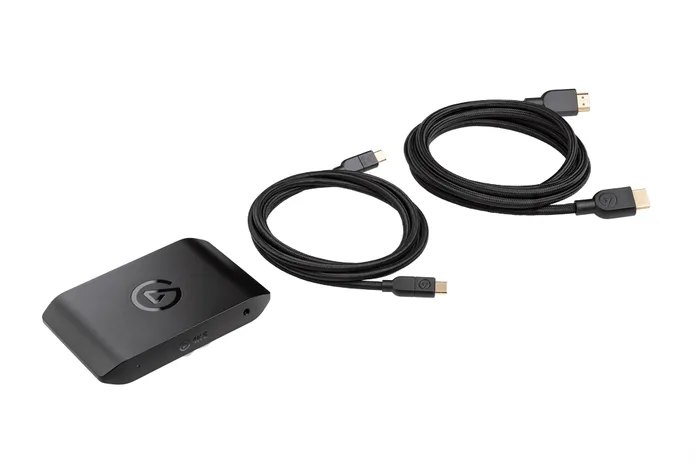
- Buy Elgato Game Capture 4K X The future-proof external pick, with HDMI 2.1 4K144 passthrough and capture up to 4K144. Amazon
- Buy Elgato Game Capture 4K S The value default: 4K60 capture, 1080p240 and 4K60 HDR passthrough that covers what most streamers actually do. Amazon
- It depends AVerMedia Live Gamer 4K 2.1 (GC575) A true HDMI 2.1 internal card, ideal only if you have a desktop with a free PCIe slot and no spare 10Gbps USB-C port.
- Skip Razer Ripsaw HD A once-loved entry card that HDMI 2.0 and time have left behind, and that Razer no longer lists. Amazon
What actually matters
- Capture resolution and frame rate — what the card can actually record and stream (for example 1080p60 or 4K60). This is the number that ends up in your recordings, and 1080p60 covers what most viewers watch.
- Passthrough resolution and refresh — what the card sends onward to your own monitor or TV while you play. It should carry your display's full resolution, refresh rate and variable refresh (VRR) so your gameplay never gets capped.
- HDMI version — HDMI 2.1 is required for 4K120 and the latest high-refresh modes; HDMI 2.0 tops out lower and can bottleneck a current-gen console or fast monitor.
- Connection type — external USB works everywhere including laptops and consoles; internal PCIe suits a desktop with a spare slot, especially one lacking a fast USB-C port.
- USB speed requirement — the fastest external cards need a genuine 10Gbps USB-C port (USB 3.2 Gen 2) to reach their top modes; a slower port quietly limits them.
- HDR support — whether the card captures HDR (usually HDR10), which keeps bright, colorful games looking right in the recorded feed rather than washed out.
- Software and driver polish — the bundled app and drivers decide whether the card disappears into your routine or fights you every session; rough software can undo good hardware.
The specs, in plain English
Green flags vs red flags
Green flags
- The listing states passthrough AND capture numbers separately, so you know exactly what you'll play at versus record at.
- HDMI 2.1 with VRR passthrough if you own a current-gen console or a high-refresh 4K monitor.
- HDR10 capture support, so bright, colorful games don't look washed out in your feed.
- A clearly stated USB requirement (for example 10Gbps USB-C) that matches a port you actually have.
- Broad, well-supported software that works with OBS on both Windows and Mac.
- External USB design if you might ever use it with a laptop, Mac or console.
Red flags
- A single big resolution number with no separation of passthrough from capture — often the capture is far lower than implied.
- HDMI 2.0 on a card sold at a premium price, which can bottleneck a modern console or fast display.
- No HDR capture if you play HDR games and want them to look right.
- An internal PCIe card if you use a laptop or only capture from a console — it simply won't work for you.
- Owner reports that repeatedly flag flaky drivers, buggy software, or audio quirks.
- A budget card priced close to a far more capable one, which makes the cheaper box a false economy.
Who's who: the brands
- Elgato - A well-known name in consumer capture, with external USB boxes that work with Windows and Mac and free Elgato Studio software.
- AVerMedia - A long-standing maker of both internal PCIe and external cards, including HDMI 2.1 models.
- Razer - Better known for peripherals; its capture cards are simple entry boxes, and its range page no longer lists the older Ripsaw HD.
- Magewell - A professional-leaning brand favored for reliable, driver-clean capture in production and broadcast setups rather than budget gaming.
How to read a listing without getting fooled
Start by finding two separate numbers: what the card passes through to your screen, and what it actually captures. If a listing shouts a single "4K" figure without saying which is which, assume the capture spec is the lower one and read the fine print. Next check the HDMI version — 2.1 for 4K120 and the newest high-refresh modes, 2.0 for 1080p-focused use — and confirm VRR passthrough if you rely on it. For an external card, match its USB requirement to a port you truly own; "USB 3.0" and a real 10Gbps USB-C port are not the same thing, and the wrong one caps performance. Confirm whether HDR capture is included if you play HDR games. Finally, weigh the software: skim owner reports for driver and app complaints, because a card you fight every session is worse than a slightly less capable one that just works.
How much should you spend?
The honest risk in this category is overspending, not underspending, because mid-range cards have quietly gotten good enough for what most people broadcast. What drives cost is capture ceiling (4K60 HDR recording costs far more than 1080p60), HDMI 2.1 passthrough, and software polish. The value sweet spot for the typical streamer is a well-supported card that captures 1080p60 with HDR and passes through high-refresh gameplay, since that covers what most Twitch or YouTube audiences actually watch. Spending up makes sense only when your workflow genuinely calls for it — you record local 4K footage for editing, or you run a high-refresh 4K or current-gen console setup and need HDMI 2.1 passthrough that never caps your display. Paying flagship money for a 1080p stream buys ceiling you'll never touch, and a bargain-priced card sitting close to a far more capable one is usually a false economy.
Questions, answered
Do I even need a capture card to stream?
If you play and stream on the same PC, usually not — modern graphics cards encode your gameplay directly and software like OBS handles the rest. A capture card earns its place when you're streaming a console (PlayStation, Xbox, Switch) or running a two-PC setup where a dedicated streaming machine ingests the gameplay feed. If a single PC is your whole setup, spend the money elsewhere first.
What's the difference between passthrough and capture resolution?
Passthrough is the signal the card copies to your own monitor or TV so you can play; capture is what it actually records or streams. They can differ — a card might pass 4K60 to your screen while capturing at 1080p60. That's normal and usually fine, because most streams are 1080p anyway. The trap is assuming a card's headline number applies to both.
Will a capture card add lag to my gameplay?
Not to what you play on, as long as you use the card's HDMI passthrough. The card sends a copy of the signal straight to your display with near-zero added latency, while a separate feed goes to your streaming software. Any small delay lives only in the captured/streamed feed that viewers see, not in your own controller-to-screen experience.
Internal PCIe or external USB — which should I get?
External USB is the easy default: it works with laptops, desktops, Macs and consoles, and you just plug it in. An internal PCIe card only makes sense inside a desktop, mainly if you lack a fast 10Gbps USB-C port or want to keep the box out of sight. For most people the flexibility of an external card outweighs the tidiness of going internal.
Do I actually need 4K capture, or is 1080p enough?
Most streamers broadcast at 1080p because that's what platforms deliver reliably and what viewers watch, so a 1080p60 HDR card is plenty. Reach for 4K capture mainly if you record local 4K footage for editing, or you have a high-refresh 4K or current-gen console setup and want passthrough that doesn't cap your display.
Why does the listing mention a 10Gbps USB-C port?
The fastest external cards move a lot of data and need a genuine 10Gbps port (often labeled USB 3.2 Gen 2) to reach their top capture and passthrough modes. A slower USB port will quietly limit the card. Before buying, confirm your PC actually has a fast enough port — if it doesn't and can't add one, an internal card can be the workaround.
Or jump to the head-to-head: Elgato Game Capture 4K S vs Elgato Game Capture 4K X.