Explained
SSD Enclosures, Explained
After reading, you'll know which interface you need, how to check your drive will fit, and why sustained speed differs from peak speed.
In this guide
An SSD enclosure is a bridge chip, a connector and a box. The bridge decides how fast your drive can talk to your computer, the box decides how hot it gets while doing so, and between them they explain almost every disappointing external drive anyone has ever owned.
The 30-second version
- The interface sets the ceiling, so 10Gbps caps you near 1,000 MB/s regardless of the drive.
- Gbps and MB/s are different claims, and the second is the one you experience.
- Sustained speed is a thermal question, because a hot controller throttles mid-transfer.
- M.2 length is fixed, not adjustable, so check 2230, 2242, 2260 or 2280 before buying.
- Heatsinks and double-sided drives often do not fit, and the better pages warn you.
The products this guide is about
Our verdict on each, with the full reasoning on the companion review.
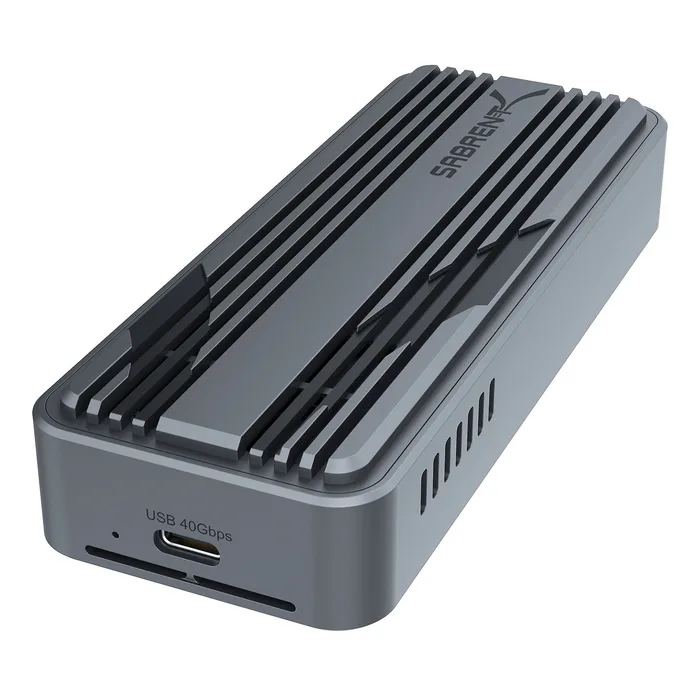
- Buy Sabrent USB4 M.2 PCIe NVMe SSD Enclosure Three published transfer rates for three protocols, plus a fan and every drive size.
- Buy Acasis 40Gbps M.2 NVMe SSD Enclosure with Cooling Fan The only one that names its controller, states a temperature target and takes 8TB.
- It depends Satechi USB4 NVMe SSD Pro Enclosure The only warranty in the group, and not a single transfer figure.
- Skip Plugable USB 3.1 Gen 2 Tool-free NVMe Enclosure Honest, well made, and capped at a quarter of the bandwidth your drive can use.
What actually matters
- Interface and bandwidth - USB 3.2 Gen 2 at 10Gbps, USB4 and Thunderbolt at 40Gbps, and newer Thunderbolt 5 at 80Gbps. This is the hard ceiling.
- Published transfer rate - real throughput in MB/s, which after protocol overhead is always well below the raw interface figure.
- Bridge controller - the chip translating NVMe to USB or Thunderbolt, such as Intel's JHL series. It sets compatibility and sustained performance.
- Cooling - passive aluminium, a thermal pad, vents or an active fan, and whether the maker states a temperature target.
- Drive compatibility - supported M.2 lengths, key type, maximum capacity, and whether double-sided drives or drives with heatsinks fit.
- Power - bus-powered from the host, or requiring an external supply. Bus-powered is one less thing to carry.
- S.M.A.R.T. passthrough - whether drive health data reaches your computer through the bridge, which many cheaper enclosures block.
The specs, in plain English
Green flags vs red flags
Green flags
- Transfer speeds published in MB/s for each supported protocol.
- The bridge controller named by part number.
- Cooling described, ideally with a temperature target.
- All four M.2 lengths and both key types listed.
- Explicit warnings about double-sided drives and heatsinks.
Red flags
- Only a Gbps figure with no MB/s anywhere.
- High-performance controller claimed with no part named.
- No list of supported drive lengths.
- No mention of heat at all on a 40Gbps device.
- No warranty terms published.
Who's who: the brands
- Sabrent - American storage brand publishing per-protocol transfer rates across a wide enclosure range, from tool-free USB 3.2 units to USB4 and Thunderbolt.
- Acasis - Enclosure specialist that names its Intel bridge controllers, quotes thermal targets and builds multi-bay and RAID enclosures alongside single-drive units.
- Satechi - Design-led Mac accessory brand whose USB4 enclosures pair aluminium bodies with published compatibility lists and a two-year warranty.
- Plugable - Connectivity specialist known for candid documentation, with 10Gbps tool-free enclosures aimed at IT work and data recovery.
- UGREEN - Broad accessory maker with enclosures from 10Gbps through 80Gbps, though its product pages publish very little technical detail.
How to read a listing without getting fooled
Find the interface first and treat it as a hard ceiling, because no drive can exceed it and no marketing can either. Then look for a figure in megabytes per second rather than gigabits, since the second is the pipe and the first is what comes out of it, and a page that gives only Gbps is telling you the easy half. Look for a named bridge controller, because a maker that prints a part number expects you to look it up. Read whatever is said about heat, and prefer a stated temperature target or an active fan if you will run sustained transfers. Then do the compatibility check carefully: your drive's length in millimetres, its key type, whether it has chips on both sides, and whether it came with a heatsink attached, since two of these enclosures will refuse a drive on the last two counts alone. Finally look for a warranty, which in this category is rare enough to be a differentiator.
How much should you spend?
Enclosures are cheap next to the drives that go in them, which makes buying the slow one a false economy. The budget tier buys a 10Gbps enclosure, which is genuinely fine for data recovery, drive migration and occasional access, and which wastes most of a modern NVMe drive if used as a working external disk. The mid-range buys 40Gbps USB4 with active cooling and, in the better examples, published throughput figures and a named controller, and that is where almost everyone should buy: the difference over the budget tier is small money for roughly four times the bandwidth. The premium tier buys design, aluminium and in one case a two-year warranty, without necessarily buying more information. Newer 80Gbps Thunderbolt 5 enclosures exist and are worth considering only if your computer has a Thunderbolt 5 port, which almost none do yet.
Questions, answered
Why is my external SSD slower than the same drive was internally?
Because the interface is narrower and the cooling is worse. Inside a laptop the drive talks directly over PCIe with several gigabytes per second available; in an enclosure it goes through a bridge chip and a cable with a fixed ceiling. On top of that, a sealed enclosure heats up faster than a laptop chassis with airflow, so a long transfer that starts quickly can throttle. Sabrent's own figures show the scale of the first effect, quoting 3,900 MB/s on USB4 against 1,000 MB/s on USB 3.2 for the same enclosure.
Can I use any M.2 drive, or only NVMe?
Check the enclosure, because M.2 is a form factor and not a protocol. Some M.2 drives are SATA rather than NVMe, and they look almost identical apart from the notches on the connector. An NVMe-only enclosure will not recognise a SATA drive, while some enclosures accept both, as Sabrent's EC-SNVE does. If you are fitting a drive you already own, look up its model number and confirm whether it is NVMe or SATA before ordering.
Do I need to format the drive first?
Yes, a new drive arrives blank and needs a partition and a file system. The choice matters if you use more than one operating system: exFAT works on both Windows and macOS and is the usual answer for a shared drive, while NTFS is a Windows format that macOS can read but not write to by default, a point Satechi makes on its own page. For a drive used only with a Mac, APFS is faster and more robust; for Windows only, NTFS.
Is a fan worth the noise?
It depends entirely on what you do with the drive. For short transfers and file access, a passive aluminium enclosure with a thermal pad never gets hot enough to throttle, and a fan is a small noise and a moving part you did not need. For sustained work, video scratch drives, large backups or long copies, the fan is the difference between the speed on the box and the speed you average, which is why both 40Gbps enclosures here include one and why Acasis quotes a temperature.
Or jump to the head-to-head: Sabrent USB4 M.2 PCIe NVMe SSD Enclosure vs Acasis 40Gbps M.2 NVMe SSD Enclosure with Cooling Fan.