Explained
Portable SSDs, Explained
After reading this you will understand what makes one portable SSD faster, tougher, or more trustworthy than another, and how to match a drive to your ports and your work.
In this guide
A portable SSD is a pocket-sized drive with no moving parts that plugs into a USB-C port to move files fast. The category looks simple, but two numbers trip people up: the drive's rated speed and the speed your computer's port can actually deliver. Buy a fast drive for a slow port and you pay for speed you will never see.
The 30-second version
- The port, not the drive, is usually the bottleneck. A 20Gbps drive only hits its rated speed on a matching 20Gbps port; on a common 10Gbps port it runs at roughly half speed.
- Sustained speed matters more than peak speed. Cheap drives post a big benchmark number for a few seconds, then throttle hard on long transfers, which is where real work happens.
- Reliability beats raw speed for anything you care about. A drive's whole job is to still have your files later, so a proven track record outweighs a slightly higher benchmark.
- Ruggedness is a separate axis from speed. IP ratings and drop resistance protect a drive in the field, and the toughest drives are often not the fastest.
- Turn on the built-in encryption. Hardware AES runs on the drive's own controller, so it costs nothing in speed and protects a drive that is easy to lose.
The products this guide is about
Our verdict on each, with the full reasoning on the companion review.
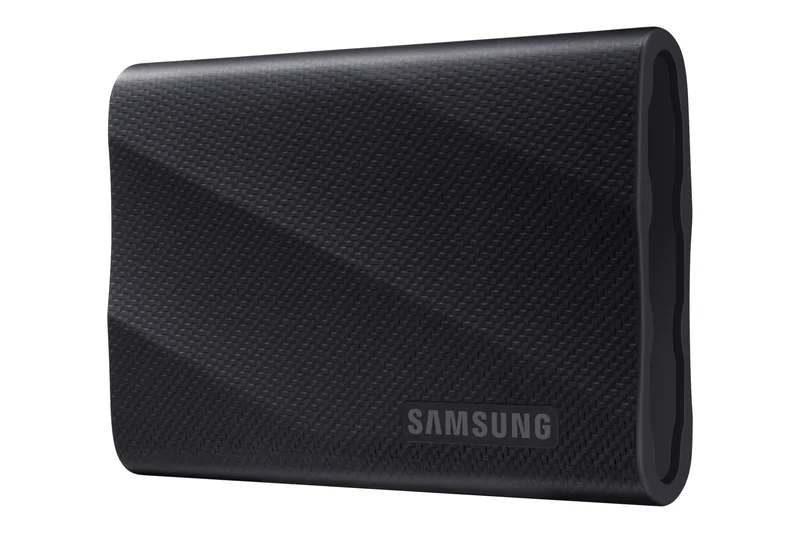
- Buy Samsung T9 Portable SSD The fastest mainstream 20Gbps drive that also holds its speed under load. Amazon
- Buy Lexar Professional SL500 A slim, magnetic 20Gbps drive that delivers near-T9 speed for less money. Amazon
- It depends Samsung T7 Shield Portable SSD Slower on paper, but the rugged, dependable choice for fieldwork. Amazon
- Skip SanDisk Extreme Pro Portable SSD Genuinely fast, but a documented history of data-loss failures we can't ignore. Amazon
What actually matters
- Interface and rated speed decide the ceiling. USB 3.2 Gen 2x2 (20Gbps) drives are the fast tier; USB 3.2 Gen 2 (10Gbps) drives top out around half that. Both matter only if your computer's port matches.
- Sustained write behavior is how the drive performs during a long, continuous copy rather than a five-second burst. Passively cooled drives can slow down partway through big exports.
- Thermal management keeps speed steady. Some drives use active or well-designed passive cooling so they do not nosedive mid-transfer under load.
- Durability covers drop resistance and IP dust/water ratings. It matters most for travel, location work, and anything that lives in a bag.
- Track record and reliability describe whether owners have seen the drive drop data or fail. This is the single most important factor for irreplaceable files.
- Encryption and software determine how you protect and manage the drive, including firmware updates and password protection.
- Warranty signals how long the maker stands behind the drive; longer coverage is reassuring on hardware you plug and unplug constantly.
The specs, in plain English
Green flags vs red flags
Green flags
- A rated speed that matches a port your computer actually has
- Evidence the drive holds its speed on long transfers, not just short benchmarks
- A clean, widely trusted reliability history with few data-loss complaints
- Built-in AES hardware encryption plus a firmware-update tool
- A long warranty, commonly five years in this class
- An IP rating and drop resistance if you plan to travel with it
Red flags
- A pattern of owner reports about drives losing data or failing outright
- A big peak speed with no mention of sustained or steady-state performance
- A 20Gbps price tag when your computer only has a 10Gbps or standard port
- No hardware encryption or no way to update firmware
- A vague or unusually short warranty
- A rugged look with no actual IP rating or drop specification behind it
Who's who: the brands
- Samsung - A dominant name in consumer SSDs, known for consistent speed, strong reliability, and the Magician management software.
- Lexar - A value-focused maker offering flagship-class 20Gbps speed in slim, often phone-friendly designs for less money.
- SanDisk - A long-standing storage brand with fast, rugged drives, though some recent portable lines have drawn data-loss complaints.
- Crucial - Micron's consumer brand, known for straightforward, dependable drives that are easy to recommend on value.
- Western Digital - A major storage company, parent of the WD and SanDisk lines, spanning everyday and rugged portable drives.
- Kingston - A widely available maker of practical, competitively priced storage with broad compatibility.
How to read a listing without getting fooled
Start by finding two things: the drive's interface (USB 3.2 Gen 2x2 at 20Gbps, or Gen 2 at 10Gbps) and the port on your own computer. If they do not match, the higher number on the box is fiction for you. Next, look past the single big MB/s figure and search for any mention of sustained or steady-state performance, because that is what you get on long copies; a listing that only trumpets peak speed is hiding the number that matters. Treat IP ratings and drop specs as real only when they are stated explicitly, not implied by a rugged-looking shell. Finally, weigh the reliability history as heavily as the speed, and confirm the drive offers hardware encryption and a firmware tool.
How much should you spend?
Spend according to your port and your workload, not the biggest number available. If your computer lacks a 20Gbps port, paying up for a 20Gbps drive buys speed you cannot use, and a 10Gbps drive delivers the same real-world result for less. The value sweet spot sits with drives that pair genuine sustained speed and a solid reliability record without a flagship premium, and slimmer or phone-friendly features can be worth a modest step up if they match how you shoot or work. Spending more is justified when you need ruggedness for the field or the very fastest consistent throughput for large video jobs. Spending more is not worth it when you are chasing a peak benchmark that throttles under load or a speed tier your hardware cannot reach. Whatever the price, never trade a proven reliability record for a slightly faster drive, because a lost file costs far more than the money saved.
Questions, answered
How do I know if my computer can use a 20Gbps drive?
Check your port. USB 3.2 Gen 2x2 (20Gbps) ports are still fairly rare, so many laptops top out at 10Gbps or a standard USB-C connection. On a slower port, a 20Gbps drive simply runs at roughly half its rated speed, closer to a 10Gbps drive.
Is a faster drive always the better buy?
No. If your port cannot deliver the speed, or if you mostly move small files, the extra speed is invisible in daily use. Sustained performance, reliability, and durability usually matter more than the peak number on the box.
Does turning on encryption slow the drive down?
Not meaningfully. Hardware AES encryption runs on the drive's own controller rather than your computer's processor, so you can set a password with no noticeable speed penalty. It is worth enabling on any drive you carry around.
What does an IP rating like IP65 actually protect against?
The two digits describe dust and water resistance: the first is dust, the second is water. A higher rating means more protection, which matters for travel and location work but adds little if the drive lives on your desk.
Why do some cheap drives feel slow even though they benchmark high?
They post a strong peak speed for a few seconds, then throttle once they heat up on a long copy. That is why sustained, steady-state performance is the number to look for when you move large files.
How much should durability factor into my choice?
It depends on where the drive lives. For a bag that goes on shoots or trips, drop resistance and an IP rating are worth prioritizing. For a stationary setup at home, you can put that budget toward speed or capacity instead.
Or jump to the head-to-head: Samsung T9 Portable SSD vs Lexar Professional SL500.