Explained
NAS Hard Drives, Explained
After reading, you'll understand why CMR versus SMR is the only spec you must never get wrong, how to verify it from the manufacturer in under a minute, and which of the remaining numbers actually change your buying decision.
In this guide
Most people buy a NAS drive by capacity and price, which is how a perfectly good enclosure ends up with a drive that cannot survive its own rebuild. The specs that matter are all published, but they are spread across datasheets, tech briefs and one page per manufacturer that exists only because customers got angry in 2020. The vocabulary is also deliberately slippery: two drives can share a family name, a colour and a shelf and be built on completely different recording technology. Once you know which four lines of a datasheet to read, the category becomes simple.
The 30-second version
- CMR versus SMR is the one spec you cannot get wrong, because SMR drives rewrite neighbouring tracks and can slow to a crawl during exactly the sustained writing a RAID rebuild demands.
- The family name tells you nothing, so always check the exact model number against the manufacturer's own published CMR/SMR list rather than a retailer page.
- Workload rating and rated power-on hours travel together, and a drive rated for 2400 hours a year was never designed to run in a machine that never sleeps.
- The warranty is the maker's own risk assessment, which is why the five-year drives also carry better read error rates and more vibration hardware.
- Manufacturers state how many bays they will support, and buying a drive rated for up to 8 bays for a twelve-bay chassis puts you outside what the maker will stand behind.
The products this guide is about
Our verdict on each, with the full reasoning on the companion review.
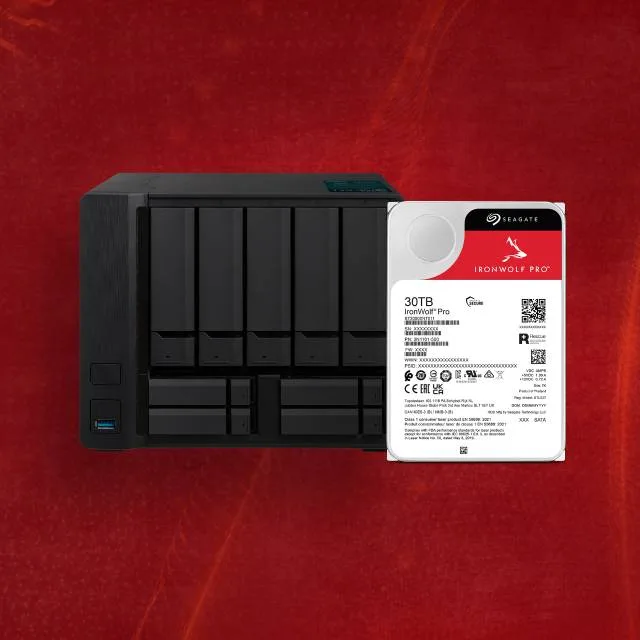
- Buy Seagate IronWolf Pro NAS HDD A thoroughly documented NAS drive, with a 550 TB per year workload rating, a 5-year warranty and support for large multi-bay arrays. Amazon
- Buy Western Digital WD Red Plus NAS HDD The quiet, sensible CMR drive for a small home NAS, and the one whose name you have to get exactly right. Amazon
- It depends Toshiba N300 NAS HDD Pro-grade internals and a consumer warranty, which makes it a bargain or a gamble depending on how you feel about year four. Amazon
- Skip Seagate BarraCuda 3.5-inch (4TB and 8TB) A desktop drive that costs less per terabyte for a reason, and at these two capacities that reason is SMR. Amazon
What actually matters
- Recording technology - CMR writes each track with a guard band so any sector can be updated in place, while SMR overlaps tracks and must rewrite neighbours. In a NAS doing continuous or random writes, that difference shows up as collapsing write speed at the worst possible moment.
- Workload rate limit - this is the total data the maker expects the drive to read and write per year, and it is the cleanest dividing line between NAS and desktop drives. Ratings run from around 55 terabytes a year for desktop drives to 550 for Pro-class NAS drives.
- Rated power-on hours - a NAS drive is usually rated for 8760 hours a year, which is every hour there is, while a desktop drive may be rated for 2400. Ignore this and you are running a part far outside its design envelope.
- Non-recoverable read error rate - expressed as one error per 10^14 or 10^15 bits read, this is the probability of hitting an unreadable sector. It matters most during a rebuild, when the array reads every sector of every remaining drive in one long pass.
- Time-limited error recovery - when a drive hits a bad sector it can retry for a long time, and a RAID controller that stops hearing from it may treat it as failed. TLER caps how long the drive is allowed to try, which keeps the array intact.
- Rotational vibration sensors - several spindles in one chassis transmit vibration into each other, which pushes heads off track and hurts performance. RV sensors let the drive detect and compensate for that, and they are typically listed only on NAS and enterprise drives.
- Supported bay count - manufacturers state the chassis size they validated the drive in, whether that is up to 8 bays, up to 12, or more. It is a support statement as much as an engineering one, and it is worth honouring.
The specs, in plain English
Green flags vs red flags
Green flags
- The manufacturer states the recording technology explicitly, per model number, on its own datasheet.
- The workload rating is 180 terabytes a year or more, and the drive is rated for 8760 power-on hours a year.
- The datasheet names a supported bay count, whether that is up to 8, up to 12 or more.
- Rotational vibration sensors are listed, and the read error rate is quoted as one per 10^15 bits.
- The warranty is at least three years, and five years on the Pro-class options.
Red flags
- The listing gives capacity, cache and RPM but never mentions recording technology anywhere.
- The datasheet quotes power-on hours per year well below 8760, which is a desktop drive in disguise.
- The retailer page covers several model numbers at once, so you cannot tell which platters you will receive.
- The warranty is two years, or the specification sheet omits MTBF entirely.
- The drive is marketed for gaming, desktop or general-purpose PC use, with no mention of RAID or multi-bay systems.
Who's who: the brands
- Seagate IronWolf and IronWolf Pro - Seagate's NAS lines, both entirely CMR, with the Pro adding a 550 terabyte per year workload rating, a five-year warranty, support for large arrays and published time-limited error recovery.
- WD Red Plus and Red Pro - Western Digital's NAS lines, with Red Plus supported in up to 8 bays at 180 terabytes a year and Red Pro as the higher-tier option with a longer warranty and support for larger arrays; check the datasheet for its exact ratings.
- Toshiba N300 - Toshiba's NAS line, CMR at every capacity, 7200 rpm throughout, with rotational vibration and shock sensors and a read error rate of 1 per 10^15 bits on some models against a three-year warranty.
- Seagate Exos - Seagate's data centre line, popular in home labs for its price per terabyte, though some models appear on Seagate's list as SMR so the model number still needs checking.
- WD Ultrastar - Western Digital's data centre line, built for racks rather than living rooms, offering long warranties and high workload ratings at the cost of noise and power.
How to read a listing without getting fooled
Open the manufacturer's datasheet rather than the retailer listing, and find the column for your exact model number. Read four lines in this order: recording technology, workload rate limit, rated power-on hours per year, and warranty. If recording technology is missing, stop and check the maker's CMR/SMR list before going further. Then look at the non-recoverable read error rate, because one per 10^15 and one per 10^14 look almost identical on the page and differ by a factor of ten in practice. Check whether rotational vibration sensors are listed and whether a supported bay count is stated, since both are quiet signals about which market the drive was really built for. Finally, glance at the idle and seek acoustics in dBA and the average operating power, which will tell you whether the machine can live in the same room as you.
How much should you spend?
The budget tier is desktop drives, which look tempting on price per terabyte and are where SMR still lives at certain capacities. They belong in a single-drive PC or an external backup enclosure and not in an array. The mid-range tier is standard NAS drives, rated around 180 terabytes a year with three-year warranties and a stated bay ceiling, and this is where most two-bay and four-bay home NAS buyers should land. The premium tier is Pro-class NAS drives with five-year warranties, 550 terabyte per year ratings, better read error rates and support for larger arrays, which is the right spend once you pass four bays or run genuinely heavy workloads. One thing worth doing at any tier: buy one extra drive as a cold spare rather than upgrading everything one tier, because having a replacement on the shelf on the day a drive dies is worth more than a slightly better spec sheet.
Questions, answered
What actually makes a NAS drive different from a desktop drive?
Firmware and rating, mostly, rather than exotic hardware. NAS drives are rated for continuous operation, typically 8760 power-on hours a year, with workload ratings several times higher than a desktop drive's. They also carry firmware tuned for multi-drive systems and, on the better ones, rotational vibration sensors and time-limited error recovery. The mechanical parts are not magic, but the combination is what keeps a drive behaving predictably inside an array.
Is a 7200 rpm drive worth it over 5400 rpm in a NAS?
For most home NAS use the answer is no, because the bottleneck is usually your network rather than the spindle. A gigabit connection tops out well below what any modern 3.5-inch drive can deliver sequentially. Faster spindles do help with rebuild times and with heavy multi-user or random workloads, but they also mean more noise, more heat and more power. If the NAS sits in a room you use, a slower drive is often the better daily experience.
Should I buy all my drives at once, and does mixing brands matter?
Mixing brands is fine as long as every drive is CMR and the capacities and ratings are comparable. Some builders deliberately buy across brands or batches so that a single manufacturing defect cannot take out two drives in the same week. What genuinely matters is that you do not pair a Pro-class drive with a desktop drive, because the array is only as safe as its weakest member. Buy the drives you need plus a spare you keep on the shelf.
Why does helium keep appearing on high-capacity datasheets?
Sealing a drive with helium instead of air reduces drag on the spinning platters, which lets manufacturers stack more platters into the same 3.5-inch case. The practical effects show up on the spec sheet as lower power draw, lower operating temperature and quieter idle acoustics at high capacities. On several NAS lines the helium models are also the ones with the higher supported bay counts. It is not a reliability claim on its own, but it usually signals the newer, denser design in a range.
Or jump to the head-to-head: Seagate IronWolf Pro NAS HDD vs Western Digital WD Red Plus NAS HDD.