Explained
Monitor Calibrators, Explained
After reading, you'll understand what a calibrator physically measures, why it needs a correction for your panel type, and how to spot capability that is locked in software rather than missing from the hardware.
In this guide
First-time buyers usually compare calibrators on brand and price, then discover the thing they bought will not calibrate their monitor. Almost always the reason is one of two things: the panel technology is not on the maker's supported list, or the target they wanted is only offered on a higher software tier. Neither is obvious from a product photo, and both are stated plainly on the maker's own pages if you know which line to read.
The 30-second version
- The sensor is often not what you are paying for, since some makers sell one hardware platform at several software tiers and advertise upgrading between them with no new hardware.
- Colorimeters read through filters, so they carry a correction for each backlight technology and cannot measure a panel type that is missing from the maker's list.
- Spectrophotometers read the spectrum, which makes them less sensitive to a display's primaries and better suited to wide gamut work, at more money and more bulk.
- Compatibility lives outside the box, so check EIZO's sensor list, Apple's supported device, or the ArgyllCMS documentation before assuming your software will see the device.
- Instruments drift as well as displays, and X-Rite publishes a 12 month recertification recommendation, which is a useful reality check on any old colorimeter you were given.
The products this guide is about
Our verdict on each, with the full reasoning on the companion review.
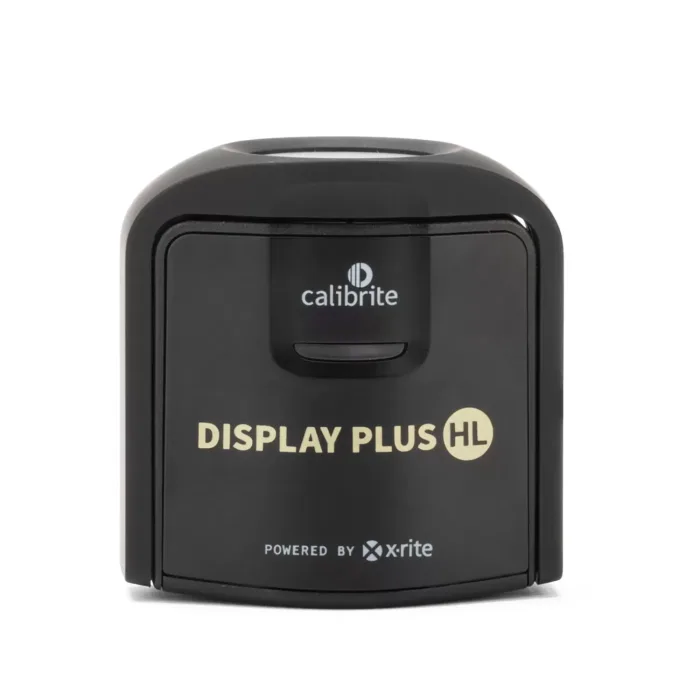
- Buy Calibrite Display Plus HL The high luminance Calibrite colorimeter with the broadest third party software acceptance, including Apple's own calibration app. Amazon
- Buy Datacolor SpyderPro The fully unlocked tier of Datacolor's current platform, and the way to get 3D LUT export and unlimited display matching in the Spyder range. Amazon
- It depends Calibrite ColorChecker Studio A spectrophotometer that profiles displays, projectors, printers, cameras and scanners, which is either exactly what you need or far too much instrument. Amazon
- Skip Datacolor SpyderExpress The same Spyder platform as the SpyderPro with almost everything switched off in software, then sold back to you as an upgrade. Amazon
What actually matters
- Luminance ceiling - the highest brightness the maker says the device can measure, in nits. If your panel peaks above it in HDR, the device cannot characterise the top of its range.
- Backlight type list - the panel technologies the maker names on the spec sheet. This is the correction set the software carries, and anything absent from it is genuinely unsupported rather than merely untested.
- Target flexibility - whether you can set white point, gamma and luminance yourself or only pick from a short fixed list. Print work needs a lower luminance target than the default, and fixed-list devices often cannot get there.
- Third party software support - monitor makers publish which sensors their own calibration software accepts, with minimum versions. A device that is not on that list will not drive the monitor's internal hardware calibration.
- Hardware calibration versus ICC profiling - writing the correction into the display itself survives moving between machines, while an ICC profile lives on the computer and only applies in colour managed software.
- Upgrade tiers - if a maker advertises unlocking higher capability by software with no new hardware, the tier you buy is a licence and the true cost of the range includes that upgrade.
- Instrument certification - colorimeter filters age, and a published recertification interval tells you the maker expects measurable drift over time rather than treating the device as permanent.
The specs, in plain English
Green flags vs red flags
Green flags
- The maker publishes a maximum measurable luminance in nits on the product page rather than in a marketing bullet.
- The spec sheet names your specific panel technology, such as QD-OLED or mini-LED, in a list of supported backlight types.
- White point, gamma and luminance can all be set to your own values rather than picked from a short fixed list.
- The device appears on your monitor maker's published compatible sensor list, with a version number you can check against your install.
- The maker documents a recertification or service route for the instrument itself, not just software updates.
Red flags
- The listing describes supported displays only in vague terms like modern monitors, with no named backlight technologies.
- The same-looking device is sold at several prices and the maker advertises upgrading between tiers with no new hardware.
- The only stated targets are one white point and one gamma, which means print or video targets are out of reach.
- No maximum luminance figure appears anywhere on the maker's own pages.
- The bundled software is the only route, with no evidence the device is recognised by monitor maker software or open-source tools.
Who's who: the brands
- Calibrite - Carries the former X-Rite consumer display line and sells the Display 123, Display Pro HL and Display Plus HL colorimeters plus the ColorChecker Studio spectrophotometer, all driven by Calibrite PROFILER.
- Datacolor - Sells the Spyder range as one current sensor platform at three software tiers, SpyderExpress, Spyder and SpyderPro, with paid upgrades between them.
- X-Rite - The professional measurement brand behind the sensor technology in the Calibrite colorimeters, still selling i1 spectrophotometers and publishing instrument recertification guidance.
- EIZO - A monitor maker rather than a calibrator maker, but its ColorNavigator software and published compatible sensor list effectively decide which third party devices work with a ColorEdge display.
- Konica Minolta - Makes reference-grade measurement instruments that appear on professional compatibility lists, well above what a home or small studio setup needs.
How to read a listing without getting fooled
Start with two numbers and one list. The maximum measurable luminance tells you whether your panel is in scope. The list of supported backlight types tells you whether the device has a correction for your technology, and if yours is not named, treat it as unsupported. Then look at what targets the software offers: a page that only mentions 6500K and gamma 2.2 is describing a fixed workflow, not a calibrator you can aim. After that, check compatibility outside the box, because monitor makers publish their own accepted sensor lists with minimum software versions, and open-source support is documented separately. Finally, look for any mention of upgrading to a higher tier without new hardware. That single sentence tells you the price on the box is not the price of the capability.
How much should you spend?
At the budget tier you are buying a fixed workflow: one white point, one gamma, a low luminance ceiling and a short list of panel types. It is better than nothing on a plain sRGB screen and a poor fit for anything else. The mid-range is where this category makes sense, and it is where you find full target control, wide panel type coverage and, from one maker, 3D LUT export. The premium tier buys either a very high measurement ceiling with monitor maker and Apple compatibility, or a spectrophotometer that also profiles printers and cameras. If you are choosing between a cheap tier now and a mid-range device, price the upgrade first, because the gap between tiers is often narrower than it looks once the unlock is added.
Questions, answered
Do I need a calibrator if my monitor is factory calibrated?
A factory calibration is a snapshot taken before the panel shipped, and it drifts as the backlight ages. It also cannot know your room lighting or the target you personally work to. A factory report is a good sign about the panel, not a substitute for measuring it where it sits. If your work leaves your machine and has to match someone else's screen or a printer, measure it yourself.
Can I borrow someone else's calibrator instead of buying one?
You can, and for occasional use it is sensible. Two cautions. Check that the borrowed device lists your panel technology, because an older unit may have no correction for a current OLED or QD-OLED screen. And check its age, since colorimeter filters drift and X-Rite recommends recertification every 12 months for its instruments. A very old puck can be confidently wrong.
Does a calibrator fix a bad monitor?
No. Calibration corrects the relationship between the signal and what the screen shows, within what the panel can already do. It cannot widen a gamut, add contrast or fix uneven backlighting. What it does is make the display predictable, so that what you see corresponds to a known standard. A cheap panel calibrated can be more predictable than a good panel uncalibrated, but it is still a cheap panel.
Is open-source calibration software a real alternative to the bundled app?
For some devices, yes. ArgyllCMS is the measurement engine and DisplayCAL is the interface most people use over it. Support is per device and documented, so check before you rely on it: the ArgyllCMS changelog records Datacolor's Spyder and SpyderPro from version 3.4.0, and its instrument list names the i1Display 3 family. DisplayCAL is now carried by a community Python 3 fork rather than its original author, which matters if you need long-term stability.
Or jump to the head-to-head: Calibrite Display Plus HL vs Datacolor SpyderPro.