Explained
Mini PCs, Explained
After reading this, you will understand exactly which mini PC specs matter for your work and which ones are just marketing noise.
In this guide
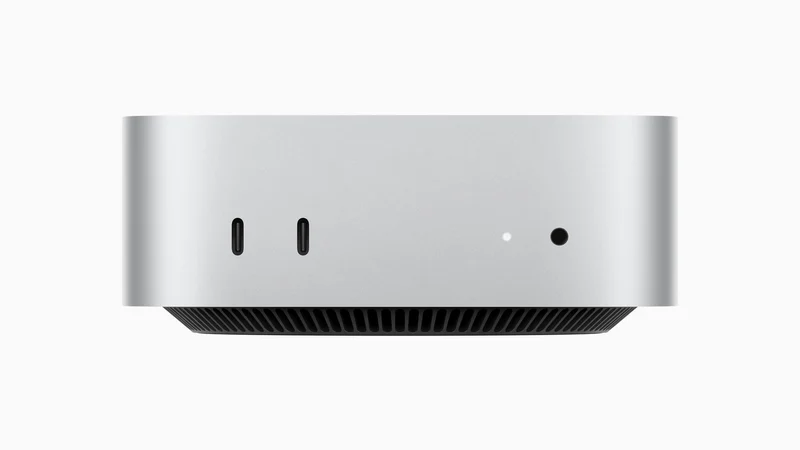
A mini PC is a full desktop computer shrunk into a box roughly the size of a paperback book, meant to sit on or behind your desk instead of a big tower. The category splits sharply between sealed, efficient machines you buy exactly as-is and open, tinker-friendly boxes you can upgrade later. Most first-time buyers get tripped up by soldered parts they cannot change, and by chip names that sound impressive but say little about real-world speed or noise.
The 30-second version
- Decide the operating system first. macOS versus Windows shapes every other choice, from software you can run to whether you can add an external graphics card.
- Soldered parts fix your ceiling on day one. If memory and storage are soldered rather than socketed, you must buy your final capacity up front, so plan for the machine you want in three years.
- Noise and heat vary more than raw speed. Two boxes with the same chip can behave very differently under sustained load, so owner reports on fan noise matter more than headline benchmarks.
- Match ports to your actual setup. Count your monitors, fast storage, and networking needs before you buy, because a mini PC's small chassis limits how much you can add later.
- Compare value within a price tier. A machine that costs as much as a better-cooled or more expandable rival running the same chip is the one to skip.
The products this guide is about
Our verdict on each, with the full reasoning on the companion review.
- Buy Apple Mac mini (M4) The most polished, near-silent, efficient mini PC you can put on a desk today. Amazon
- Buy Beelink SER9 Pro (Ryzen AI 9 HX 370) The fastest Windows mini PC here, with the strongest integrated graphics and a whisper-quiet chassis.
- It depends Minisforum UM890 Pro A value-focused, endlessly expandable box that shines as a home server or upgrade project. Amazon
- Skip Geekom A8 A well-built little machine undercut by louder, hotter behaviour than similarly priced rivals. Amazon
What actually matters
- Operating system decides which programs you can run at all: macOS is efficient and simple, while Windows offers the broadest software support and the option to add an external graphics card.
- Sustained performance matters more than a single burst of speed, because a machine that throttles under load will feel slow exactly when you push it hardest.
- Noise and thermals determine whether the box is pleasant on a shared or quiet desk; a machine that runs hot tends to spin its fan up and get loud.
- Upgradeability decides whether you can add memory or storage later, or whether the capacity you buy today is permanent.
- Connectivity covers how many monitors, drives, and network connections you can attach, which a small chassis limits far more than a full tower.
- Integrated graphics set how well the machine handles light gaming, video, and creative apps, since most mini PCs have no separate graphics card.
- Value at your tier is the honest test: judge a machine against direct rivals at the same price, not against cheaper or pricier categories.
The specs, in plain English
Green flags vs red flags
Green flags
- The listing clearly states whether memory and storage are socketed or soldered, rather than hiding it.
- Owner reports describe it as quiet or near-silent even under sustained load.
- It offers modern fast ports such as Thunderbolt or USB4 for future peripherals.
- A barebones option exists if you want to supply your own parts and save money.
- The chip generation is current, giving you a longer useful life before it feels dated.
Red flags
- Reviewers or owners repeatedly mention the fan getting loud or the chassis running hot under load.
- It costs as much as a better-cooled or more expandable rival using the very same chip.
- Memory and storage are soldered but the listing is vague about it.
- The processor is an older generation sold at a current-generation price.
- The port selection cannot cover the number of monitors or drives you already know you need.
Who's who: the brands
- Apple - Makes the Mac mini, known for near-silent operation, class-leading efficiency, and strong resale value, but with fully soldered, non-upgradeable parts.
- Beelink - A Windows mini PC maker known for pairing top-tier chips and strong integrated graphics with quiet chassis, usually at a premium.
- Minisforum - Favoured by tinkerers for highly expandable designs, barebones options, and enthusiast ports such as OCuLink for external graphics.
- Geekom - Known for well-built, attractively finished chassis, though cooling under load can lag better-engineered rivals using the same chip.
How to read a listing without getting fooled
Start at the bottom of the spec sheet, not the top. The chip name and clock speed grab attention, but the two lines that decide how the machine lives with you are the memory description and the cooling notes. Check whether memory is listed as soldered or in a slot, because that single word tells you whether you can ever add capacity. Note the exact chip generation and do not assume a big number means new; an older-generation chip can be dressed up in a premium listing. Count the ports against your real desk: how many monitors, how many fast drives, whether you need fast wired networking. Finally, treat integrated-graphics model names as a rough tier ranking rather than a promise, and lean on owner reports for the things a spec sheet never admits, namely how loud and how hot the box gets when you actually work it.
How much should you spend?
Think in tiers rather than absolute figures. The cost of a mini PC is driven mostly by the chip generation, the amount of memory and storage, and whether the design is efficient and quiet or built to expand. The value sweet spot for general home and office work is a current-generation chip with a mid-level memory and storage configuration; this handles office suites, web work, video calls, and light creative tasks comfortably. Spending more is genuinely worth it if you run sustained creative workloads, want the strongest integrated graphics for light gaming, or need the quietest, most efficient machine on a shared desk. Spending more is not worth it when a machine simply charges a premium for an older chip, or when a cheaper rival with the same chip cools better and lets you add socketed memory or an extra drive later. On upgradeable Windows machines you can start modest and add memory or storage yourself down the line, which often beats paying up front for a maxed configuration.
Questions, answered
Are mini PCs powerful enough for real home and office work?
Yes. A modern mini PC comfortably handles office software, web browsing, video calls, multiple monitors, and light-to-moderate photo or video editing. Only demanding gaming or professional graphics workloads clearly justify a full-size desktop with a dedicated graphics card.
Can I upgrade the memory and storage later?
It depends entirely on the model. Some use socketed memory and accessible drive slots you can add to after purchase, while others solder everything in place so the capacity you buy is permanent. If future upgrades matter to you, favour designs that clearly advertise socketed memory.
Should I choose Windows or macOS?
Let your software decide, not the benchmarks. Choose macOS for efficiency, quiet operation, and the Apple ecosystem; choose Windows if you rely on Windows-only applications, want to add an external graphics card, or value hands-on upgradeability. Compatibility with the programs you actually use should drive the choice.
Are mini PCs quiet enough for a shared room?
Usually, but it varies by model far more than the spec sheet suggests. The best behave near-silently even under load, while weaker-cooled boxes running the same chip can get audibly loud. This is where owner reports on noise are worth more than any headline number.
Do I need the most expensive configuration?
Usually not. For general home and office use, a mid-tier memory and storage configuration is plenty, and on upgradeable Windows models you can add capacity later to save money. Reserve premium configurations for sustained creative work or heavy multitasking. This is general product information to guide your own comparison, not a substitute for checking current specs against your specific workload.
Or jump to the head-to-head: Apple Mac mini (M4) vs Beelink SER9 Pro (Ryzen AI 9 HX 370).