Explained
Kids Tablets, Explained
After this guide you'll know exactly which parental controls, protection policies, and specs matter for your child's age - and which marketing terms to ignore.
In this guide
A kids tablet is really three purchases in one: a screen your child wants, a control system you actually trust, and insurance for the day it hits the floor. The catch is that the industry buries all three under jargon - 'kid-proof cases', 'curated content', 'family modes' - that means very different things from brand to brand. First-time buyers most often get tripped up by app ecosystems (not every tablet runs every app) and by assuming all damage policies are equal, when in reality few brands replace a tablet your child broke.
The 30-second version
- Parental controls are the product. The hardware differences between kids tablets are small; the difference between a control panel you'll actually use daily and one you configure once and abandon is enormous.
- Damage policy beats case thickness. A bundled rubber bumper helps, but a written guarantee that replaces the tablet after child-caused damage is worth far more the first time it meets a hard floor.
- The app store decides what your kid can watch and play. A tablet locked to one company's store may be missing the exact app your child's friends use - check the ecosystem before you check the specs.
- Buy for the age your child will be, not the age they are. Kids outgrow small screens and walled gardens fast; a tablet that converts to normal use later usually delivers the longest useful life.
- Walled gardens are a feature at four and a prison at eight. Tightly closed content libraries feel safe for preschoolers but frustrate school-age kids once they exhaust the age-appropriate titles.
The products this guide is about
Our verdict on each, with the full reasoning on the companion review.
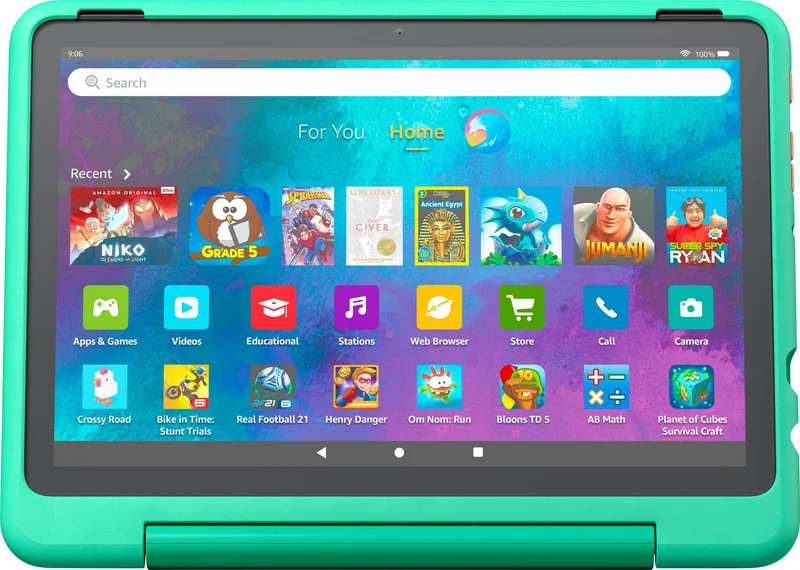
- Buy Amazon Fire HD 10 Kids Pro The default choice for school-age kids: a big 1080p screen, the granular parental controls, and a two-year breakage replacement guarantee. Amazon
- Buy Samsung Galaxy Tab A11+ Kids Edition The kids tablet that grows up with the kid: Samsung Kids parental controls on a big 11-inch 1920x1200 screen, in a handled shock-absorbing case. Amazon
- It depends Amazon Fire HD 8 Kids The right first tablet for a preschooler - and the wrong tablet for anyone older than about seven. Amazon
- Skip LeapFrog LeapPad Academy A well-intentioned learning tablet built on hardware and a content library that 2026 has left behind. Amazon
What actually matters
- Parental controls - the ability to set time limits per activity, approve every download, and pause the tablet remotely from your own phone is what separates a kids tablet from a regular tablet in a rubber case. This is the criterion to weigh heaviest.
- Damage protection - cases prevent some breakage, but a replacement guarantee that covers child-caused accidents means a shattered screen becomes a shipping label instead of a repurchase. Read the actual policy, not the marketing phrase.
- App and content ecosystem - tablets tied to a restricted app store can lack popular titles, while tablets with a full mainstream app catalog behind parental gates offer more but demand more vetting from you.
- Screen size and resolution - around 10 inches at 1080p is the comfortable floor for reading and video once a child is past the preschool years; small low-resolution screens get outgrown quickly.
- Battery life - long car rides and flights are exactly when a kids tablet earns its keep; check the maker's stated battery life and allow for real-world use falling short.
- Longevity and exit strategy - the best-value tablets either hand down to a sibling or graduate into a normal tablet when kids mode is retired. Dead-end platforms that only run one company's content are the most expensive kind of cheap.
- Included subscription content - many kids tablets bundle a year of curated books, videos, and games; know what happens (and what it costs) when the free year ends.
The specs, in plain English
Green flags vs red flags
Green flags
- A remote parent dashboard you control from your own phone, with per-activity time limits and download approval
- A written accidental-damage replacement policy - not just a 'rugged' case and a standard warranty
- A clear path to full mainstream apps behind parental gates, or a generous included content library for younger kids
- A screen around 10 inches at 1080p or better for school-age children
- The tablet still works as a normal tablet once kids mode is turned off
- A maker-stated battery life that covers a long trip
Red flags
- 'Kid-proof' claims backed only by a rubber bumper and a defects-only warranty
- A content library locked entirely to one company's own titles, with no mainstream apps or streaming
- Very low-resolution screens (1024x600 class) paired with a modest processor
- No-name imported tablets with vague or absent parental-control software and no update track record
- Parental controls that only work on the device itself, with no remote management from a parent's phone
- A bundled subscription doing the heavy lifting in the pitch, with unclear costs after the included period ends
Who's who: the brands
- Amazon (Fire Kids) - The category's default: Fire tablets in kid cases with a granular parental dashboard and a two-year replacement guarantee for breakage - but running Amazon's own app store.
- Samsung (Kids Edition) - Bundles a mainstream Galaxy tablet with a shock-absorbing case and the preloaded Samsung Kids software, with parents setting a PIN to control screen time, apps, contacts and content - and a normal tablet once the child outgrows kids mode.
- LeapFrog - The veteran education-first brand; curriculum-leveled learning content with approved Android apps and a kid-friendly browser, on a 7-inch 1024x600 screen that is dated next to the others.
- Lenovo - Sells general budget Android tablets sometimes packaged with kids bumpers and Google's family controls - decent hardware value, but without the kid-specific guarantees the category leaders offer.
- Off-brand 'kids tablets' - Inexpensive imports flood listings with bright cases and big spec claims; parental software, update support, and durability are often unproven.
How to read a listing without getting fooled
Start with the words the listing doesn't define. 'Kid-proof' usually means a rubber case, not a damage policy - scroll to the warranty section and check whether accidental damage by a child is explicitly covered, and for how long. Next, find which app store the tablet uses; if the listing only talks about the maker's own content service, assume mainstream apps are limited. Treat the bundled subscription carefully: a 'year of included content' is genuinely useful, but the tablet should still make sense the day it lapses. On specs, translate the screen line first (size plus resolution tells you more than either alone), then glance at RAM - a low figure can predict sluggishness. Finally, ignore age ranges printed on the box; they describe the case design and default interface, not the hardware's real ceiling.
How much should you spend?
Price in this category mostly tracks screen size and what's bundled around the tablet, not raw computing power. The budget end buys smaller, softer screens that suit preschoolers well but get outgrown fast - sensible as a first tablet for a young child who will be rough on it. The value sweet spot for most families sits at the mid-range: a roughly 10-inch, sharp-screened tablet with a real parental dashboard and, ideally, an accidental-damage replacement policy, which comfortably covers the elementary-school years. Spending more than that on a child's tablet may not pay off - premium tablets add performance kids don't need while often lacking the kid-specific protections. The most expensive mistake isn't overspending; it's buying the cheapest option twice, once when it turns out too slow and again when the child outgrows its content within a year or two.
Questions, answered
What actually makes a tablet a 'kids tablet'?
Three things bundled together: a protective case, a child-safe launcher with curated age-appropriate content, and parent-side controls for screen time and downloads. Some add a genuine replacement guarantee for child-caused damage. You can approximate the software on a regular tablet with built-in family tools, but you give up the bundled protection and the kid-first interface.
Why not just buy a regular tablet and add parental controls?
For older kids that's legitimate - mainstream platforms have solid free family-control tools. For younger children the kids bundles usually win: the replacement guarantee can outweigh the price difference the first time the tablet meets a hard floor, and kid-specific launchers keep preschoolers from wandering into settings or app stores.
Do kids tablets need a subscription to be useful?
No, but some are noticeably better with one. Tablets from ecosystem brands often include a year of curated ad-free books, videos, and games; after that it renews as a paid subscription, and without it you'll approve or buy content individually. Tablets with full app-store access lean less on any single subscription because you can install free and paid apps you choose yourself.
What age is right for which kind of tablet?
Roughly: ages three to six suit small, heavily-cased tablets with walled-garden content - durability and simplicity beat specs. Ages six to twelve suit a bigger, sharper screen with granular time controls. From the preteen years, a tablet that can graduate out of kids mode into normal use delivers the longest life. Buy for the age your child will be a year from now, not the age on the box.
How much control do parental dashboards really give?
The best ones are genuinely granular: separate daily limits for games versus reading, education goals that must be met before entertainment unlocks, approval of every download, filtered browsing, and a remote pause button on your phone. The weakest are on-device toggles you'll set once and never revisit. This gap is the biggest real difference between kids tablets - bigger than any hardware spec.
Are the replacement guarantees really no-questions-asked?
The headline offer in the category genuinely covers child-caused accidental damage for a fixed period - you return the broken tablet and receive a replacement. Read the specifics: coverage length varies by model, the process requires returning the damaged unit, and it's tied to the kids edition of the tablet, not the standard version. Many other brands offer only a standard defects warranty, so a broken screen may be on you.
Or jump to the head-to-head: Amazon Fire HD 10 Kids Pro vs Samsung Galaxy Tab A11+ Kids Edition.