Explained
Budget Laptops, Explained
After reading this, you'll be able to look at any budget laptop listing and know within a minute whether it's a genuine value or a machine you'll regret by spring.
In this guide
The budget laptop aisle is where spec-sheet tricks work hardest: old processors under new lids, storage types that choke Windows, and screens that looked dated a decade ago. The good news is that only a handful of specs actually decide whether a cheap laptop feels fine or feels miserable. Learn to read those, and the traps become easy to walk past.
The 30-second version
- Storage type matters more than storage size. A real SSD keeps Windows responsive; slow eMMC storage is a leading source of budget-laptop regret in owner reports, because it fills up and can even block system updates.
- 4GB of RAM is not enough for modern Windows. Treat 8GB as the floor on a Windows machine and seek 16GB when the price is close; heavy tab users feel the 8GB ceiling.
- The exact chip model number is the whole story. Budget lines recycle silicon that's several generations old under identical-looking model names, so two 'new' laptops with the same family name can perform worlds apart.
- A Chromebook can feel quicker than a Windows laptop on similar hardware. ChromeOS is lighter than Windows, so if everything you do lives in a browser, a Chromebook Plus machine will often feel faster on day one and age well.
- The screen is where budget makers cut quietly. Insist on a 1080p (or 1920x1200) IPS panel - low-resolution 1366x768 screens still lurk at the bottom of the market and age terribly.
The products this guide is about
Our verdict on each, with the full reasoning on the companion review.
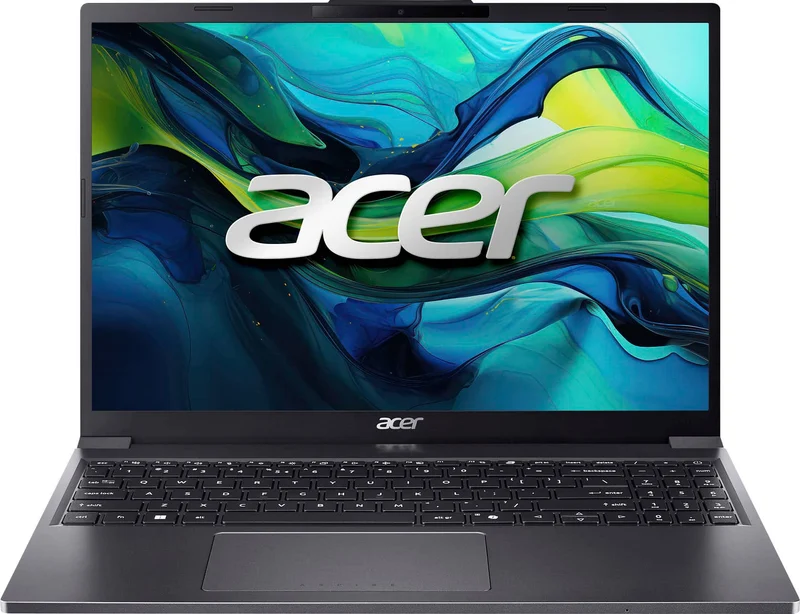
- Buy Acer Aspire Go 15 (AG15-51P) The rare budget Windows laptop that gets the fundamentals - screen, speed, and battery - right at the same time. Amazon
- Buy ASUS Chromebook Plus CX34 If your life already runs in a browser, this is the fastest, most pleasant everyday machine you can get for the money. Amazon
- It depends Lenovo IdeaPad Slim 3 (15-inch AMD) A spec bargain in its 16GB configuration - and an easy way to overpay if you grab the wrong variant. Amazon
- Skip HP Stream 14 Still stacked high at big-box retailers, and still the most common budget-laptop regret in owner reports. Amazon
What actually matters
- Storage type and size - a true SSD of at least 128GB (ideally 256GB) is a sensible minimum on Windows; eMMC storage is slower and small enough that owners report failed Windows updates within months.
- RAM (memory) - the amount of short-term workspace the laptop has. 8GB minimum for Windows, 16GB if the price gap is small; 8GB is comfortable on ChromeOS because the system is lighter.
- Processor generation, not just the brand name - a current Core i3/i5 or Ryzen 5 handles everyday work smoothly; a years-old Celeron or recycled Ryzen with a similar-looking name does not.
- Display resolution and panel type - 1920x1080 (or the slightly taller 1920x1200) on an IPS panel is the comfortable baseline; anything at 1366x768 or on a TN panel will look dim and grainy.
- Operating system fit - Windows runs everything but weighs more on cheap hardware; ChromeOS runs only browser and Android apps but feels dramatically faster at the same price. Be honest about which software you actually need.
- Battery life from owner reports, not the box - manufacturer claims are best-case; owner-reported figures of 8-10 hours for light work are what a good budget machine actually delivers.
- Keyboard and build quality - you touch the keyboard more than any spec; a solid deck without flex and comfortable key travel matter daily, and backlighting is a nice-to-have that many budget machines skip.
The specs, in plain English
Green flags vs red flags
Green flags
- A true SSD (not eMMC) of 256GB, or at least 128GB, listed explicitly
- A current-generation Core i3/i5 or Ryzen 5 with the full chip model number shown in the listing
- 1080p or 1920x1200 IPS display named outright, not buried or omitted
- Owner reports converging on 8-10 hours of real battery life for light work
- Chromebook Plus certification if you're going the ChromeOS route
- A generous return window - a laptop you'll use daily should pass a week of real use
Red flags
- eMMC storage on a Windows machine
- 4GB of RAM sold as adequate for Windows in 2026
- A processor family name (like 'Ryzen 5') with no model number - often a sign of recycled, years-old silicon
- 1366x768 resolution, or a listing that never mentions panel type or resolution at all
- A bundled one-year Office subscription doing the heavy lifting in the pitch - it expires; the weak hardware doesn't
- Many near-identical variants of the same model at wildly different prices, making it easy to pay new-laptop money for old internals
Who's who: the brands
- Acer - Budget-laptop specialist known for spending the money where it shows - its best cheap machines pair surprisingly good screens with sensible everyday performance.
- ASUS - Strong across both Windows laptops and Chromebooks, with a reputation for excellent keyboards and well-built Chromebook Plus machines.
- Lenovo - The value-spec heavyweight - its IdeaPad line often offers double the RAM and storage of rivals at similar money, but sells a confusing thicket of variants, so the exact spec sheet matters.
- HP - Makes solid mid-range machines, but its cheapest big-box models (the Stream line especially) are the most common source of budget-laptop regret in owner reports.
- Dell - Its Inspiron budget tier is serviceable and widely available; like Lenovo, configurations vary hugely, so judge the specific config rather than the badge.
How to read a listing without getting fooled
Start with the three numbers that decide everything: the full processor model, the RAM amount, and the storage type and size. Ignore marketing lines like 'powerful performance' and find the actual chip designation - the digits encode the generation, and budget lines routinely sell several-generation-old chips under fresh model names. Next, confirm the storage says SSD, not eMMC, and check whether the screen names both a resolution (1080p or better) and a panel type (IPS). If a listing omits any of these, assume the worst - spec sheets hide by omission. Finally, be suspicious of bundled sweeteners like a year of Office: they pad the perceived value of hardware that can't carry the next three years. A listing that states all its numbers plainly is usually a machine with nothing to hide.
How much should you spend?
In budget laptops, the biggest jump in daily experience comes from stepping over the very bottom of the market - the machines with tiny eMMC storage, minimal RAM, and low-resolution screens are cheap at checkout and expensive in frustration, and few people should buy them. The value sweet spot sits one notch up: a current mainstream processor, 8GB or more of RAM, a real SSD, and a 1080p IPS screen. That combination stays pleasant for years and frequently goes on sale, so patience is rewarded. Spending more beyond that point buys nicer materials, better color accuracy, and backlit keyboards - pleasant, but not transformative for browsing, documents, and streaming. Spend enough to clear the traps; past that, the returns taper quickly.
Questions, answered
Should I buy a Chromebook or a Windows laptop?
Ask yourself one question: can you name a desktop program you actually need? If not - if your life is email, docs, streaming, and video calls in a browser - a Chromebook will often feel faster than a Windows laptop at the same price, because ChromeOS is lighter. Choose Windows if you need specific desktop software, deep local file management, or peripherals with Windows-only drivers.
Is 8GB of RAM enough in 2026?
For everyday use, yes - with caveats. On ChromeOS, 8GB is comfortable. On Windows, 8GB handles a browser plus office apps fine, but heavy tab hoarders will feel the ceiling, which is why 16GB configurations are worth seeking out when the price gap is small. 4GB is a poor fit for modern Windows.
Why is eMMC storage such a problem?
Two reasons: it's slow, so Windows feels sluggish at everything, and it's small - usually 64GB, of which Windows itself consumes most. Owners of eMMC machines frequently report storage-full warnings and failed system updates within months. It's a clear warning sign on a budget Windows listing.
How do I avoid buying an old processor dressed up as new?
Always find the full chip model number, not just the family name. The digits encode the generation - and budget lines sell many near-identical-looking variants, some carrying chips several generations old at new-chip prices. If a listing shows only 'Ryzen 5' or 'Core i5' with no number, treat that as a red flag and look up the exact configuration before paying.
Do budget laptops last?
The good ones do. A machine with a real SSD, 8-16GB of RAM, and a current mainstream chip has enough headroom to still feel usable in three years. The ones that don't last aren't failing physically so much as suffocating - too little storage and memory for each year's software. Buy the specs your next three years will need, not the sticker that looks friendliest today.
Is 'Windows 11 in S Mode' something to worry about?
Not by itself. S Mode restricts the laptop to Microsoft Store apps for security and speed, and you can switch out of it for free (it's one-way). The catch is that S Mode often ships on the weakest hardware - and leaving it on such machines can make things worse, because full desktop apps demand more than the hardware can give. Judge the specs underneath, not the mode.
Or jump to the head-to-head: Acer Aspire Go 15 (AG15-51P) vs ASUS Chromebook Plus CX34.