Explained
Document Scanners, Explained
After reading this, you will understand every spec on a document scanner listing and know which ones actually matter for the way you work.
In this guide
A desktop document scanner turns stacks of paper into searchable, organized files, but the spec sheets are dense with jargon like duplex, ADF, dpi, and OCR. The category splits into two jobs that look similar but are not: plain document filing versus receipt and expense capture. Most buyers overpay for speed they never use, or underbuy on connectivity and end up tethered to one computer.
The 30-second version
- Match the machine to your paperwork. a general document scanner and a receipt-focused scanner can share the same body but differ entirely in software, and the software is what you are really paying for.
- Duplex is the single most useful feature. single-pass duplex captures both sides of a page at once and roughly halves your time on any two-sided documents.
- Connectivity decides where the scanner can live. Wi-Fi lets you scan from a phone or place the unit anywhere, while USB-only chains it to one computer.
- Rated speed is a ceiling, not a promise. real-world throughput drops at high resolution and with mixed page sizes, so treat headline pages-per-minute figures with caution.
- OCR quality separates a folder of images from a searchable archive. good optical character recognition turns scans into text you can search, copy, and, for receipts, export to accounting tools.
The products this guide is about
Our verdict on each, with the full reasoning on the companion review.
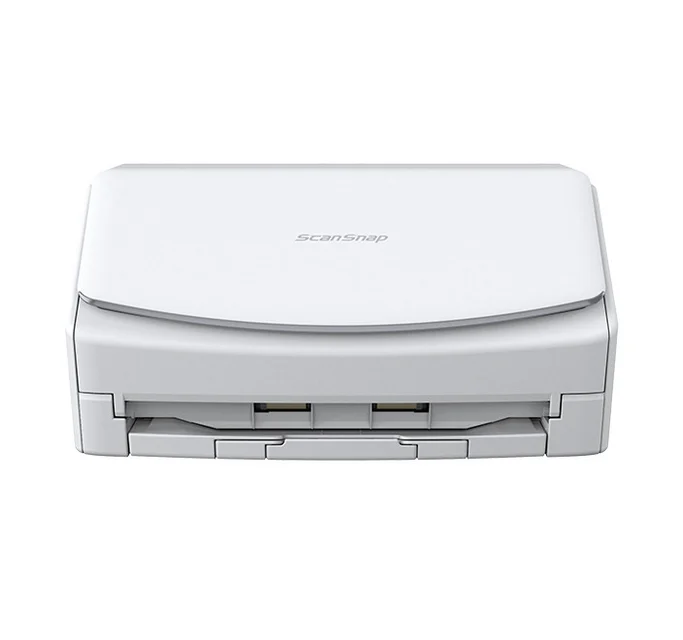
- Buy Ricoh ScanSnap iX1600 The fastest, most polished all-rounder, with a color touchscreen and genuinely easy wireless. Amazon
- Buy Epson RapidReceipt RR-600W A fast duplex scanner whose real edge is turning receipt and invoice stacks into categorized accounting data. Amazon
- It depends Brother ADS-4300N A rugged, fast workgroup scanner built around wired networking rather than Wi-Fi convenience. Amazon
- Skip Canon imageFORMULA R40 Excellent black-and-white scan quality held back by USB-only connectivity and an aging design. Amazon
What actually matters
- Duplex scanning - capturing both sides in one pass matters if you handle any contracts, statements, or forms; it saves you from manually flipping every stack.
- Automatic Document Feeder (ADF) capacity - the number of sheets the tray holds determines how large a batch you can load and walk away from; a small feeder means babysitting.
- Software and OCR - the bundled application decides whether scans become organized, searchable files or just a pile of images, and whether receipts turn into usable accounting data.
- Connectivity - Wi-Fi, Ethernet, and USB each imply a different working style; this dictates whether you can scan from mobile devices or must sit at one desk.
- Real-world throughput and reliability - sustained speed on typical documents and resistance to jams and misfeeds matter more than a headline speed rating.
- Receipt and expense handling - if your paperwork is financial, the ability to read vendor, date, and amount and export to accounting software is the whole point.
- Operating system and driver support - confirmed, current drivers for your Windows or macOS version keep an otherwise good scanner from becoming useless after an update.
The specs, in plain English
Green flags vs red flags
Green flags
- Single-pass duplex listed as standard, not an upgrade or a two-pass workaround.
- A feeder capacity that comfortably exceeds your typical batch size, plus multi-feed detection.
- Bundled software that matches your job: intelligent document sorting, or receipt OCR that exports to accounting tools.
- Wi-Fi or Ethernet if you want to scan from multiple devices or place the unit away from your desk.
- Current, actively maintained drivers listed for your exact Windows or macOS version.
- A reputation in owner reports for reliable feeding at daily volume without frequent jams.
Red flags
- USB-only connectivity when you expected to scan from a phone or share the scanner.
- A headline speed rating with no mention of how it holds up at higher resolution or in color.
- No OCR at all, leaving you with unsearchable image files.
- A dated design several years old, which often signals lagging OS and driver support.
- Paying a premium for receipt or expense features you will never use on plain documents.
- A tiny feeder that forces you to reload constantly on any real batch.
Who's who: the brands
- Ricoh (Fujitsu ScanSnap) - Makers of the ScanSnap line, widely regarded for clean scan quality, easy touchscreens, and painless wireless setup for mixed home-office paperwork.
- Epson - Broad scanner range including the RapidReceipt line, known for pairing fast document scanning with accounting-grade receipt and expense data extraction.
- Brother - Durable workgroup scanners built for shared office use, favoring wired Ethernet and broad driver support over Wi-Fi convenience.
- Canon - The imageFORMULA line, respected for strong scan quality, though some models lean on USB-only connectivity and older designs.
How to read a listing without getting fooled
Start by identifying the job: are you filing general documents or capturing receipts and invoices? That single question determines whether the bundled software is worth its price. Next, treat the pages-per-minute figure as a ceiling and read the fine print for how it behaves at 300 versus 600 dpi and in color, because that is where real-world speed lives. Check the connectivity line carefully: dual-band Wi-Fi and USB is the most flexible, Ethernet suits a shared office, and USB-only means the unit is tied to one computer with no direct mobile scanning. Confirm the feeder capacity against your typical batch, look for single-pass duplex and multi-feed detection, and finally verify that the maker lists a current driver for your specific operating system version, since older scanners often fall behind new OS releases.
How much should you spend?
Spend according to features you will actually use, not headline speed. Budget models typically cut connectivity first, arriving USB-only with no touchscreen, which is fine only if you tether to one computer and never scan from a phone. The value sweet spot for most home offices is a mid-to-upper machine with single-pass duplex, Wi-Fi, and intelligent document-sorting software, since those capabilities pay for themselves in daily convenience. Stepping up to premium is worth it when you need the cleanest scans, a color touchscreen, and truly effortless wireless, or when receipt-focused software exports structured data straight into accounting packages, which saves real time at tax season. Paying more for a faster rated speed you rarely hit, or for expense features you never touch, is where buyers most often waste money.
Questions, answered
What is duplex scanning and do I really need it?
Duplex means the scanner captures both sides of a page in a single pass, instead of making you flip the stack over. If you handle any two-sided documents such as contracts, statements, or forms, duplex roughly halves your scanning time, so for most buyers it is well worth having.
What is the difference between a document scanner and a receipt scanner?
The hardware is often nearly identical; the difference is the software. A general document scanner organizes and files pages and makes them searchable, while a receipt-focused scanner adds OCR that reads the vendor, date, and amount from each receipt, categorizes it, and exports the data to accounting tools like spreadsheets or bookkeeping software. Buy the receipt type only if your paperwork is genuinely financial.
Do I need Wi-Fi, or is a USB scanner fine?
It depends on how you work. Wi-Fi models let you scan directly to a phone, tablet, or cloud folder and place the scanner anywhere. Ethernet models suit a shared office. A USB-only scanner must stay tethered to one computer and cannot scan directly to mobile devices. If you want flexibility in placement or to scan from multiple devices, choose a wireless or networked model.
How fast are these scanners in real use?
Rated speeds commonly cluster around 35 to 40 pages per minute in duplex, but that is a best-case figure. Real-world throughput drops at high resolution, in color, or with mixed paper sizes. Treat the headline number as a ceiling and expect somewhat less on typical mixed documents.
Will a scanner work with both Windows and Mac?
Most current models support both current Windows and macOS, and wireless units usually add mobile apps for iOS and Android. Before buying, confirm the manufacturer lists a driver for your specific operating system version, since older scanners occasionally lag behind the newest OS releases and can lose functionality after an update.
What resolution (dpi) should I scan at?
For everyday documents, around 300 dpi produces crisp, searchable results with manageable file sizes and full speed. Higher settings such as 600 dpi capture more detail but scan noticeably slower and create larger files, so reserve them for photos, fine print, or archival work where the extra detail genuinely matters.
Or jump to the head-to-head: Ricoh ScanSnap iX1600 vs Epson RapidReceipt RR-600W.