Explained
College Laptops, Explained
After reading this, you'll know how to pick a laptop that's still working at graduation, not just impressive in the first week.
In this guide
Shopping for a college laptop is where 'back-to-school' marketing collides with reality: the thin, shiny machine that looks like a bargain in August often feels like a mistake by sophomore year. The real question isn't which laptop wins a spec-sheet contest today, but which one still works, still holds a charge, and can still be fixed when you need it in your senior year. This guide decodes the jargon so you can buy once and buy right.
The 30-second version
- Buy for the four-year finish line, not the first-week price tag — the best college laptop is the one still working at graduation.
- Set a spec floor of 16GB RAM and a 512GB SSD; it's the single most important call, because memory and storage are what age a laptop out first.
- Upgradeable beats soldered: a machine whose RAM or SSD you can add to or replace later stays useful — and cheap to fix — for years longer.
- Business-class laptops genuinely tend to outlast thin consumer ultrabooks, thanks to sturdier chassis, spill-resistant keyboards, and easier service.
- Match the operating system to your actual coursework, because some major-specific software only runs on one platform.
The products this guide is about
Our verdict on each, with the full reasoning on the companion review.
- Buy Dell Pro 14 Premium A rugged, serviceable business 14-incher — the durability-first pick that still feels solid in senior year. Amazon
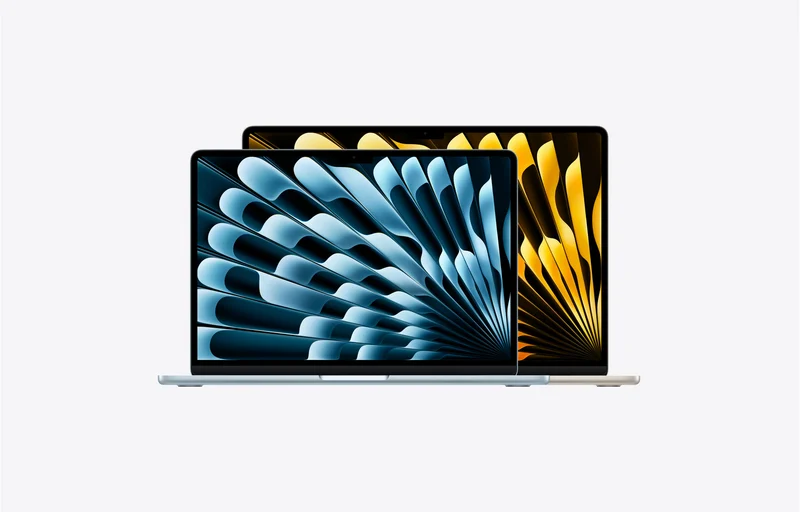
- Buy Apple MacBook Air 13-inch (M5) The effortless all-rounder — superb battery, display, and longevity, if your coursework lives on macOS. Amazon
- It depends ASUS Zenbook 14 OLED A gorgeous, light OLED ultrabook — great if you value the screen more than long-term upgradeability.
- Skip Dell 14 (DB14250) A fine budget machine that becomes a false economy — the consumer 'student special' we'd pass on for a four-year laptop.
What actually matters
- RAM and storage floor — 16GB of memory and a 512GB drive keep a machine comfortable through four years of browser tabs, video calls, and coursework apps running at once; skimping here is what makes a laptop feel slow and full by junior year.
- Upgradeability and repairability — whether you can add RAM, swap the SSD, or replace a battery decides if a problem is a cheap fix or a reason to buy a whole new laptop. Socketed, serviceable designs win over sealed, soldered ones for longevity.
- Build quality and durability — a rigid chassis and a spill-resistant keyboard are cheap insurance for a machine that lives in a backpack and gets used in dorms and coffee shops every day.
- Operating-system fit — the platform has to run the software your program requires; picking the wrong one means fighting workarounds for four years.
- All-day battery life — enough charge to get through back-to-back classes without hunting for an outlet is worth more than raw speed for most students.
- Display comfort — you'll read on this screen for hours, so brightness and a comfortable panel matter more than flashy specs.
- Weight, ports, and service — you carry it all day, so weight counts; a mix of ports saves dongles; and real warranty and parts availability decide whether a repair is even possible.
The specs, in plain English
Green flags vs red flags
Green flags
- Ships with, or lets you configure, at least 16GB RAM and a 512GB SSD
- Has a user-replaceable SSD (and ideally RAM) so you can upgrade or repair later
- A sturdy, business-class or well-reviewed chassis, ideally with a spill-resistant keyboard
- Strong battery life that gets through a full day of classes
- Good parts availability and a real warranty, with optional accidental-damage coverage
- Runs the specific software your major requires natively, without workarounds
Red flags
- A base model with 8GB RAM or a 256GB drive marketed as a 'student special'
- Everything soldered on a cheap configuration you're expected to live with for years
- Marketing that leads with 'thin and light' while staying quiet about durability or service
- No clear warranty terms, poor parts availability, or a design known to be hard to open
- A dim or low-quality display you'll be squinting at for hours of reading
- Buying the cheapest machine you can find purely on sticker price, ignoring four-year cost
Who's who: the brands
- Dell - Runs both a durable, serviceable business line and a cheaper consumer line — the gap between them is the whole durability argument in one brand.
- Lenovo - Its ThinkPad business laptops are the archetypal upgradeable, rugged workhorses, alongside more consumer-focused everyday lines.
- HP - Pairs a business-class lineup built for fleet durability and service with mainstream consumer models.
- Apple - Known for long-lasting, low-maintenance laptops with excellent battery and displays, but with fixed, non-upgradeable memory and storage.
- ASUS - Popular for thin, light ultrabooks with standout displays, typically consumer-grade rather than built for self-service.
- Framework - Built specifically to be opened, upgraded, and repaired part by part — the pick when maximum repairability is the goal.
How to read a listing without getting fooled
Start at the two numbers that matter most: RAM and storage. If a listing leads with a low price but only mentions 8GB of memory or a 256GB drive, that's the trap — check whether you can configure it higher, and whether those parts are soldered or socketed, because soldered means what you buy is what you're stuck with forever. Next, figure out which product family you're looking at: many makers sell a durable business line and a cheaper consumer line under similar-sounding names, and the sturdier one is usually the better four-year value even though it costs more up front. Treat generous battery numbers as a best case, not a guarantee, and look past 'thin and light' language to find what the listing says about build, keyboard spill resistance, warranty, and parts availability. Finally, confirm the operating system actually runs the specific software your program requires — that single fact can decide the whole purchase.
How much should you spend?
Think in terms of cost over four years, not the sticker on day one. The cheapest consumer 'student' laptop often looks like a bargain in August and turns into a false economy by sophomore year — flimsier build, weaker support, and shorter practical life — so a sturdier machine or a well-specced mainstream laptop bought once frequently costs less across a whole degree than a cheap one replaced early. The value sweet spot is spending enough to clear the 16GB RAM and 512GB SSD floor on a well-built, serviceable machine, rather than chasing either the rock-bottom price or the flashiest premium extras. Spending more is worth it when it buys durability, upgradeability, and real service; it stops being worth it when you're paying for thinness, styling, or headline specs you won't use. If budget is a hard limit, buy with clear eyes and plan to replace the machine sooner. This is general guidance, not financial advice — weigh it against your own situation.
Questions, answered
How much RAM and storage does a college laptop really need?
Treat 16GB of RAM and a 512GB SSD as the floor for a machine meant to last four years. 8GB feels cramped fast once you have browser tabs, a video call, and coursework apps open together, and 256GB fills up quickly as projects and media accumulate. On laptops with soldered memory, you can't add this later, so buy the right configuration at checkout rather than the cheapest base model.
Are business-class laptops actually more durable than consumer ones?
As a general pattern, yes. Business lines are designed for organizations that need machines to survive years of daily handling, so they tend to use sturdier chassis, spill-resistant keyboards, easier-to-service internals, and longer parts availability. Owner reports suggest they're often easier to repair and keep running than thin consumer machines. It's a tendency, not a guarantee, but it's why durability-first shoppers gravitate to them.
Which operating system should I choose?
Match it to your coursework. Windows is the safe pick if your program relies on major-specific software — many business-analytics, engineering, statistics, and CAD tools are Windows-only. macOS is excellent for writing, coding, and general study, but running Windows-only apps on it means using a virtual machine or your school's remote lab, which is fine occasionally but tedious daily. Lightweight, browser-based platforms like Chromebooks can work for light use, but check they run everything your classes require before committing.
Is upgradeable RAM or storage worth caring about?
It's one of the biggest levers on how long a laptop stays useful and how cheaply you can fix it. A socketed SSD lets you add storage or replace a failed drive for the price of a part instead of a whole new laptop, and upgradeable RAM lets you extend a machine's life years later. Soldered-everything designs remove that option, which is why you should buy enough memory and storage up front on those models and favor serviceable machines when longevity is the goal.
Should I just buy the cheapest 'student' laptop I can find?
Usually not. The cheapest consumer 'student special' often looks like a bargain in August and becomes a false economy by sophomore year — flimsier build, dimmer display, weaker support, and shorter practical life. Across four years, a sturdier machine or a well-specced mainstream laptop bought once tends to cost less than a cheap laptop replaced early. If budget is a hard limit, buy with clear eyes and plan to replace sooner.
Do I need accidental-damage coverage or a warranty?
For a machine that gets carried everywhere and used daily, it's worth considering. A standard warranty covers defects, while optional accidental-damage coverage adds protection for the spills and drops that actually happen in student life. Weigh the cost against the machine's price and how you'll use it — and remember that a laptop with good parts availability and easy service is cheaper to fix either way.
Or jump to the head-to-head: Apple MacBook Air 13-inch (M5) vs Dell Pro 14 Premium.