Explained
Monitor Stands, Explained
After reading this you'll know exactly what makes a monitor stand sturdy, ergonomic and worth the desk space, and how to avoid the pretty ones that do less.
In this guide
A monitor stand or riser has one simple job: lift your screen to eye level and hand back the desk space underneath it. It sounds trivial, but this is a category where a wobbly, over-priced slab is easy to buy by mistake. The things that trip people up are footprint (will it actually fit your monitor?), stability under load, and paying flagship money for looks alone.
The 30-second version
- Stability is everything. A stand that flexes or wobbles under your monitor is worse than no stand at all, so build material matters more than looks.
- Match the width to your setup. Compact risers suit a single small screen, while ultrawide or dual monitors need a deliberately wide platform.
- Decide what the space underneath is for. Open clearance, a hidden second tier or an integrated tray all beat a plain slab if cutting clutter is your goal.
- Almost all are fixed-height. If you need to fine-tune ergonomics, a monitor arm gives adjustment a stand can't.
- Be skeptical of built-in USB. Cheap USB-hub risers often use slow, unreliable ports, so a great stand plus a proper dock usually wins.
The products this guide is about
Our verdict on each, with the full reasoning on the companion review.
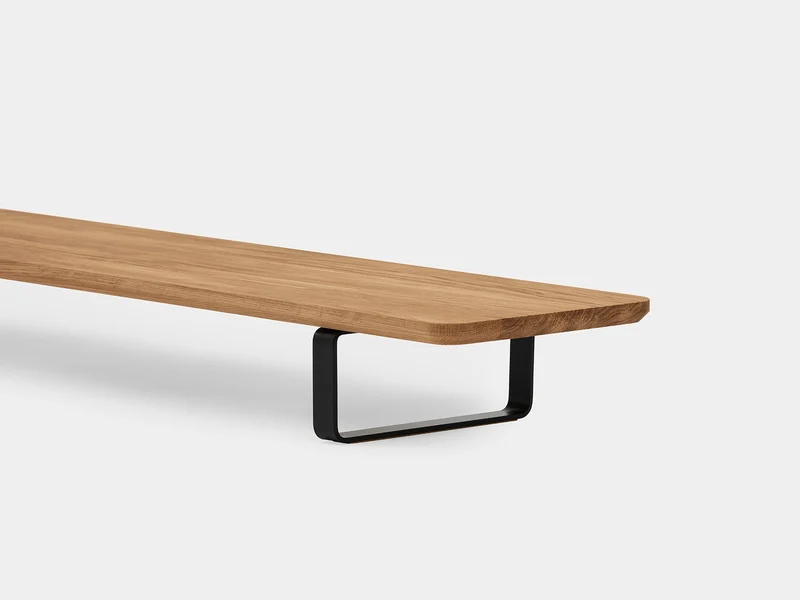
- Buy Oakywood Desk Shelf A wide, genuinely premium solid-wood shelf that turns the space under your monitor into usable storage.
- Buy Branch Monitor Stand A clamp-on steel shelf that floats your monitor over the desk edge and hides a second storage tier underneath. Amazon
- It depends Ugmonk Gather Small Monitor Stand A beautifully made steel-and-walnut riser with an integrated tray, if your setup is compact enough to suit it.
- Skip Grovemade Wood Monitor Stand Genuinely gorgeous bent-wood design, but you pay flagship money for a plain slab with no storage and no USB.
What actually matters
- Stability under load - the whole point is a rock-solid platform. Steel and solid wood resist flex and wobble far better than thin particleboard or tempered glass, which owners complain about most.
- Footprint and width - a stand only helps if your monitor's base actually fits on it. Wide shelves span ultrawide and dual setups; compact risers are for a single small screen.
- Clearance and storage - the height of the gap underneath decides whether you can slide a keyboard, laptop or notebooks out of sight and truly reclaim the desk.
- Height and ergonomics - the top of your screen should sit at roughly eye level. Since most stands are fixed-height, confirm the lift lands you there before buying.
- Load rating - every stand has a weight limit. Large or heavy displays need a high, honest rating with no sag, so always check it against your monitor's weight.
- Mounting type - freestanding stands work on any desk but occupy the surface; clamp-on shelves free the desk but need a compatible edge.
- Build and finish - solid wood and powder-coated steel feel premium and last; veneer over particleboard and glass are where quality and durability drop off.
The specs, in plain English
Green flags vs red flags
Green flags
- Solid wood or powder-coated steel construction with a high, clearly stated load rating
- A platform width that comfortably spans your actual monitor base (or dual bases)
- Enough clearance underneath to tuck a keyboard, laptop or notebooks out of sight
- A felt or padded top that protects the monitor foot and prevents sliding
- A stated, sensible desk-edge thickness range if it's a clamp-on design
Red flags
- Thin tempered glass or particleboard tops, where owners most often report sagging or cracking
- No load rating listed, or a vague one that doesn't match a heavy display
- A narrow top marketed for 'any setup' that clearly won't span an ultrawide or dual monitors
- A cheap all-in-one built-in USB hub as the headline feature (often slow and flaky)
- Flagship pricing for a plain slab with no storage, cable management or adjustability
Who's who: the brands
- Oakywood - Poland-based maker of premium solid oak and walnut desk shelves on steel legs; wide, sturdy and design-led.
- Branch - Office-furniture brand known for a clever clamp-on steel monitor stand that floats over the desk edge with hidden storage.
- Ugmonk - Small US design studio whose Gather system pairs steel with walnut and an integrated tray.
- Grovemade - US maker famous for beautiful bent-wood desk objects; gorgeous but priced at the flagship end for what they do.
How to read a listing without getting fooled
Start with the numbers listings tend to bury: the exact top dimensions and the load rating. Measure your monitor's base (or the combined footprint of a dual setup) and make sure the platform is genuinely wider, not just 'fits most.' Treat the weight capacity as a hard limit and leave headroom for a heavy display. Read the material description literally, 'solid oak' is not the same as 'oak finish' over MDF, and glass or particleboard is where durability complaints cluster. If it's a clamp-on, check the supported desk-edge thickness and that your edge is clear. Finally, don't be seduced by a built-in USB hub in the headline; scroll for the actual clearance height and any storage tier, because that's what decides whether the stand really tidies your desk.
How much should you spend?
You're mostly paying for materials, width and clever storage, not technology, so spend where those matter to you. A solid, well-built steel or solid-wood stand that won't wobble is worth stepping up from the cheapest glass and particleboard options, which are the ones owners most often return. The value sweet spot is a sturdy stand that also gives back real desk space, through open clearance, a hidden tier or a tray, rather than a plain slab. Spending more makes sense when you need genuine width for an ultrawide or dual monitors, or when premium wood and finish are part of the look you want. Spending more is not worth it when you're paying flagship money purely for aesthetics on a fixed-height platform that stores nothing; a mid-range design usually does more for the money.
Questions, answered
Does a monitor stand actually help my posture?
Indirectly, yes. Raising the top of your screen to roughly eye level stops you hunching down to look at it, a common cause of neck and upper-back strain. The trick is height: aim for the top third of the display level with your eyes. This is general information, not medical advice, so if you have ongoing pain, check with a professional. If a fixed-height stand doesn't land you at eye level, an adjustable monitor arm may suit you better.
Monitor stand or monitor arm, which should I get?
A stand or desktop shelf is simpler, cheaper, needs no clamping know-how and often adds storage underneath, but the height is fixed. An arm floats the screen with full height, tilt and depth adjustment and frees the most surface area, at a higher price and a slightly more involved install. Choose a stand for storage and simplicity; choose an arm for fine ergonomic control.
Will a stand fit my ultrawide or dual-monitor setup?
Only if it's wide enough, so measure first. Wide, deliberately oversized shelves are built to span an ultrawide or two monitors, while compact risers are sized for a single, smaller screen. Measure your monitor's base (or the combined footprint of both) and make sure the platform is clearly wider before buying.
Are monitor stands with a built-in USB hub worth it?
Sometimes, but be careful. Many budget USB-hub risers use older, slower USB and become an unreliable weak link, and owners often report flaky connections on the cheapest ones. If dependable, fast ports matter, a great stand paired with a dedicated dock or hub usually beats an all-in-one that compromises on both.
How much weight can a monitor stand hold?
It varies widely, so always check the rating against your monitor's weight and leave some headroom. Solid-wood and steel stands tend to offer the most reassuring load ratings for heavy or large displays. Thin glass or particleboard stands are where owners most often report sagging or cracking under load.
Clamp-on or freestanding, which is better?
It depends on your desk. Clamp-on stands grip the front edge and float the shelf, freeing the desk surface entirely, ideal for small or cluttered desks, but they need a compatible, unobstructed edge of the right thickness. Freestanding stands work on any desk but occupy the surface they sit on.
Or jump to the head-to-head: Oakywood Desk Shelf vs Branch Monitor Stand.